Setting OSD display
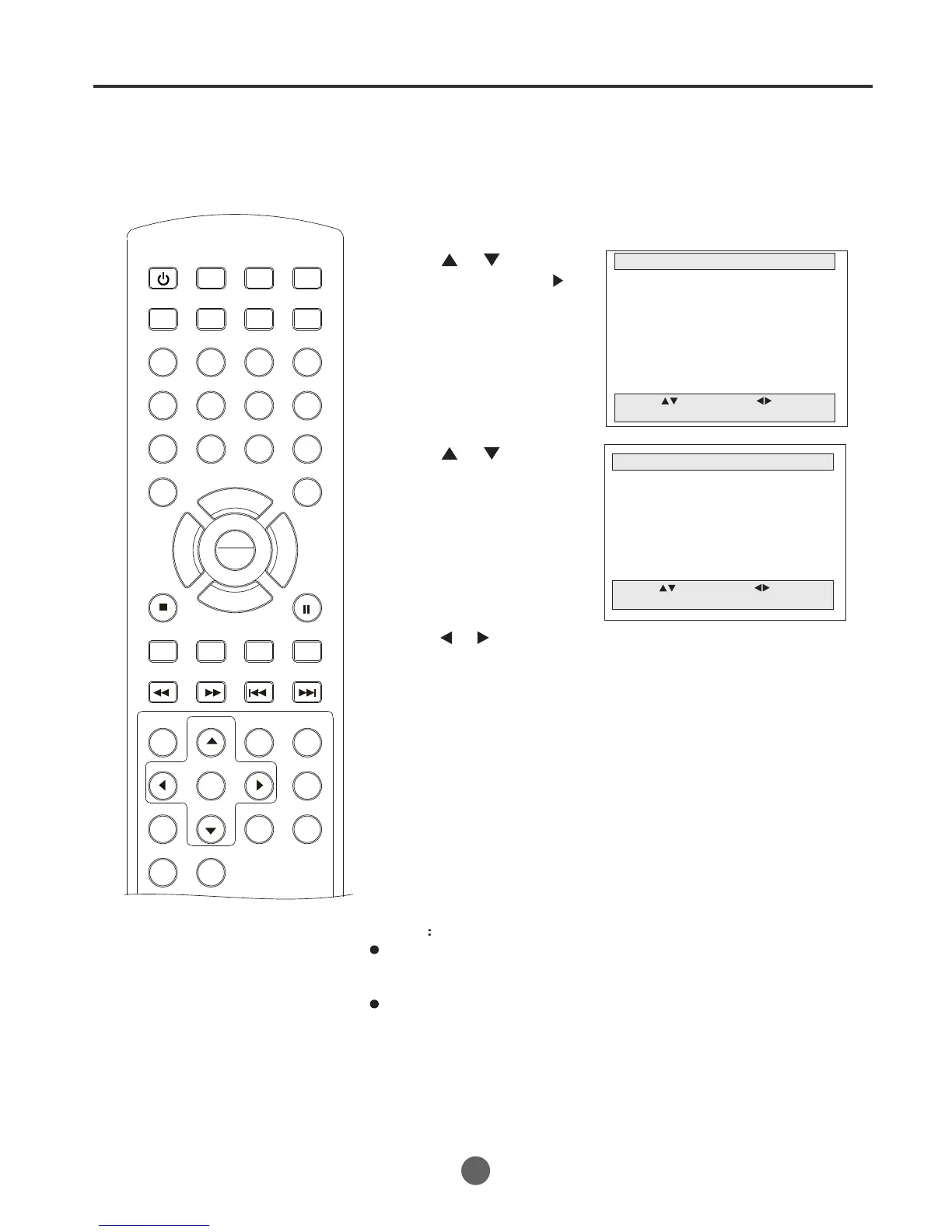
1 Press MENU. The main menu screen will appear.
MAIN MENU
Picture
Sound
Clock set
Program Set
Channel Set
Language Select
Search
Option
Move: Select:
Quit:MENU
2 Press or to select
Option, then press to
enter the submenu.
5 Press MENU until the MENU screen disappears.
OPTION
OSD Display On
Auto Power Off No
Closed Caption Off
Parental Control
Timer
Move: Select:
Quit:MENU
3 Press or to select
OSD Display.
4 Press or to set as
"On" or "Off".
SEARCH
PICT
OPEN/CLOSEPOWER DVD/TV
CLEAR
SLEEP
DISPLAY SP/SLP
1 2 3
765
9 0
8
CH+
CH-
V- V+
MUTE
10+ REC
PAUSE/STEP
STOP
INPUT
D.MENU REPEAT
TITLE/PBC
MENU
ZOOM
SETUP
ANGLE
SLOW
A-B
AUDIO
SUBTITLEPROGRAM
D.CALL
REV FWD
PREV NEXT
4
SETTING OSD DISPLAY
13
NOTE
If the OSD Display item is setting as off, there will be no OSD
on the screen when you press "INPUT"or change the TV
channel.
After a power failure or disconnection of the power, the OSD
settings will resume the setting as ON automatically.
PLAY
ENTER


 To Next Page