Subtitles
Turning the Subtitles On and Off.
When playing back a disc recorded with subtitles, you can turn the
subtitles on or off.
Changing soundtrack language / subtitles
Changing soundtrack language
You can select the language when you play a multilingual disc.
48
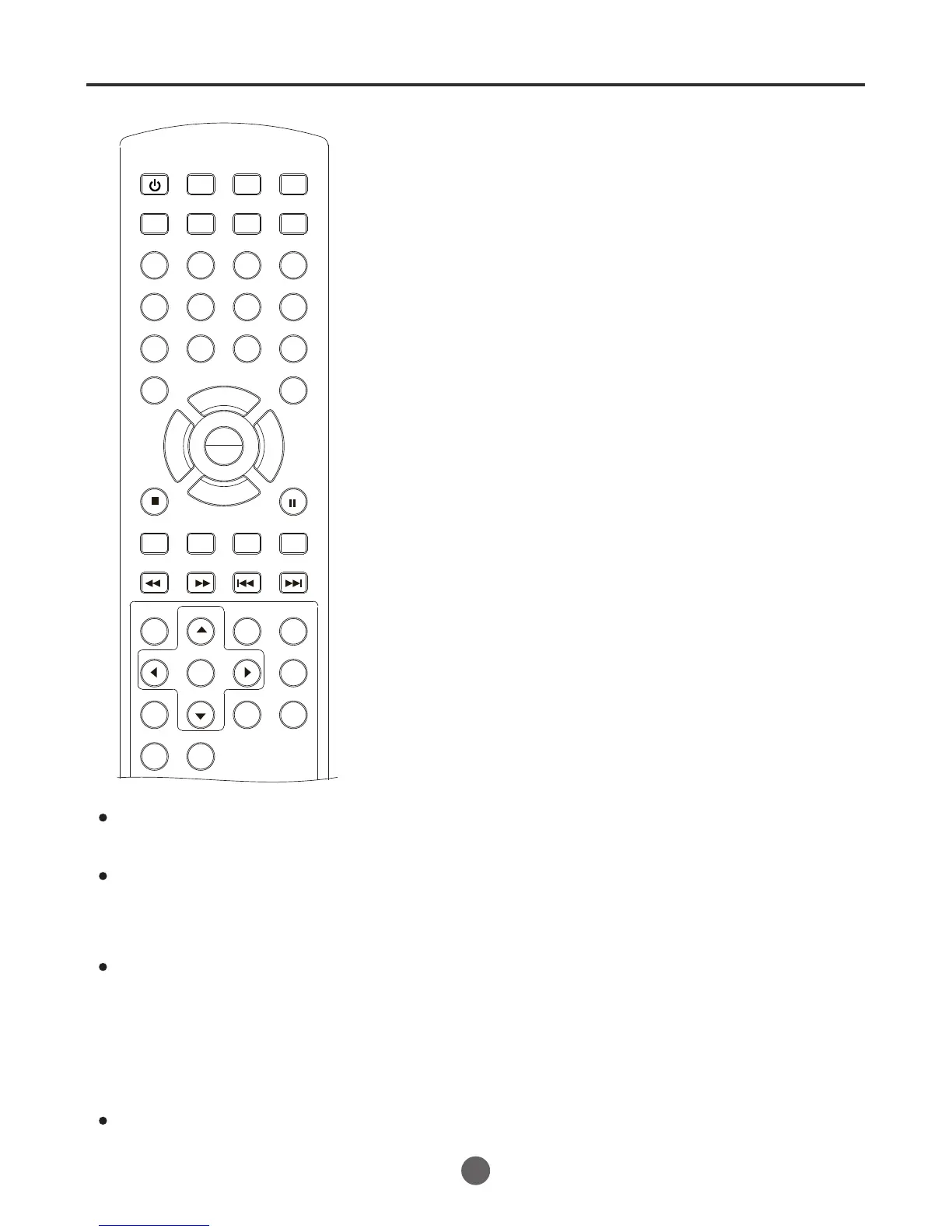
SEARCH
PICT
OPEN/CLOSEPOWER DVD/TV
CLEAR
SLEEP
DISPLAY SP/SLP
1 2 3
765
9 0
8
CH+
CH-
V- V+
MUTE
10+ REC
PAUSE/STEP
STOP
INPUT
D.MENU REPEAT
TITLE/PBC
MENU
ZOOM
SETUP
ANGLE
SLOW
A-B
AUDIO
SUBTITLEPROGRAM
D.CALL
REV FWD
PREV NEXT
4
1 Press AUDIO during
playback.
The current soundtrack
language will appear.
2 Press AUDIO repeatedly
until the desired language
is selected.
The on-screen display will
disappear after a few
seconds.
Press SUBTITLE during
playback until "Off" appears.
Changing the subtitle language
You can select the language when playing back a disc
recorded with multi-lingual subtitles.
1 Press SUBTITLE repeatedly during playback until your
desired language appears.
2 The on-screen display will disappear after a few seconds.
NOTES:
If the desired language is not heard
after pressing AUDIO several times,
the language is not recorded on the
disc.
Changing soundtrack language may be
cancelled
when you open the disc tray. Theinitial
default language or available language
will be heard if the disc is played back
again.
Changing subtitle language is cancelled
when you open the disc tray or turn the
power off.
Some functions may not work on some
DVD. You may not be able to turn
subtitles on or off or change subtitles.
While playing the DVD, the subtitle may
change when:
- you open or close the disc tray
- you change the title.
In some cases, the subtitle language is
not changed to the selected one
immediately.
PLAY
ENTER


 To Next Page