Manual clock setting
You must set the date and time
manually for Timer Recordings, ON/
OFF Timer.
After a power failure or disconnection of the power, the
date and time will get lost. In this case, reset the preset
time.
NOTE:
EXAMPLE: Setting the clock to "8:30 AM"
April, 15
(Sun), 2006.
SEARCH
PICT
OPEN/CLOSEPOWER DVD/TV
CLEAR
SLEEP
DISPLAY SP/SLP
1 2 3
765
9 0
8
CH+
CH-
V- V+
MUTE
10+ REC
PAUSE/STEP
STOP
INPUT
D.MENU REPEAT
TITLE/PBC
MENU
ZOOM
SETUP
ANGLE
SLOW
A-B
AUDIO
SUBTITLEPROGRAM
D.CALL
REV FWD
PREV NEXT
4
TO SET CLOCK
CLOCK SET
Date Time
04/15/2006 Sun 08:30 AM
(mm/dd/yy) (hh:mm)
Move: Input:
Quit: MENU
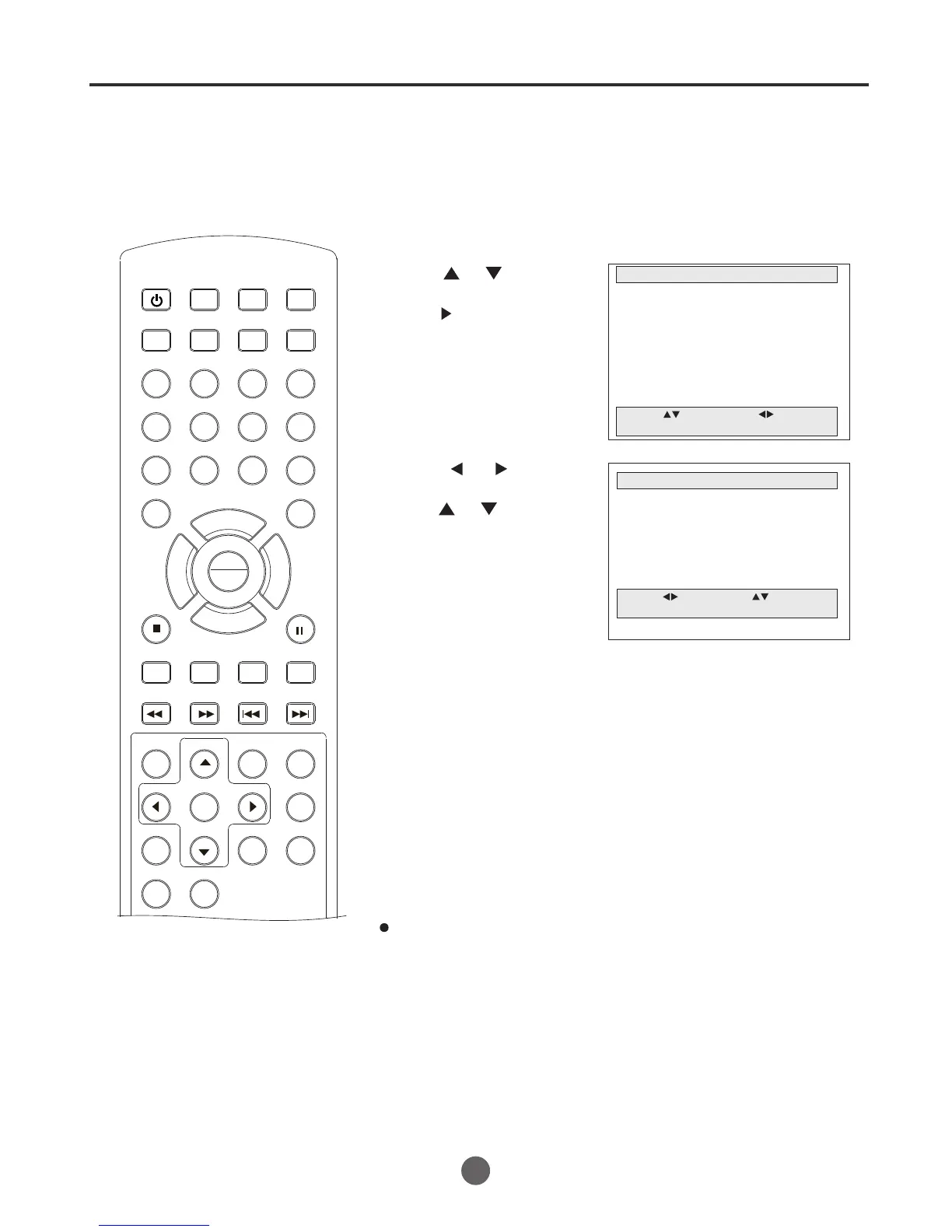
1 Press MENU. The main menu screen will appear.
MAIN MENU
Picture
Sound
Clock Set
Program Set
Channel Set
Language Select
Search
Option
Move: Select:
Quit: MENU
2 Press or to
select Clock Set, then
press to enter the
submenu.
3 Press or to select
the desired item, then
press or to input
the value.
4 Press MENU until the MENU screen disappears.
5
press DISPLAY button on
the remote control, the date and time will appear on
the bottom of the screen.
After setting the clock, date and time starts functioning
automatically. In this case,
14
Note:
You can also press the digits
(0-9) button to set the time or
date. If your setting is wrong,
there will appear "?" on the
screen.
PLAY
ENTER


 To Next Page