Setting auto power off
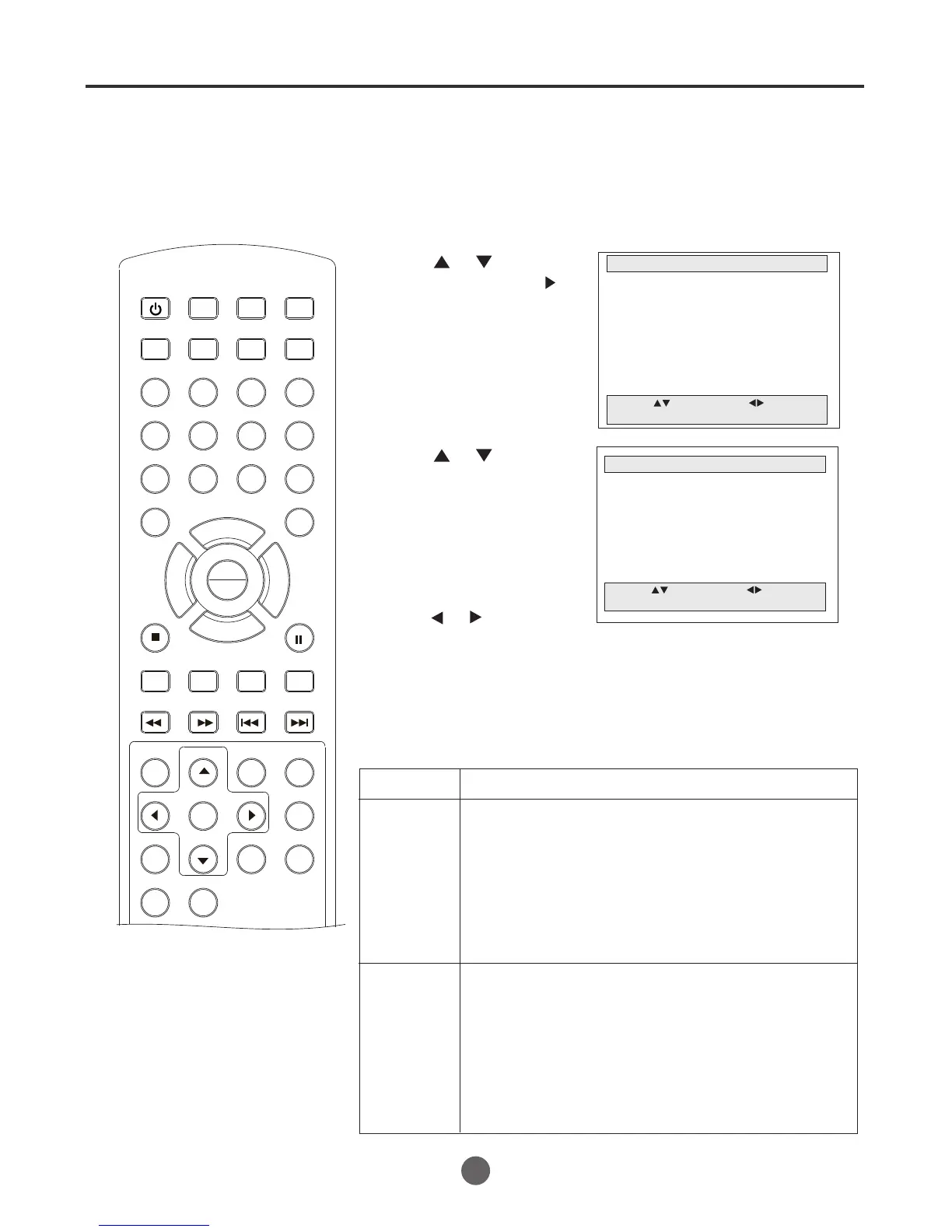
1 Press MENU. The main menu screen will appear.
MAIN MENU
Picture
Sound
Clock set
Program Set
Channel Set
Language Select
Search
Option
Move: Select:
Quit: MENU
2 Press or to select
Option, then press to
enter the submenu.
5 Press MENU until the MENU screen disappears.
OPTION
OSD Display On
Auto Power Off No
Closed Caption Off
Parent Control
Timer
Move: Select:
Quit: MENU
3 Press or to select
Auto Power Off.
4 Press or to set as
"No" or "Yes".
SEARCH
PICT
OPEN/CLOSEPOWER DVD/TV
CLEAR
SLEEP
DISPLAY SP/SLP
1 2 3
765
9 0
8
CH+
CH-
V- V+
MUTE
10+ REC
PAUSE/STEP
STOP
INPUT
D.MENU REPEAT
TITLE/PBC
MENU
ZOOM
SETUP
ANGLE
SLOW
A-B
AUDIO
SUBTITLEPROGRAM
D.CALL
REV FWD
PREV NEXT
4
SETTING AUTO POWER OFF
39
Setting Effect
YES 1) Recordable Tape (with safety tab)
If a tape encounters the end point during
playback, the VCR will rewind a tape
automatically. Then the power is off.
2) Non-Recordable Tape (without safety tab)
If a tape encounters the end point during playback,
the VCR will rewind a tape automatically. Then the
power is off and a tape has been ejected.
NO(default) 1) Recordable Tape (with safety tab)
If a tape encounters the end point during playback,
the VCR will rewind a tape automatically. The VCR
remains Stop mode.
2) Non-Recordable Tape (without safety tab)
If a tape encounters the end point during playback,
the VCR will rewind a tape automatically. A tape has
been ejected and then the VCR remains power-on
mode.
Under the VCR play mode, When the
tape goes to the end, you can let the
set go to standby state automatically
by setting the auto power off.
NOTE:
After a power failure or disconnection
of the power, the setting of auto power
off will not be saved.
PLAY
ENTER


 To Next Page