Configuring your Mailing System
139
9
Automatic Date Advance
The Auto Date -Advance function automatically proposes, at a preset time, to change
the date printed on mail pieces to the next 'working day' date.
Example : you can set the system to change dates at 17:00 hours, and set Saturdays
and Sundays to be non-working days. From Friday 17:00 hours to Sunday 23:59, the
system will automatically print Monday's date on the envelopes (after a confirmation
message to the user; if the change is not confirmed and printing maintained, current
date is printed).
How to Set the Automatic Date Advance Function
How to Set the
Automatic Date
Advance
Function
To select auto date-advance time and days:
1 As supervisor (see
How to Log in as Supervisor
p.124 ):
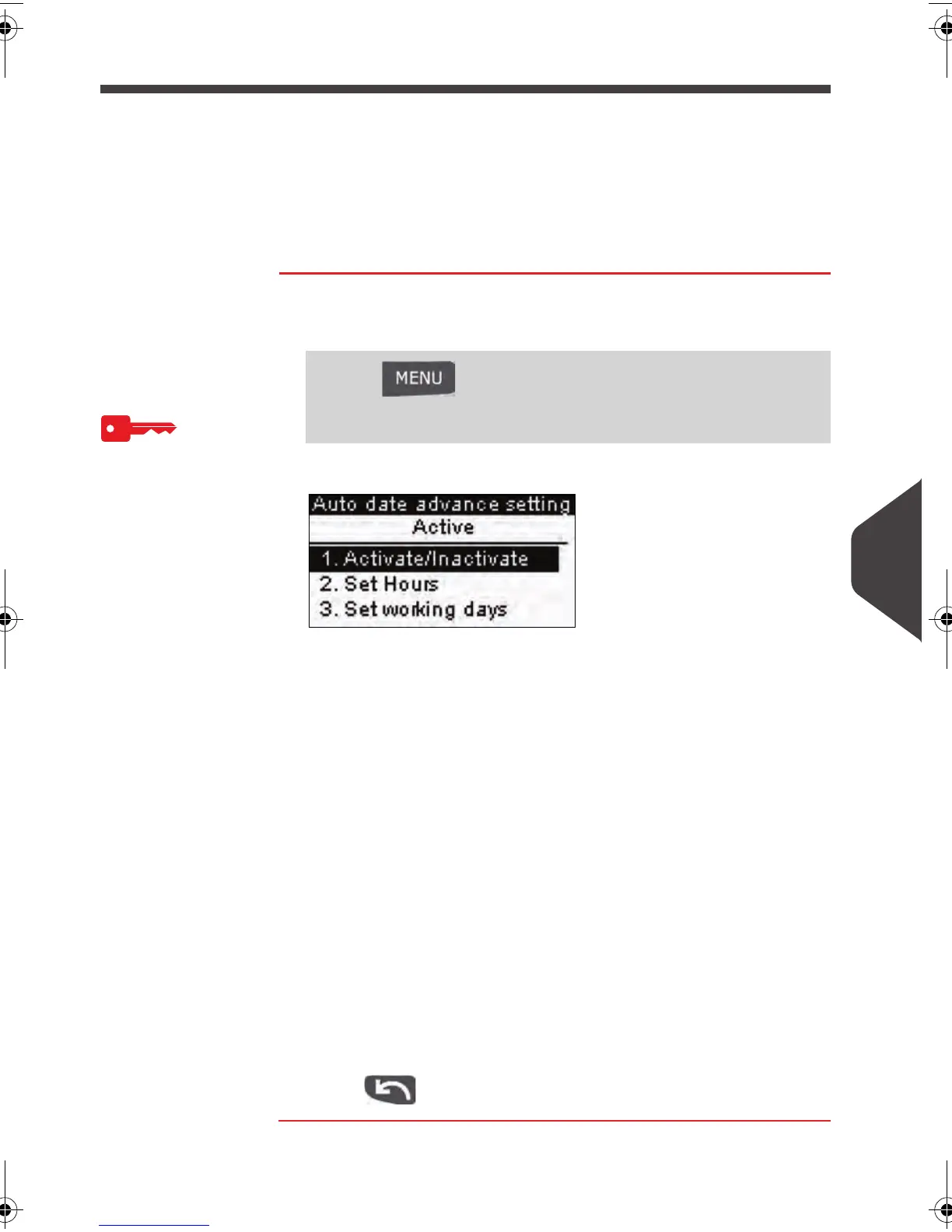
The
Automatic date advance setting
screen is displayed.
The second line of the screen indicates whether the function
is active or not.
2 To change the function state, press [OK] or type 1 to access
the Activate/Inactivate
screen and change the function state.
Select
ON
and press [OK] to enable the Auto Date-Advance
function.
3 To set the changing time, select
Set hours
and press [OK]
(or type
2 ).
4 Enter the Automatic Date-Advance time (00:00 hours is not
allowed) and press [OK] .
5 To set working days, select
Set working days
and press [OK]
(or type
3 ).
6 Select or deselect each day by pressing [OK] and using the
up/down arrows.
7 Press to validate and exit.
Press and type 3.3.4 or select the path:
> Default user settings > Default imprint parameters >
Automatic date advance
ALPHA1_US.book Page 139 Mardi, 3. mai 2011 2:23 14



 To Next Page