Operating Instructions • AT2000 CPK • 07-2019 • v03 • 106-29004
Settings in the main menu
15
8 Settings in the main menu
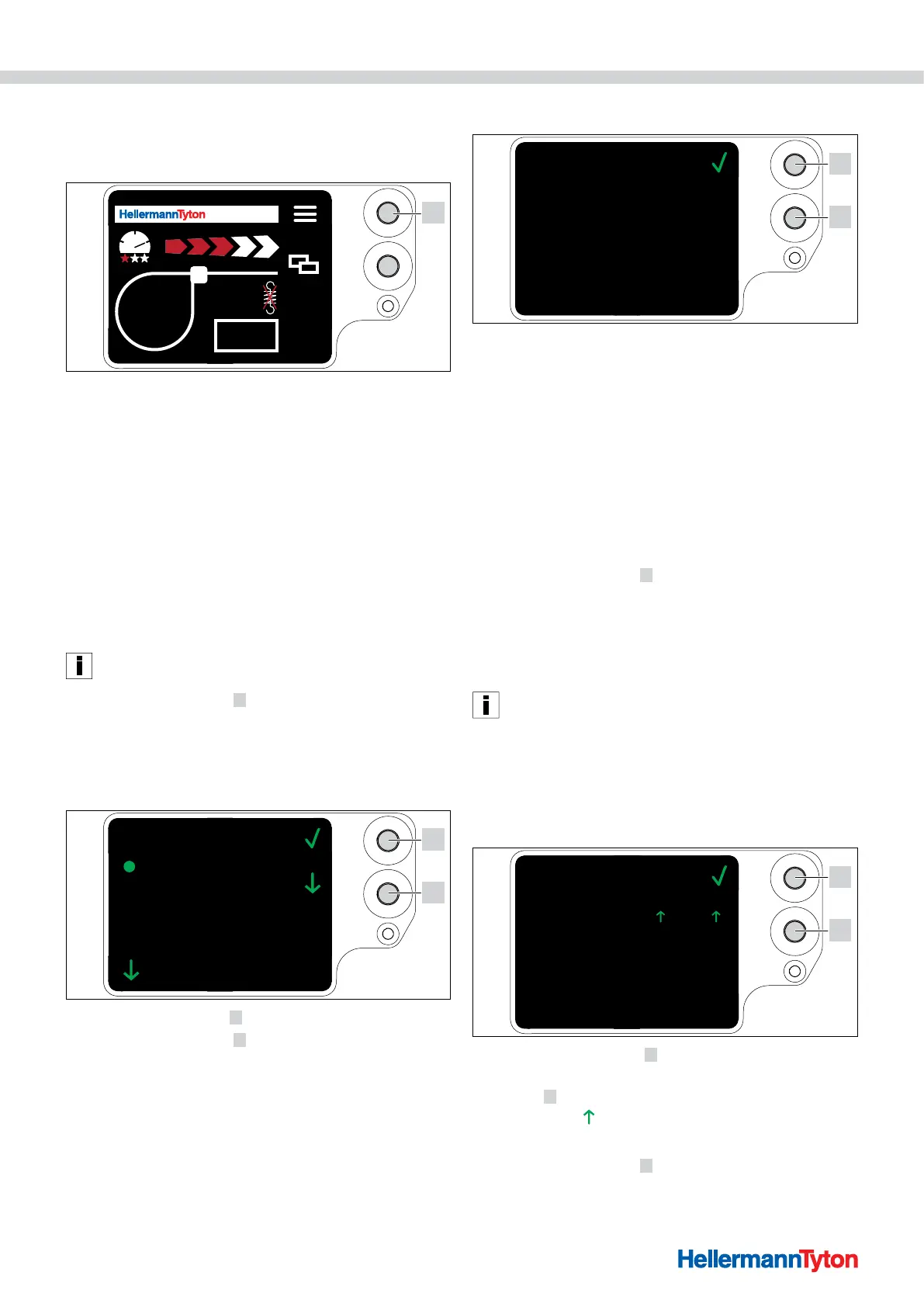
After switching on the AT2000 CPK at the connected
power pack, the start screen appears on the display.
AT 2000 CPK
001
1
1 Enter button to confirm a selection in the navigation menu and increment switch
for display menu settings
The main menu in the AT2000 CPK enables the
configuration of additional device functions.
The menu covers:
• Languages settings in the display, à"Languages menu"
on page15
• Device status, e.g. counter reading of the bindings or
firmware version, à"Status menu" on page15
• Settings, e.g. date / time, à"Settings menu" on
page15
• Contact, à"Contact menu" on page16
Bindings cannot be triggered while you are navigating in the
main menu. The Signal LED on the power pack shows blue.
f Press the Enter button 1 .
; The Main menu appears on the display.
8.1 Languages menu
You use the Languages menu to select the language for
the displays.
English
Deutsch
Français
Español
Portuguese
Italiano
Dutch
Languages
1
2
f Use the Select button 2 to select the language.
f Press the Enter button
1 .
; The display switches to the language you selected.
; The Main menu appears on the display.
8.2 Status menu
00000005
1.70/ 8/ 3
01:11
00000013
28
06/02/2019
58
0000000
Counter reading
Tool software
Power-pack SW
Serial number
Temperature
Last service
Humidity
Cntr.rdng.lastSer
Status
1
2
The Status menu shows you the following status readings:
• Counter reading
• Software version of the AT2000 CPK and an index
number for the language version
• Software version of the power pack
• Serial number of the tool
• Ambient temperature and humidity
• Date of last service
• Counter reading at last service
f Press the Enter button
1 .
; The Main menu appears on the display.
8.3 Settings menu
You use the Settings menu to set important parameters
of the AT2000 CPK.
Access to the Settings menu is protected by a three-digit
access code that can be changed in the HT Data
Management software, à"Changing the access code in the
AT2000 CPK" on page20. The default access code is 000.
f Use the Select button in the Main menu to select the
Settings menu.
f Press the Enter button.
; The prompt for the access code appears on the display.
000Access code
Settings
1
2
f Press the Select button 2 .
f After reaching the desired number, press the Enter
button
1 .
; The selection
jumps forward one digit.
f Repeat the setting until the desired access code is set.
f Press the Enter button
1 .
; The Settings menu appears on the display.



 To Next Page