SecurView DX Workstation V12.0 Quality Control Manual
Chapter 4: Testing the Displays
Page 16 MAN-09466 Revision 001
4.3.1 Reconnecting the Photometer Sensor
The Barco photometer sensor is USB-port-specific and does not function if inserted into a
different USB port than the one originally used when installed. After installation, there
should be no need to remove the sensor from the original USB port. If the photometer is
not connected to its USB port, then reconnect it as described here.
1. Log into Windows as Administrator.
2. Plug the Barco photometer sensor into an open USB port.
• If a login prompt asks you to log into an account that is part of the
Administrators group, select Cancel, then try a different USB port. When you
plug into the correctly configured port, the system will not prompt you to log
into another account.
• If a Found New Hardware Wizard window opens after connecting the photometer
sensor, select Cancel, then try a different USB port. When you plug into the
correctly configured port, a Found New Hardware Wizard window should not
open.
3. If you cannot find the correct USB port, contact Technical Support at +1.800.760.8342.
Note
The new model of the Photometer Sensor does not have a felt pad. The instructions to
attach the felt pad to the Photometer Sensor apply only to the previous model.
4.3.2 Attaching the Felt Pad to the Photometer Sensor
The felt pad attachment is included with the display calibration kit. If you need to
reconnect the felt pad, follow the instructions below.
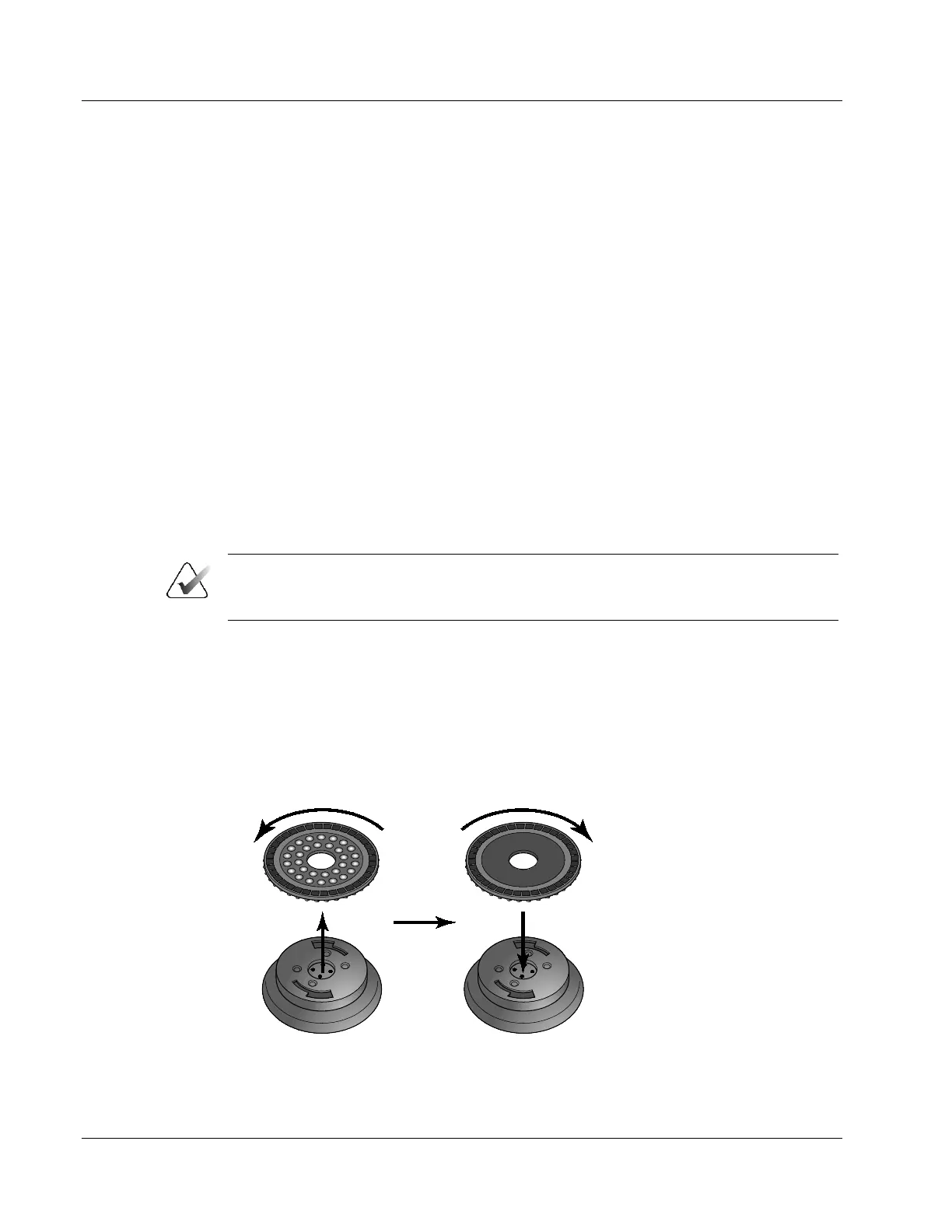
1. If the suction cup attachment is installed, remove it by turning it approximately
one-quarter turn counter-clockwise and then separating the attachment from the
main portion of the photometer.
Figure 4: Removing the Suction Cup and Installing the Felt Pad
2. Install the felt pad by attaching it to the main portion of the photometer and turning
it approximately one-quarter turn clockwise.












 To Next Page