SecurView DX Workstation V12.0 Quality Control Manual
Chapter 6: Additional MediCal QAWeb Procedures
Page 38 MAN-09466 Revision 001
Note
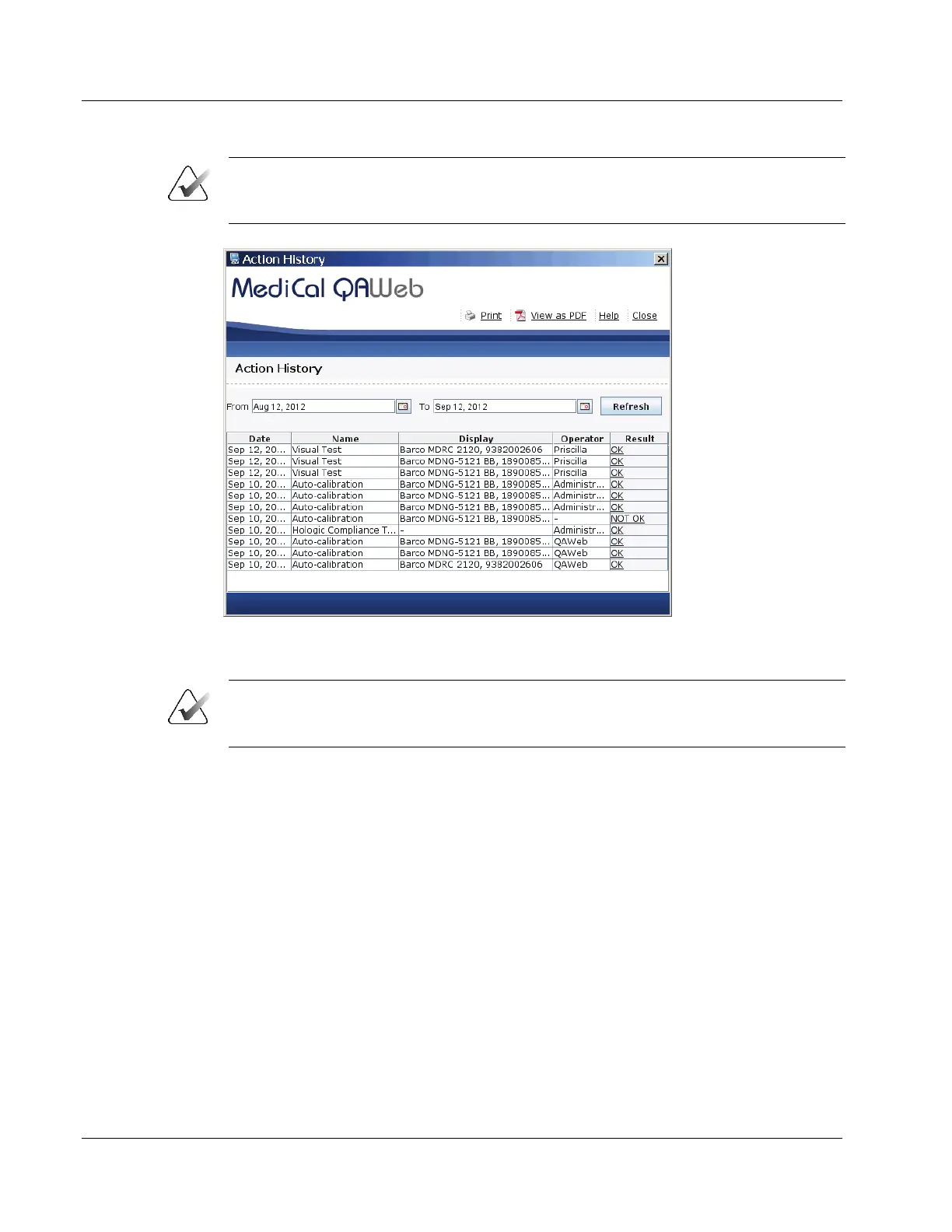
Use the From and To calendar menu to specify a date range for the Action History
results.
Figure 24: Action History Window
6. Select View as PDF.
Note
The SecurView workstation must have Adobe Acrobat Reader installed in order to view
the Action History as a .pdf file.
7. The QAWeb Action History .pdf file opens. Select File > Save As…
8. Navigate to the USB drive where you want to save the QAWeb Action History .pdf
file. Select Save.
9. Select Close twice to return to the Workstation > Status window.
10. Close all open MediCal QAWeb windows.
11. Remove the USB drive from the SecurView workstation.
12. Insert the USB drive into a computer with Adobe Acrobat Reader installed and
printer capabilities.
13. Open the QAWeb Action History .pdf file, then select File > Print.
14. The Print dialog box opens. Specify the printing options, then select Print.












 To Next Page