SecurView DX Workstation V12.0 Quality Control Manual
Chapter 4: Testing the Displays
MAN-09466 Revision 001 Page 21
The Workstation > Status window indicates whether the workstation meets the
recommended performance criteria. At any time, you can select Run to run a test
manually (Auto-calibration, Hologic Compliance Test, or Visual Test).
Note
The Uniti display calibrates with SteadyColor Calibration by default. SteadyColor
Calibration will show colors in the most optimum and consistent way, and it will show
all grayscales with as little hue variation as possible. To manually calibrate the Uniti
display without SteadyColor Calibration, navigate to Configuration > Calibration,
select Calibrate, type the password advanced (case sensitive), select Advanced, then
deselect SteadyColor Calibration. Select Calibrate
.
Be sure to select Run next to the Auto-Calibration after changing any calibration
configuration settings.
Note
When you manually run the Auto-calibration Test, you may be prompted for a
password. By default, the password is advanced (case sensitive).
5. Radiologic Technologist – To complete the tests and view results:
a. Verify that “Status: OK” displays.
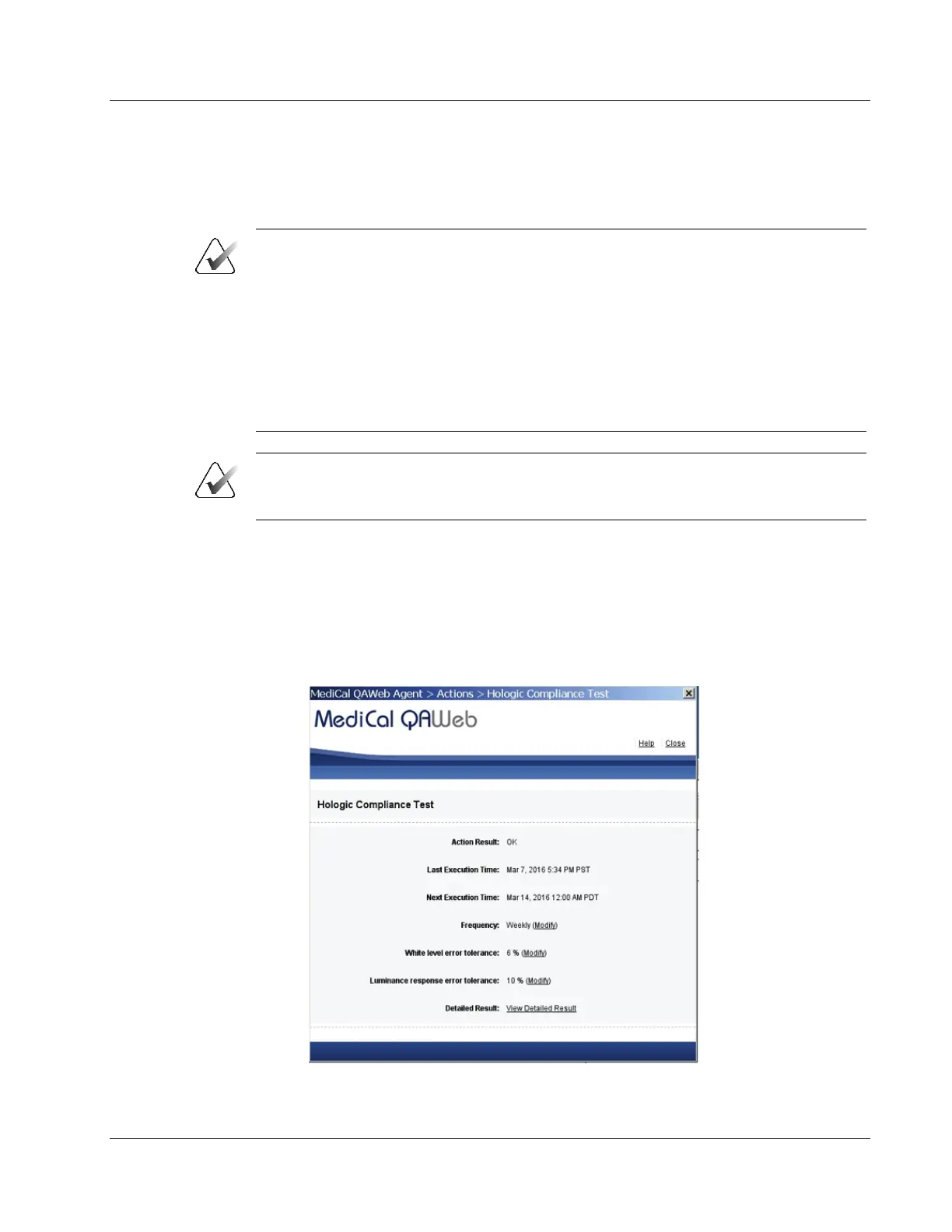
b. Select Info next to ‘Hologic Compliance Test’. The most recent results for the test
display.
c. Verify that “Action Result: OK” displays.
Figure 9: Hologic Compliance Test Window












 To Next Page