| 19
Document 800-26311_ A - April 2020
Setting for EVL mode
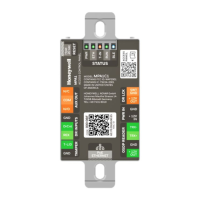
There are no DIP Switches on an MPA1. When an MPA1 panel is used in EVL mode. The
panel needs to be set up with the device Utility App. The panel is identified by its MAC
address.
TIP! When setting up an EVL loop, create a list of MAC addresses for all Panels and what doors
they control. This will be useful later when the panels are configured.
One of the controllers must be set as the Primary controller by Using the Device Utility App.
Configure other controllers as Secondary controllers by Using the Device Utility App.
Creating an EVL
An MPA1 panel can be setup in a web mode from the Device Utility App.
Settings such as Network settings, time, and selection fro the panel usage (web, MAXPRO
Cloud or Win-Pak) are set here.
When web is selected the settings for the PRIMRY and SECONDARY panel can be done.
EVL is the only available mode for host/loop communication.
Note if an MPA panel is set up in the Device Utility App as Secondary panel, then
the only way to access the panel is via web interface is to rest the panel with
the Device Utility App as PRIMARY panel.Creating an EVL
Connect all Controllers to a common IP network. The Secondary IP controllers will be
configured using the Primary controller.
1. Log into MPA1 Primary panel from a browser through the Ethernet connection
(https://192.168.1.150), or the Address setup in the Device Utility App.
2. Navigate to Host/Loop Communications Screen:
• Menu > Panel Configuration > Host/Loop Communications, or
• Click on Panels > Host/Loop Communications on the Dashboard.


 To Next Page