EasyManua.ls Logo

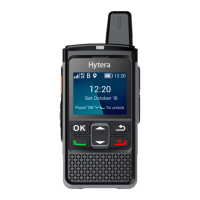
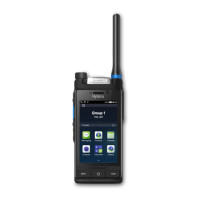
Hytera PDC760 - User Manual

Hytera PDC760
104 pages
Print Icon
To Next Page IconTo Next Page
Loading...
PDC760Multi-modeAdvancedRadio
U s e r M a n u a l

Table of Contents

Other manuals for Hytera PDC760

Questions and Answers

  • R
    Richard WalkerAug 31, 2025
    Why can't I hear anyone because of too much noise on Hytera PDC760 Radio?
    • H
      herrerajudyAug 31, 2025
      If you are unable to hear anyone on your Hytera Radio due to excessive noise, it could be due to a weak signal. Ensure that all call participants are within the communication range. Alternatively, you might be in an unfavorable location, such as an underground area or blocked by high buildings; try moving to an open and flat area and restart the radio. External disturbances like electromagnetic interference can also cause this issue, so try staying away from equipment that may cause interference.
  • M
    mistyelliottSep 12, 2025
    Why doesn't the camera work on Hytera PDC760 Radio?
    • G
      Gregory HoustonSep 12, 2025
      If the camera on your Hytera Radio does not work, the radio may not be detecting the front-facing or rear-facing camera. Try restarting the radio. Also, the storage space may not be sufficient; clear up the storage space.
  • A
    Ariana HillAug 30, 2025
    Why is the voice unclear on my Hytera PDC760 Radio?
    • T
      Theresa LynnAug 30, 2025
      If the voice on your Hytera Radio is unclear, the signal might be weak. To solve this problem, make sure all call participants are within the communication range.
  • J
    Jodi BryantSep 12, 2025
    What to do if no voice is heard on Hytera PDC760 after a call is established?
    • M
      michele12Sep 13, 2025
      If your Hytera Radio shows no voice after establishing a call, the radio ID may be repeated. Contact the BS manager to check whether the radio ID is duplicated in the network management system.
  • J
    justinfaulknerSep 12, 2025
    How to fix Hytera PDC760 if it cannot be turned on?
    • M
      Michael Mcdonald PhDSep 12, 2025
      If your Hytera Radio cannot be turned on, it might be due to several reasons. First, ensure the battery is correctly installed by removing and reattaching it. Second, the battery may be depleted, so recharge or replace it. Lastly, check for dirt or damage on the battery contacts; if present, clean them.
  • J
    James SmithSep 16, 2025
    What to do if Hytera PDC760 fails to respond?
    • S
      schmidtmelissaSep 16, 2025
      If your Hytera Radio fails to respond to any operation, it may be due to too many apps running. To resolve this, forcibly stop some apps or restart the radio.
  • K
    Kristina ThompsonSep 23, 2025
    Why can't I use the data connection on Hytera PDC760 Radio?
    • D
      davisnancySep 23, 2025
      If you cannot use the data connection on your Hytera Radio, the SIM card may not be functioning properly or is out of service due to unpaid charges. Ensure the SIM card functions properly or pay the charges.
  • D
    duncancarolAug 27, 2025
    What to do if Hytera PDC760 fails to initiate the emergency call by pressing Top Key?
    • M
      Martha AvilaAug 27, 2025
      If your Hytera Radio fails to initiate the emergency call by pressing the Top Key, it indicates that the emergency call service is incorrectly configured. Check the configuration.
  • J
    John CarterAug 26, 2025
    What to do if my Hytera PDC760 Radio shows error code 0x06, 0x07, 0x08 0x09, 0x0A, or 0x0B when powering on?
    • M
      Madeline FowlerAug 26, 2025
      If your Hytera Radio shows error code 0x06, 0x07, 0x08 0x09, 0x0A, or 0x0B when powering on, it indicates that the radio is experiencing an abnormality during startup. Try restarting the radio to resolve this issue.
  • M
    Mark MatthewsAug 25, 2025
    Why does my Hytera PDC760 fail to initiate an all call and display 'Service disabled'?
    • W
      woodardbobbyAug 26, 2025
      If your Hytera Radio fails to initiate an all call and displays 'Service disabled' on the screen, it could be due to: * Incorrect all call configuration. Check the configuration. * All Call being disabled on the system. Enable all call on the system.

Summary

1. Before Use

1.1 Packing List

Lists items included in the radio package for initial setup.

1.2 Product Layout

Details the physical components and buttons of the radio.

1.3 Attaching the Antenna

Instructions on how to properly connect the antenna.

1.4 Installing the Micro SIM Card and Micro SD Card

Guide for inserting SIM and SD cards into the radio.

1.5 Attaching the Belt Clip

Steps to securely attach the belt clip to the radio.

1.6 Attaching the Battery

Instructions for connecting the battery pack to the radio.

1.7 Charging the Battery

Procedures for charging the radio's battery.

2. Basic Operations

2.1 Turning On or Off the Radio

How to power the radio on, off, and restart it.

2.2 Adjusting the Volume

Methods for controlling the radio's audio volume.

2.3 Selecting the Contact or Channel

Process for choosing a contact or communication channel.

2.4 Understanding the Screens

Overview of the radio's display interface and elements.

2.4.1 Status Indications

Explanation of icons and symbols shown on the radio display.

2.4.2 Widgets

Information on using widgets for quick access to features.

2.4.3 Control and Notification Center

Accessing and managing system controls and notifications.

2.4.4 App Center

Navigating and managing applications installed on the radio.

2.4.5 Screen Management

Features for locking, unlocking, and managing the display.

2.5 Switching the Communication Mode

How to change between broadband and narrowband communication.

2.6 Switching the Work Mode

Selecting different operational modes for the radio.

2.7 Using the SIM Cards

Guide to enabling, disabling, and setting up SIM cards.

2.8 Checking the Device Info

Accessing radio model, serial number, and software version.

2.9 Viewing the Broadband Network Info

Displaying details about the active broadband network connection.

2.10 Viewing Helpful Tips

Accessing guides and FAQs for radio features.

3. Communication Services

3.1 Calls over PMR Network

Initiating and managing calls on the Private Mobile Radio network.

3.1.1 Group Call

Making and receiving group calls with multiple users.

3.1.2 Private Call

Making and receiving one-to-one calls.

3.1.3 All Call

Broadcasting a message to all users on a channel.

3.1.4 Broadcast Call (Trunking Only)

Special group call where only the caller speaks.

3.1.5 PSTN;PABX Call (Trunking Only)

Making calls via wired telephone networks.

3.1.6 Include Call (Trunking Only)

Inviting additional groups into an ongoing call.

3.1.7 DGNA (Trunking Only)

Dynamic Group Number Assignment for temporary groups.

3.1.8 Affiliation Group Call (Trunking Only)

Joining or being forced into a master group call.

3.1.9 Group Combine (Trunking Only)

Patching groups together for special communication.

3.1.10 Priority Group (Trunking Only)

Setting priority levels for group calls.

3.1.11 Call Forwarding (Trunking Only)

Forwarding incoming calls to another radio.

3.1.12 Call Queuing

Handling calls when system channels are busy.

3.1.13 Call on Analog Channel

Making calls on analog channels.

3.1.14 TOT

Time-out Timer to limit transmission duration.

3.2 Phone Call

Making and receiving standard phone calls.

3.2.1 Initiating a Phone Call

Methods to start a phone call.

3.2.5 Initiating an Emergency Call

How to place an emergency call for urgent assistance.

3.3 Message Services

Sending and managing text and status messages.

3.3.1 Message Services in the PMR Network

Messaging features within the PMR network.

3.4 Contacts

Managing contact lists for the radio.

3.4.1 PMR Contacts

Managing contacts specific to the PMR network.

3.4.2 Phone Contacts

Managing phone contacts for the radio.

4. Network and Data Sharing

4.1 PMR Network

Accessing and enabling services on the PMR network.

4.2 RoIP Network

Using Radio over IP for voice, data, and video services.

4.2.2 Group or Private Video Call

Making and receiving video calls.

4.3 Cellular Network

Connecting to and managing cellular data services.

4.3.1 Setting the Network

Configuring cellular network settings like roaming and network type.

4.4 WLAN

Connecting to and using Wireless Local Area Networks.

4.4.1 Adding a WLAN Network

Steps to connect to a new Wi-Fi network.

4.5 Tethering and Portable Hotspot

Sharing the radio's internet connection.

4.6 BT

Using Bluetooth for data exchange with other devices.

4.6.1 Pairing a BT Device

Connecting the radio to Bluetooth devices.

4.7 Airplane Mode

Enabling or disabling radio network connections for flight.

4.8 NFC

Using Near Field Communication for device interaction.

4.9 VPN

Setting up and using Virtual Private Networks.

5. Radio Features and Operations

5.1 Power Level

Adjusting the radio's transmit power for optimal communication.

5.2 Scan

Scanning channels for activity.

5.2.1 Conventional Mode

Scan feature usage in conventional mode.

5.2.2 Trunking Mode

Scan feature usage in trunking mode.

5.3 Roam

Automatically selecting base stations with strong signal.

5.3.1 Conventional Mode

Roam feature usage in conventional mode.

5.4 E2 EE

Enabling End-to-End Encryption for secure communication.

5.5 Call Settings

Configuring various call service parameters.

5.5.6 Speed Dial

Setting up quick dial numbers for contacts.

5.6 One Touch Call; Message

Quickly initiating preset services or messages.

5.7 Emergency

Using emergency features to seek help or send alerts.

5.7.1 Initiating an Emergency Service

How to start an emergency call or service.

5.9 Stun, Revive, and Kill (Trunking Only)

Managing the radio's status remotely.

5.10 Other Services

Utilizing various additional radio features.

6. Security

6.1 Location

Enabling and configuring location services on the radio.

6.2 Man Down

Automatic emergency alarm for user immobility.

6.3 Lone Worker

Automatic emergency alarm for inactivity.

6.4 SIM Card Lock

Securing the SIM card with a PIN.

6.5 App Lock

Protecting applications with a password.

7. Device

7.1 Display

Adjusting screen brightness, wallpaper, and text size.

7.2 Sounds

Configuring audio profiles, volume, and alert tones.

7.2.1 Audio Profile

Setting up standard and covert audio modes.

7.2.2 VOX Mode

Enabling voice-activated transmission.

7.3 Programmable Keys

Assigning functions to hardware keys.

7.4 Assistance Features

Enabling features like Glove Mode and Voice Broadcast.

7.5 Storage

Checking and managing internal and external storage space.

7.6 Battery

Monitoring and managing the radio's battery.

7.6.3 Enabling Battery Saver

Optimizing battery consumption.

8. System

8.1 Languages and Input

Setting display language and keyboard input methods.

8.2 Date and Time

Configuring the radio's date, time, and time zone.

8.3 Factory Reset

Restoring the radio to its original factory settings.

8.4 System Upgrade

Updating the radio's software system.

9. Apps and Notifications

9.1 Installing an App

Adding new applications to the radio.

9.2 Uninstalling an App

Removing unwanted applications from the radio.

9.3 Managing App Permission

Controlling app access to device functions.

9.4 Managing App Notifications

Configuring how app notifications are displayed.

10. Camera

10.1 Taking Photos

Capturing still images with the radio's camera.

10.2 Recording Videos

Recording video footage using the radio's camera.

10.4 Advanced Camera Settings

Adjusting detailed camera parameters like ISO and exposure.

11. Gallery

11.1 Viewing Photos and Videos

Browsing and viewing stored media files.

11.3 Managing Photos or Videos

Editing, sharing, or deleting media files.

11.4 Creating an Album

Organizing media files into albums.

12. Clock

12.1 Alarm

Setting and managing alarms.

12.3 Timer

Using the countdown timer function.

12.4 Stopwatch

Using the stopwatch for timing events.

13. Calendar

13.1 Viewing the Calendar

Accessing and viewing the calendar.

13.2 Managing an Event

Creating, editing, and deleting calendar events.

13.3 Advanced Calendar Settings

Customizing calendar display and notification settings.

14. Navigator

14.1 Finding a Place

Locating destinations using the navigation system.

14.2 Sending a Position Message

Sharing current location information.

14.3 Downloading an Offline Map

Downloading maps for offline navigation.

15. Tools

15.1 Files

Managing files stored on the radio.

15.2 Documents

Viewing and managing downloaded documents.

15.3 Calculator

Using the built-in calculator.

15.4 Notes

Creating and managing text, image, or audio notes.

15.5 Recorder

Recording and managing audio files.

15.7 Browser

Accessing websites and browsing the internet.

17. Care and Cleaning

17.1 Product Care

Guidelines for maintaining the radio's condition.

17.2 Product Cleaning

Instructions for safely cleaning the radio.

18. Optional Accessories

19. Abbreviations

Hytera PDC760 Specifications

General IconGeneral
BrandHytera
ModelPDC760
CategoryRadio
LanguageEnglish

Related product manuals