4-3
QA Tests
032-0330-EN Rev K
QA Line Pair Evaluation
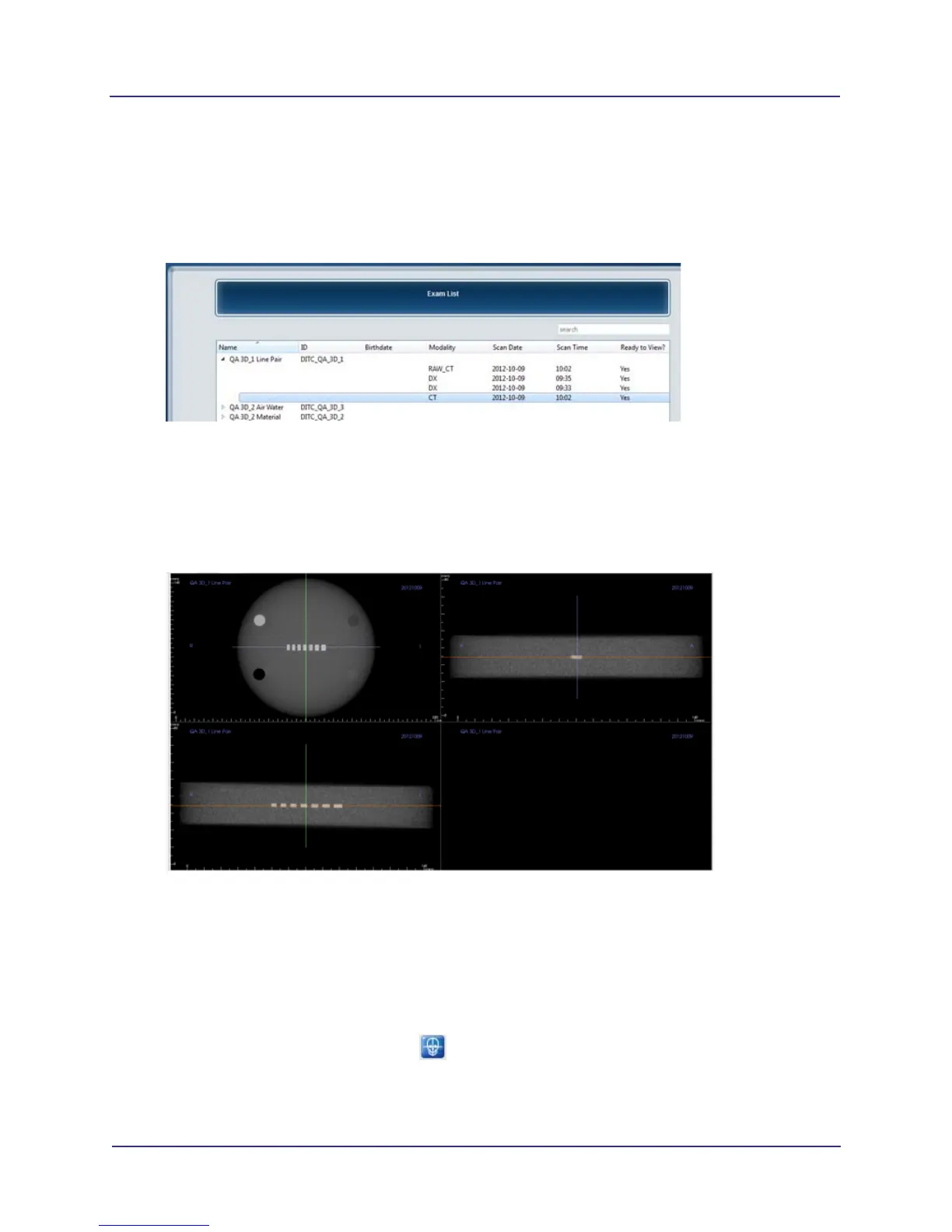
1. At a clinical workstation, start SmartScan STUDIO Manager and select Exam List.
2. On Exam List, locate QA 3D_1 Line Pair exam with most current date. Double-click CT entry to load
study in TxSTUDIO.
NOTE: If a pop-up message displays stating “Image data is too small”, click OK and continue.
3. When exam is loaded, select Section tab at top of display.
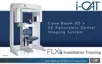
4. In the upper right corner view, click where the vertical and horizontal cursor lines cross and drag to
the center of the line pairs, as shown below.
5. Zoom upper left line pair image. To zoom, move the mouse cursor in the center of the image, hold
down the Control key and press the left mouse button. Move the cursor up or down to zoom in or
out as needed. To pan, move the mouse cursor in the center of the image, hold down the Shift key,
press left mouse button and drag the image.
6. Select Hard from drop-down menu.
7. Adjust Brightness and Contrast levels for the best viewing of line pairs.
NOTE: To better view image, select to turn off cursor lines.
8. Evaluate the image. Line Pairs 10 through 16 are displayed in the
image shown.


 To Next Page