1-16
i-CAT FLX Installation Manual
032-0330-EN Rev K
11.
11
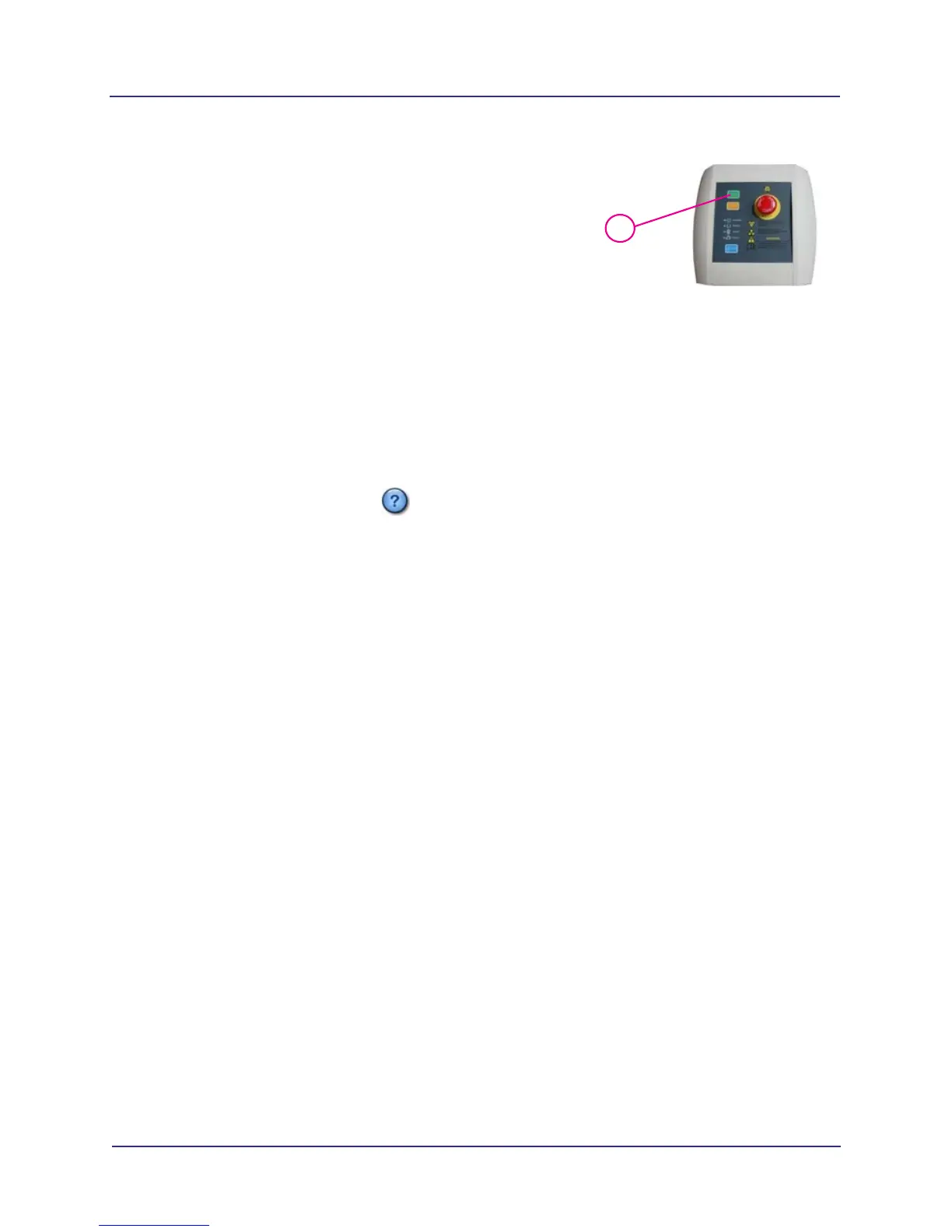
Press the control box ON button. The scanner is now
powered.
12. Power on the scanner controller (power button in front)
and touch screen (power button on right side).
NOTE: If at any time the Ethernet cable connecting the scanner to the scanner controller becomes
disconnected, reconnect the cable and cycle the power to the scanner from the circuit breaker at
the rear of the scanner overhead.
Check Version of SmartScan STUDIO
1. At the touch screen, press on the log in screen.
2. Check the version of SmartScan STUDIO
TM
. Call Technical Support to ask about later versions
of the software that are available.
NOTE: If v2.7 or higher is installed, a unique software license is required to establish the accessible
field of view for the scanner. A license file is installed at the factory, but in some cases, the
purchased field of view size may not have been known at that time. Log in, select Acquire from the
menu, and navigate to the Protocol screen. If the protocols displayed are not correct for the field of
view purchased, for example, V8 protocols display instead of V17 protocols, contact Technical
Support to obtain an updated license file. Refer to the i-CAT FLX User Manual for a list of the
protocols for each field of view type.
Set Scanner Controller Date, Time, and Time Zone
NOTE: See Service Menu Options chapter for instructions on logging in to the scanner controller.
1. Log in to the scanner controller.
2. Select Date and Time.
3. Select Change date and time... and set to the current local date and time. Press OK.
4. Select Change time zone... and select the local time zone from the drop-down menu. Press
OK.
Change Settings of Support URLs (Optional)
The SmartScan STUDIO menu has two options that access external webpage URLs:
• Technical Support
• Remote Assistance


 To Next Page