3-17
Load Clinical Software and Configure System
032-0330-EN Rev K
Install and Configure Clinical Software
Install SmartScan STUDIO Server Components
SmartScan STUDIO Integration Services should be loaded on the server that will be used as the long-
term data storage device. Load Data Utilities, Legacy Practice Management Interface, and PACS
Storage Service as needed by the site.
NOTE:
• During installation, acknowledge any Microsoft User Account Control notifications that may be
displayed to continue installation.
CAUTIONCAUTION
Be sure to load SmartScan STUDIO Integration Services on only one workstation at a site, which
should be the server that will be used as the long-term data storage device. Workflow at client
workstations will be impacted if an invalid Integration Services server is configured.
1. At server, insert media in drive.
2. On AutoPlay pop-up, select Run SssInstallerExecutive.exe. If AutoPlay pop-up does not
display, navigate to the media drive, right-click and select Open AutoPlay.
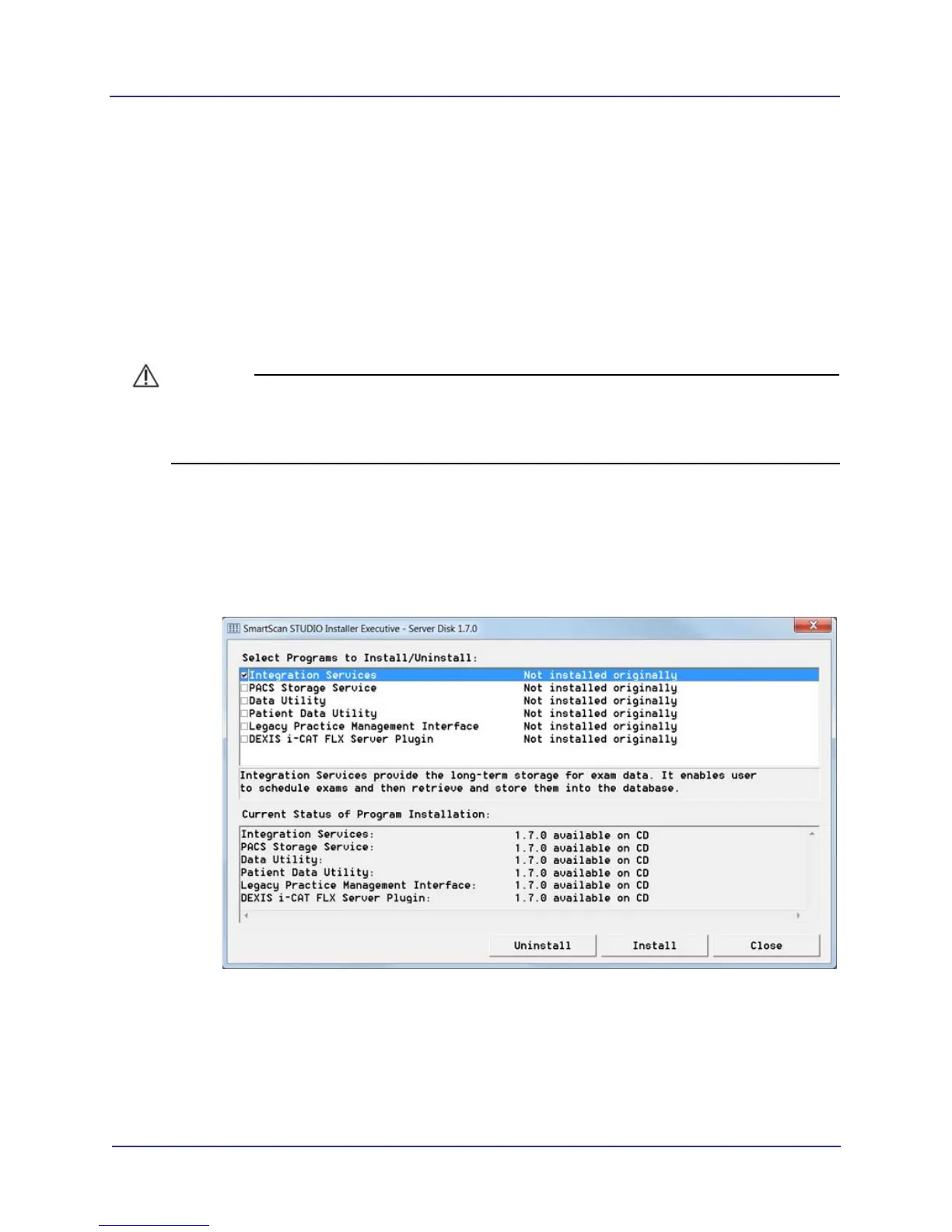
3. On the SmartScan STUDIO Installer Executive:
a. Select programs to be installed.
• Integration Services (required)
• PACS Storage Service - (for sites using a PACS for image storage)
• Data Utility (optional)
• Patient Data Utility (optional)
• Legacy Practice Management Interface - (for sites using a supported PM system)
• DEXIS i-CAT FLX Server Plugin - (for sites using DEXIS)


 To Next Page