25
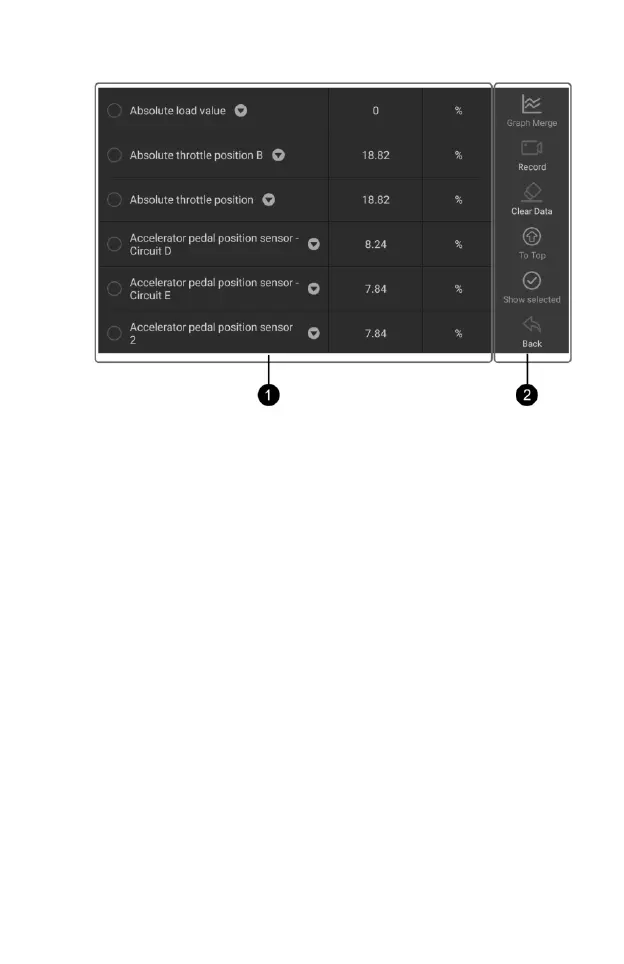
Figure 4-22 Sample View Data Screen 2
1. Main Section
Name Column – displays the parameter names.
a) Check Box – tap the check box on the left side of the
parameter name to make item selection. Tap the check box
again to de-select the item.
b) Drop-down Button – tap the drop-down button on the right
side of the parameter name to open a sub menu that provides
various choices for data display mode.
Value Column – displays the values of the parameter items.
Unit Column – displays the unit for the parameters.
To change the unit mode, return to the “Settings” button and select
the desired mode.
Display Mode
There are four types of display modes available for data viewing,
allowing you to view various types of parameters in the most suitable
way.
Tapping the drop-down button on the right side of the parameter
name to open a sub menu. There are four buttons to configure the data
display mode, and a Help button for access to additional information.
Each parameter item displays the selected mode independently.
1) Analog Gauge Mode – displays the parameters in form of an
analog meter graph.




 To Next Page