81
10.6 Brightness
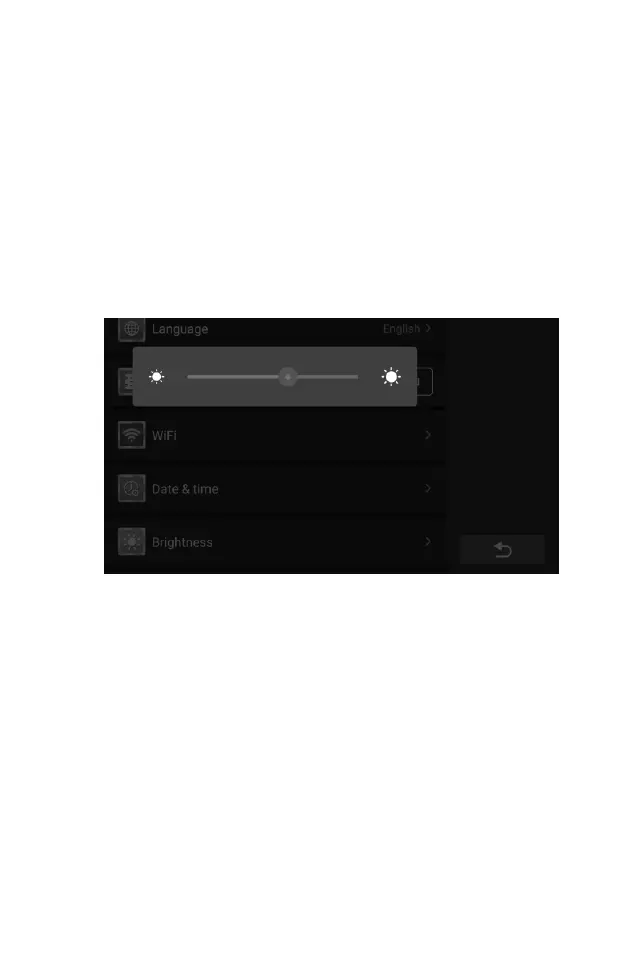
This option allows you to modify the brightness setting of the diagnostic
system.
To adjust the brightness setting
1. Tap the Settings application on the CR Genius Job Menu.
2. Tap the brightness option on the screen.
3. Slide the small dot on the pop-up window to select the appropriate
brightness.
4. Tap anywhere outside the pop-up window to exit brightness settings.
5. Then tap the Back button on the bottom right corner to return to the
CR Genius home screen or select another setting.
Figure 10-7 Sample brightness Setting Screen
10.7 Screen Sleep
This option allows you to modify the screen lock time setting for the diagnostic
system.
To adjust the Screen Sleep setting
1. Tap the Settings application on the CR Genius Job Menu.
2. Tap the Screen Sleep option on the screen.
3. On the pop-up window, select the required screen sleep time. There
are 8 options, namely 1 minute, 2 minutes, 5 minutes, 10 minutes,
15 minutes, 20 minutes, 30 minutes and 45 minutes. A check mark
appears to the right of the selected cell.
4. Tap anywhere outside the pop-up window to exit screen sleep
settings.
5. Then tap the Back button on the bottom right corner to return to the
CR Genius home screen or select another setting.






 To Next Page