80
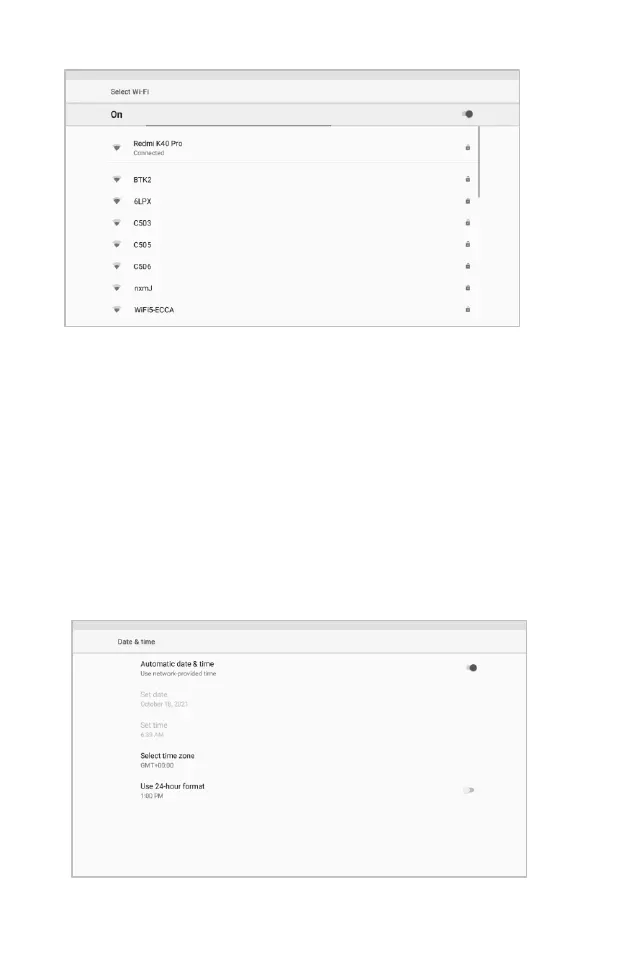
Figure 10-5 Sample Data log Setting Screen
10.5 Data & Time
This option allows you to enter the Android background time and date
option to set the corresponding time and date
To adjust the Data & Time setting
1. Tap the Settings application on the CR Genius Job Menu.
2. Tap the Data & Time option on the screen.
3. Skip to the Data & Time Settings interface of Android, Turn on the
automatic time and date setting, or set it manually.
4. Then swipe up from the bottom of the screen or swipe down from the
top of the screen to bring up the bottom tab bar, and tap the back
button at the bottom to return to the CR Genius main screen or
select other settings.
Figure 10-6 Sample Data log Setting Screen






 To Next Page