79
Figure 10-3 Sample Language Setting Screen
10.3 Data log
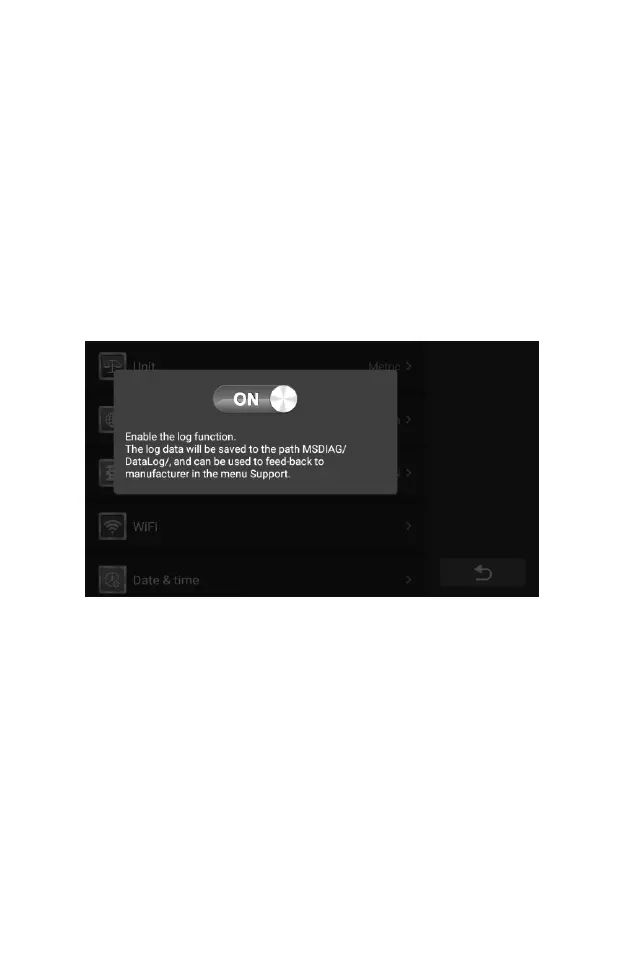
This option allows you to access the diagnostic system log. It's controlled
by a slide switch. Turn on the switch, the diagnostic equipment will automatically
backup the diagnostic files of the diagnostic system.
To adjust the data log Settings
1. Tap the Settings application on the CR Genius Job Menu.
2. Tap the Data log option on the screen.
3. On the pop-up window, select the desired state, on or off.
4. Tap anywhere outside the pop-up window to exit data log settings.
5. Then tap the Back button on the bottom right corner to return to the
CR Genius home screen or select another setting.
Figure 10-4 Sample Data log Setting Screen
10.4 WIFI
This option allows you to enter the Android background WiFi option and
select the available network settings.
To adjust the WIFI setting
1. Tap the Settings application on the CR Genius Job Menu.
2. Tap the WIFI option on the screen.
3. Skip to the WiFi Settings interface of Android, turn on the wifi switch
and select the available network to set up the network.
4. Then swipe up from the bottom of the screen or swipe down from the
top of the screen to bring up the bottom tab bar, and tap the back
button at the bottom to return to the CR Genius main screen or
select other settings.




 To Next Page