2
Illustrations used in this manual are samples, the actual testing screen may
vary for each vehicle being tested. Observe the menu titles and on-screen
instructions to make correct option selection.
1.1.5 Operation
Welcome to using the scan tool of iCarsoft, you should do something before
using the scan tool.
At first, please check production list such as scan tool and accessories
already when you open the package, read the user’s manual and connect
the OBDII cable to scan tool.
Don’t open the scan tool in a rainy environment or in the absence of training.
Don’t soak the scan tool as the keypad and port are not waterproof, also no
solvents such as alcohol are allowed to clean the keypad or display.
Make sure the ignition is ON when you connected the scan tool already.
WARNING
For vehicles manufactured by different vendors, it is possible that it has different
diagnostic menus. For details, please follow the instructions on the screen to
proceed. Some functions need to be used under the guidance of professional
technicians.
2 General Introduction
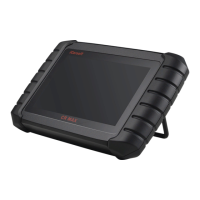
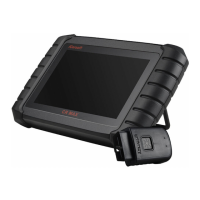
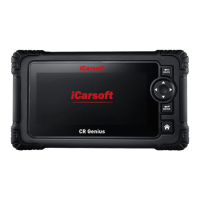
When it comes to ultra-portability, CR Genius is your perfect companion.
Installed with a fast quad-core processor, CR Genius offers maximum
convenience and swift diagnosis. The intuitive user screen makes using the
device effortless through a 5-inch LCD touchscreen that displays at 1280 x 720
quality. Together with the ability to quickly read and clear DTCs for all available
modules of the majority of the makes and models on the market, CR Genius
provides you with superior special functions, including OIL (Oil Reset Service),
EPB (Electronic Parking Brake), SAS (Steering Angle Sensor), BMS (Battery
Management System), DPF (Diesel Particulate Filter), BLD(ABS Bleeding),
ETC (Electronic Throttle Control) and INJ(Injector Coding).
This manual describes the construction and operation of the device and
how it works to deliver diagnostic solutions.
2.1 CR Genius Display Tablet
2.1.1 Functional Description



 To Next Page