41
ifm Operating Instructions IO-Link Master with EtherNet/IP interface StandardLine 8 Ports IP 65 / IP 67 (AL1122) 2017-05-31
Configuration
>
8.3.1 Offline parameter setting: Add IO-Link devices manually
22817
The AL1122 supports the automatic recognition of IO-Link devices that are connected to the IO-Link
interfaces. In addition to the automatic recognition of IO-Link devices in the online mode, the user can
also manually add IO-Link devices to the device configuration (e.g. → Offline parameter setting
(→ p. 31)).
1 Set up offline configuration
► Start LR DEVICE.
► Add AL1122 to an offline configuration.
> LR DEVICE shows AL1122 in [OFFLINE] section.
2 Add IO-Link device to configuration.
► Under [OFFLINE]: Click on [AL1122].
> LR DEVICE shows the available parameters of the AL1122.
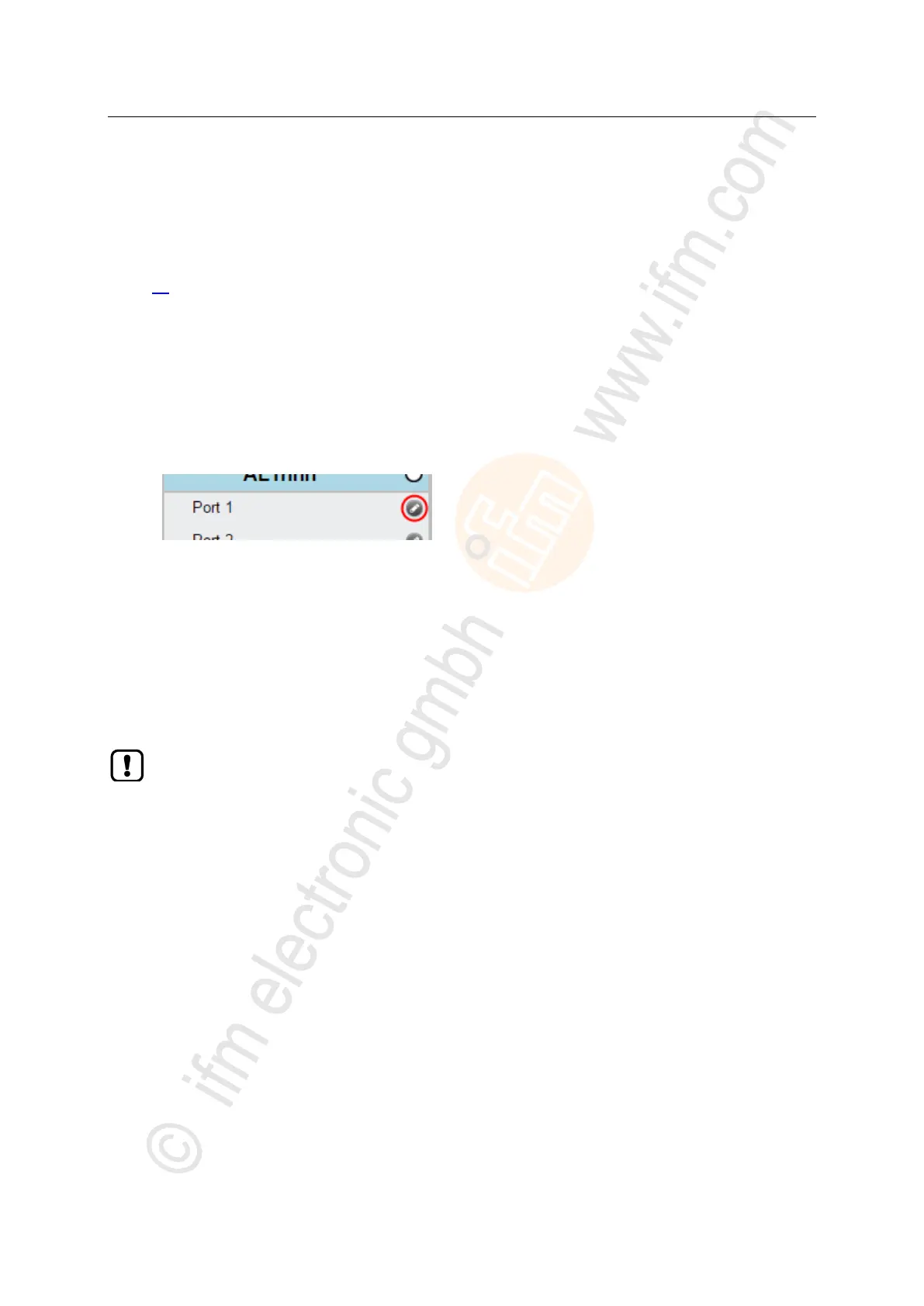
► Click on the symbol at the required port.
> The dialogue window [Gerät auswählen] appears.
► Select the required IO-link device from the list.
► Click on [OK] to add the selected IO-Link device to the device configuration.
> IO-Link device appears at the selected port.
3 Configure IO-Link device
► Mouse click on the port to which the IO-Link device is connected.
> LR DEVICE shows the available parameters of the IO-Link device.
► Configure IO-Link device.
Information about the available parameters of the IO-Link device: → Operating instructions of
the IO-Link device
► Store changed configuration on the IO-Link device.
► Click on [AL1122].


 To Next Page