58
TROUBLESHOOTING
DMS3-CTC-25-115 v1.0
7
7.3 Wireless connection troubleshooting
Forgot your wireless key?
If you have changed the wireless settings manually and you don’t remember your settings, try one of the
following:
1 Use a computer that is already connected to your network.
2 Browse to the TG-1 Gateway GUI.
For more information, see “4.1 Access from your local network” on page 29.
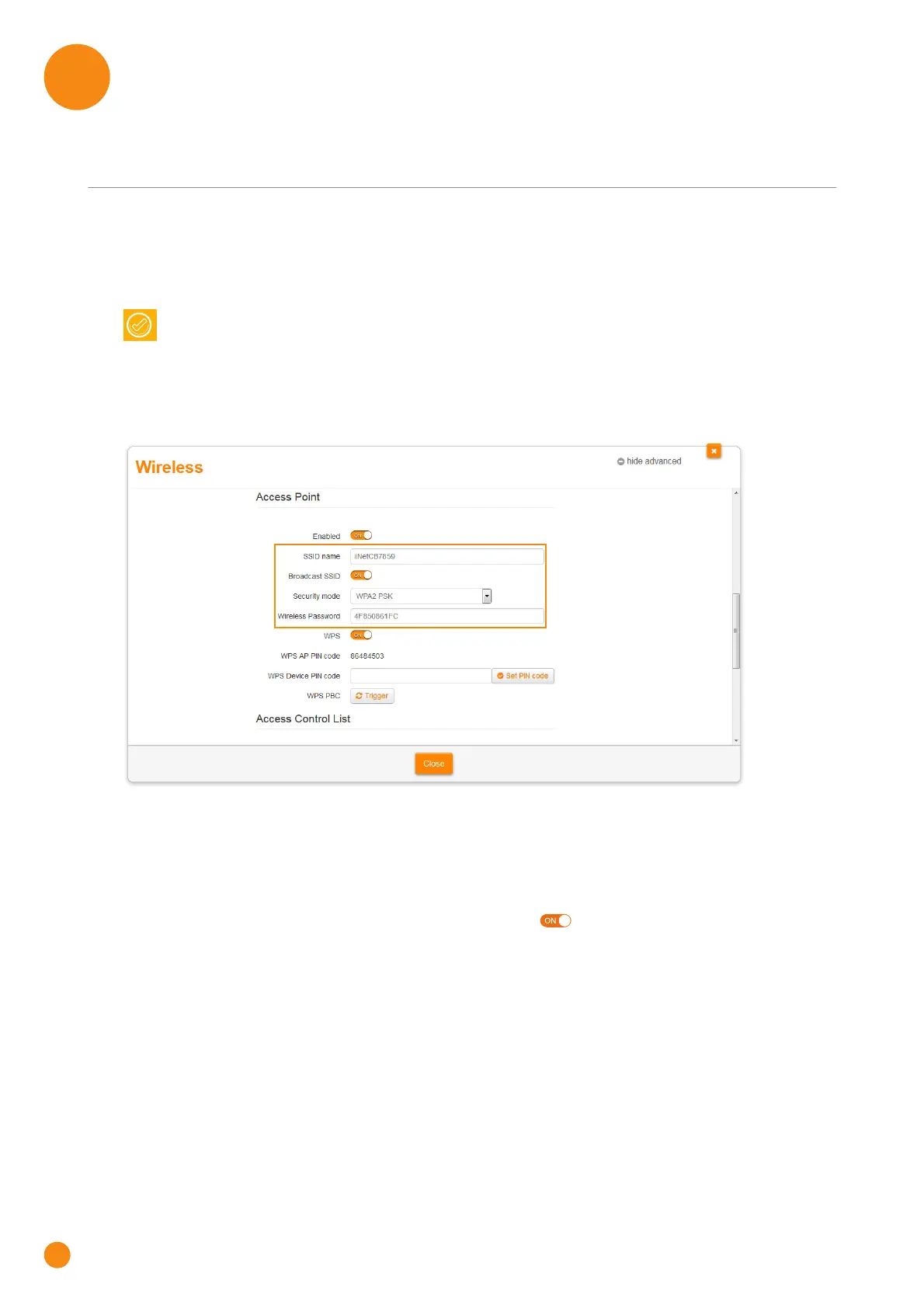
3 Click Wireless. The Wireless page appears.
4 Under Access Point, you can find the network name (SSID) and wireless key (password).
The TG-1 Gateway does not appear in your wireless client’s access point list
Make sure that the TG-1 Gateway wireless interface is enabled.
a Browse to the The TG-1 Gateway GUI.
For more information, see “4.1 Access from your local network” on page 29.
b In the Wireless card header, make sure that the switch is .
If the signal is low or not available, try to reposition the TG-1 Gateway for optimal performance.
Change the wireless channel.
The TG-1 Gateway access point no longer available
If you were able to connect in the past, but can’t connect anymore:
Make sure that the wireless client adapter is enabled (message like “radio on”).
Make sure that the wireless client is still using the correct wireless settings (network name (SSID),
security settings).
If none of your computers is connected to the wireless network, connect one with an Ethernet
cable. For more information, see “2.3 Connecting your wired devices” on page 15.


 To Next Page