The StellarMate Plus Manual
327 / 341
From the example screenshot above, we know the auto-IP address
is 169.254.10.197. Now open the terminal application in your operating
system and simply type:
ping 169.254.10.197
After which the PC/Mac should register the IP address and you can start
using stellarmate.local address as usual.
A more permanent solution involves creating a static IP address on
StellarMate using Network Manager.
17.21. How to access images on StellarMate from PC/Mac?
If you captured images and saved them to StellarMate, then they should be
available by default under /home/stellarmate/Pictures. To access the
images over the network, there are two options:
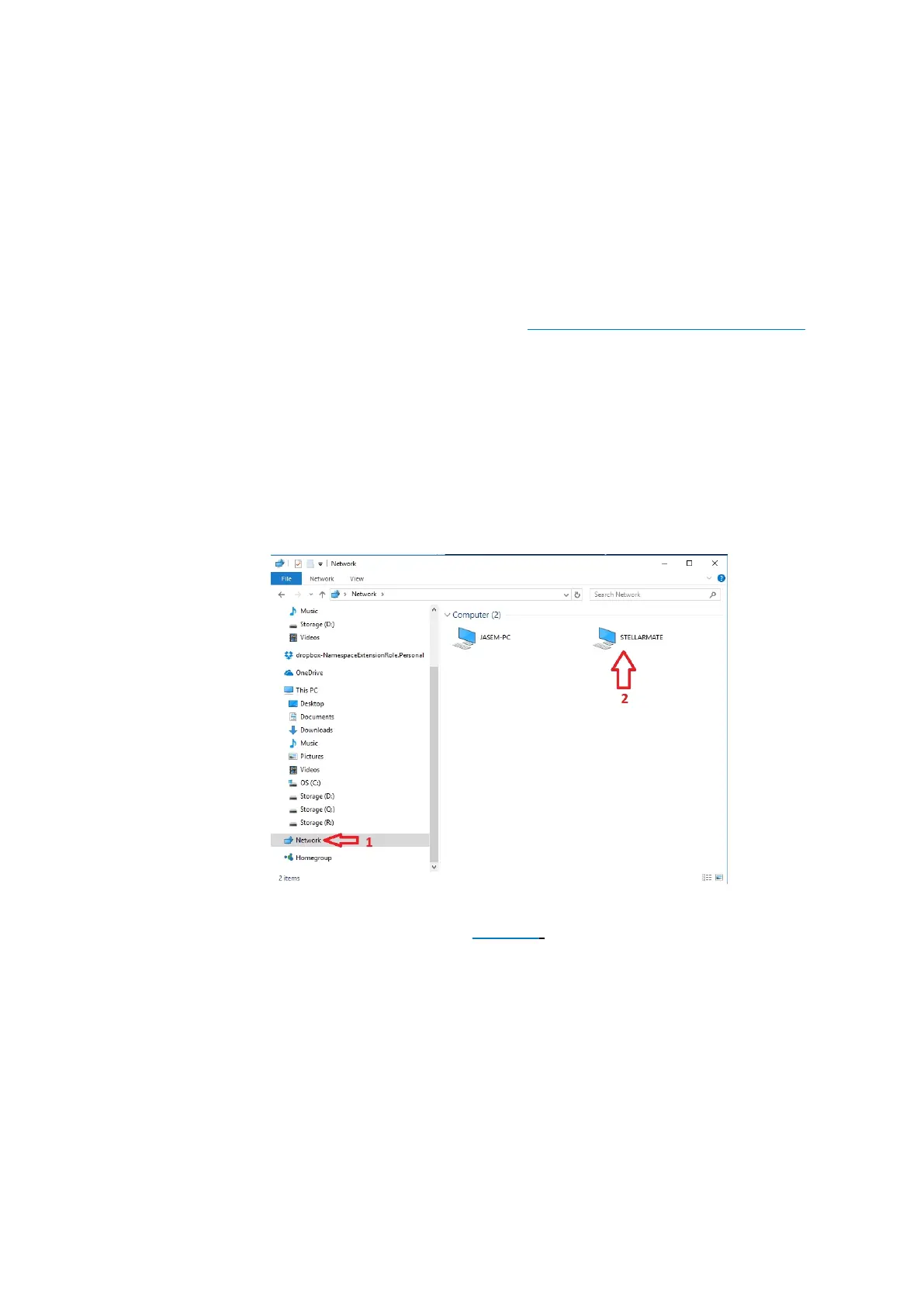
· On Windows®, click on the Network icon in the left pane of File
Explorer as illustrated below.
· On Linux® & Mac® OS: Use FileZilla to connect to StellarMate via
Secure FTP (sftp) using your username (stellarmate) and password
(smate). Remember to set port to 5624.



 To Next Page