The StellarMate Plus Manual
337 / 341
1. Start your equipment profile.
2. That's all.
In Ekos on PC/Mac
1. Make sure you are connected to the same network as StellarMate.
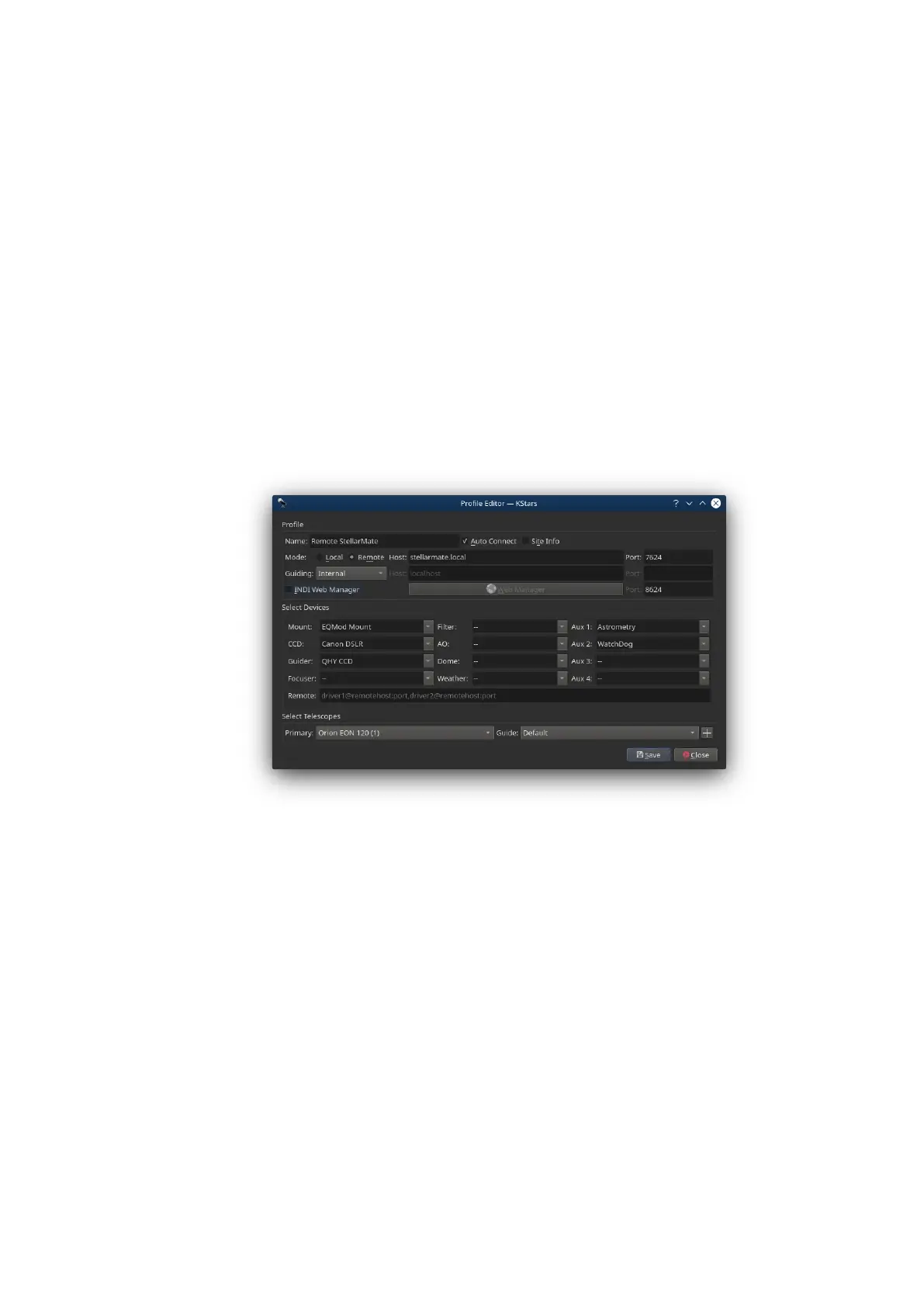
2. Create a new equipment profile with the same drivers started in the
App equipment profile.
3. Set the profile to remote and the host to stellarmate.local
4. Make sure INDI Web Manager is UNCHECKED. This is very important.
5. Save and then click start.
6. Done!
17.30. I cannot connect to my mount, what's wrong?
Depending on your mount type, you can connect to your telescope mount
using different connection types:
· USB: This is the most common type of connection type between
StellarMate and the mount. The connection usually requires RS232
Serial to USB connector where the USB end is connected to
StellarMate while the serial plug connects to the handset (or
sometimes directly to mount).
· Bluetooth: Limited supported for Bluetooth dongles for some mounts.
Please chech StellarMate Manual for more details.
· Ethernet/WiFi: Connects to the mount over Ethernet or WiFi network.
In the Mount driver connection tab, switch the mount to Ethernet
mode and set the host name and port where your mount is running.



 To Next Page