Page 72 Manual
While the scan sequence is running, a status window shows the current status. At the end
of the scan sequence the window closes.
To view the scanned images and to select the images, click on the link Finalize below the
Multipage button.
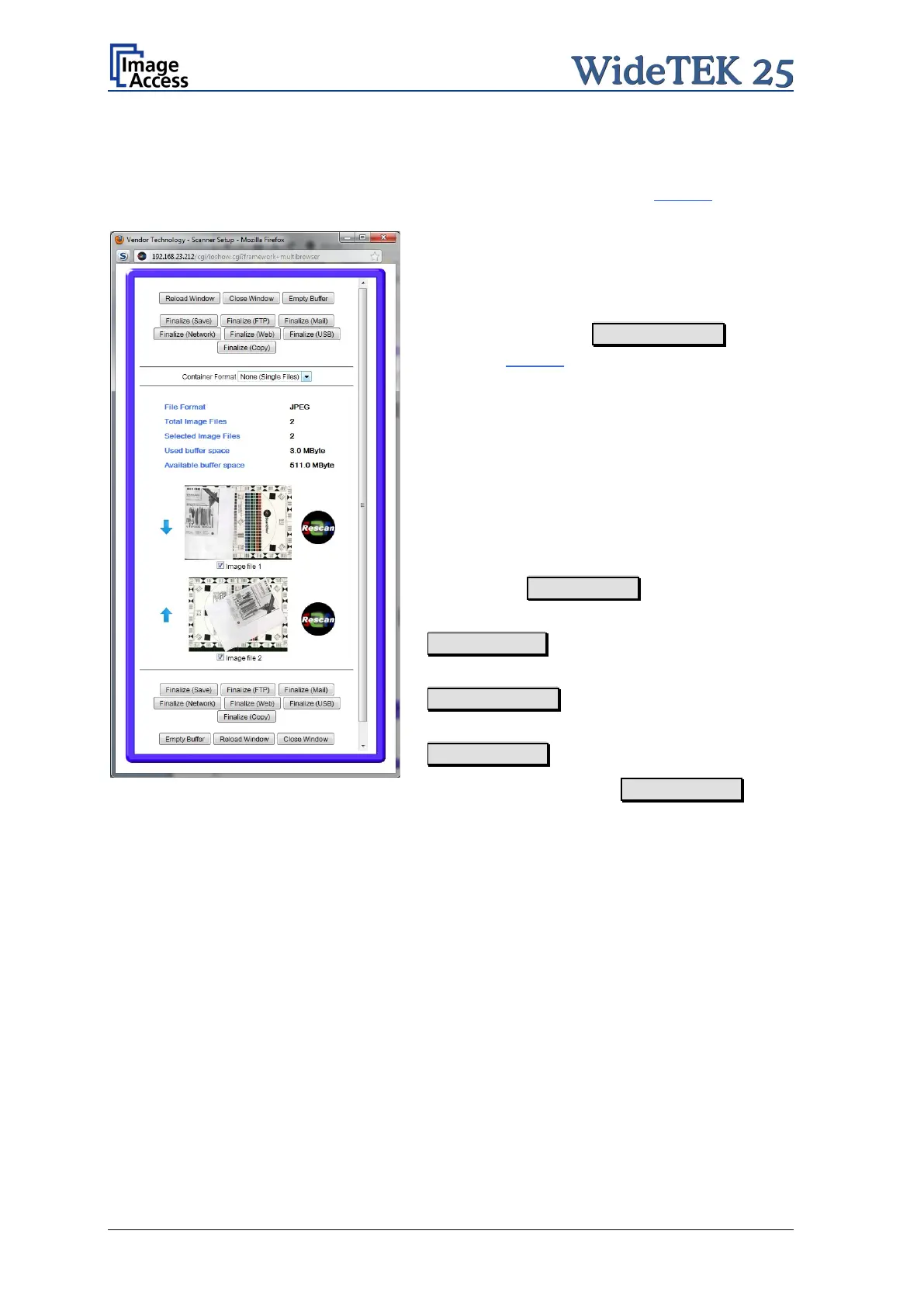
Picture 70: Pop-up window to select
images for the “Container”
A pop-up window opens. It shows all relevant
information and all scanned images since
Multipage has been selected.
If the pop-up window is already open, it can be
refreshed by clicking Reload Window or by
clicking at Finalize in the main window.
The pop-up
window content is not refreshed
automatically.
Click in the line “Container Format” at the
selection arrow to find the desired data format.
With the checkbox below each image select the
images to be stored in the “Container”.
The blue arrow left beside the images allows
moving the image upwards and/or downwards.
The buttons Finalize (xxx) transfers the data
to the selected target.
Empty Buffers
deletes all images in the
buffer.
Reload Window refreshes the content of the
pop-up window.
Close Window closes the pop-up window.
Note: When selecting Finalize (Save) with
the “Container” format None, the data
will be transferred as ZIP archive file.







 To Next Page