NV200 Family User Manual
<< Back to Contents
Copyright © Innovative Technology Ltd 2016 Doc: NV200 Family Manual
Version: 1.0
Page 45 of 119
Admin rights are required during installation. The validator must be in SSP for the Validator Manager
to detect the device.
6.3.1.2 System Requirements
• Windows XP SP3 or above
• .Net Framework 4
• 2015 C++ Redistributable
• 256mb ram
• 50mb hard disk free
• ITL Drivers
• Connected NV200 with an active com port
• The NV200 must be in SSP, for information on how to do this see Appendix
10.5.
Occasionally one of the dll’s (itdata1.dll) used in Validator
Manager are flagged as a Trojan, this is a false positive and
if this happens add a rule to your antivirus to allow the file
to run.
6.3.1.3 Hardware Setup
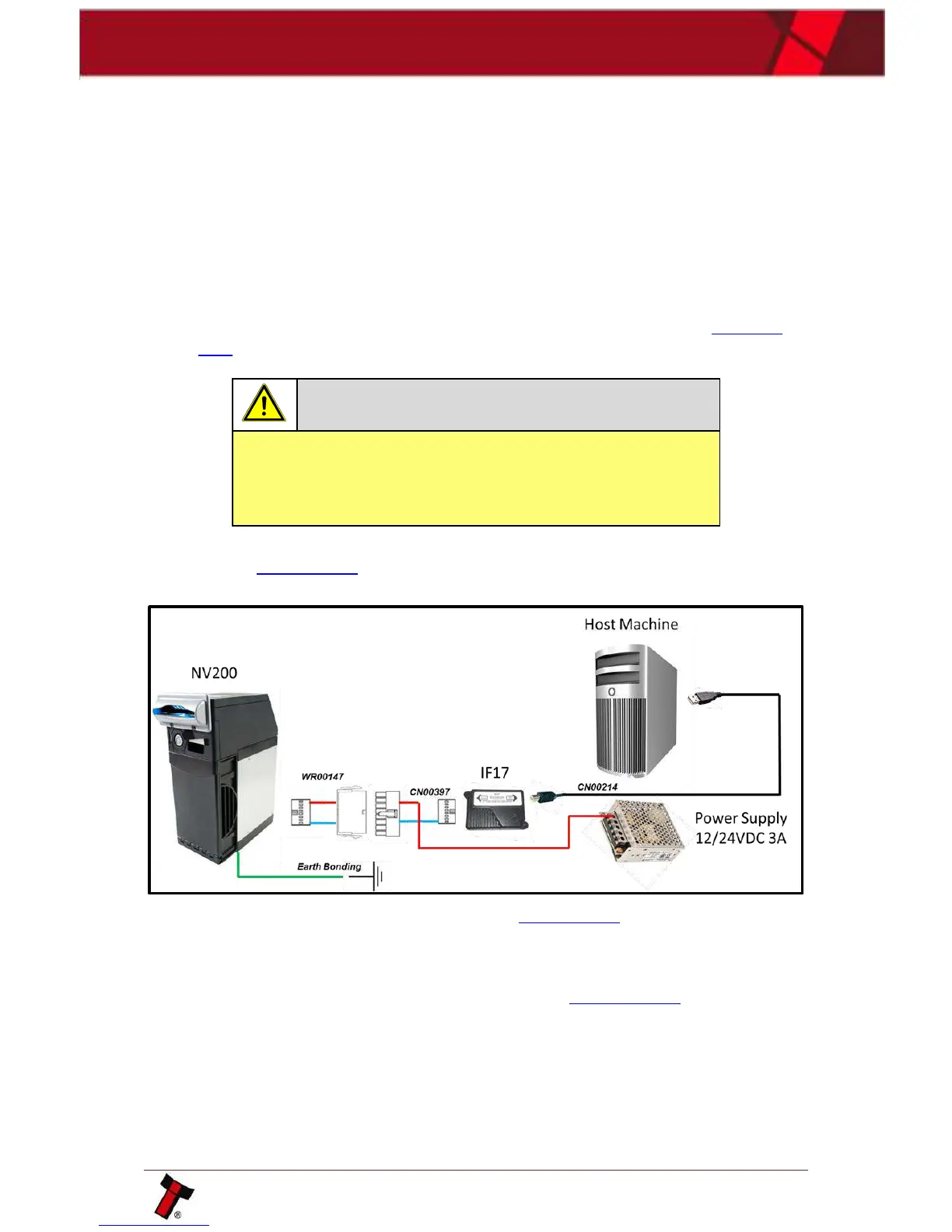
As outlined in Section 5.2.3 there are many ways to connect the NV200 to the
computer. Below is a typical example:
For further configuration options please consult Section 5.2.3.
6.3.1.4 Switching to Programming Mode (SSP)
Before programming via the Validator Manager, the NV200 needs to be switched to
its programming mode (SSP interface) as explained in Appendix 10.5.
6.3.1.5 Programming the device
Once the unit is switched to SSP, open Validator Manager and click detect devices.
This will scan all active com ports for a unit, if your NV200 fails to connect please
ensure the correct drivers are installed and the unit is in SSP.
By selecting the Program tab, the NV200 can be programmed. To begin the upload,
click open file, browse to the file location (usually Downloads) and click OK.




 To Next Page