LP600 Users Manual
Rev E, February 2017
Page 12 of 43
Totalizing Setup
This section covers configuring a scale set for either self-totalizing or connection to a
PC/PDA for advanced display features. For accumulating multiple weights on a
scale or scale set, see the “Using Accumulated Total” section. In ‘self-totalizing’
mode, the LOCAL/TOTAL button works to switch between weight on that particular
scale (LOCAL) and the total weight of connected scales (TOTAL). If the system is
not setup correctly, the “error icon” and message “ “will be displayed when trying
to view the total weight.
1. To enter into totalizing setup: Simultaneously press the LOCAL/TOTAL and
ZERO buttons.
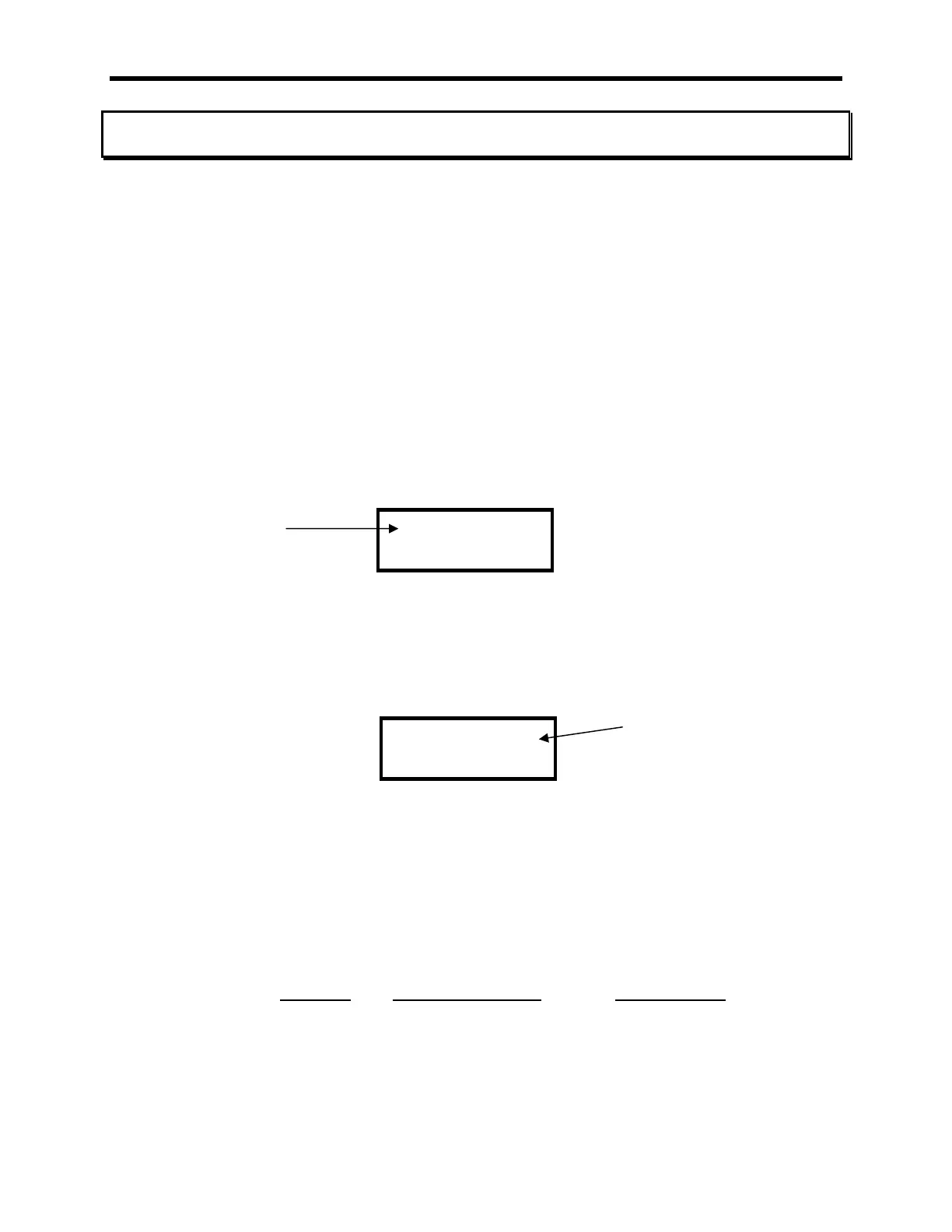
2. Message “” will be displayed. Press PRINT/ACCUMULATE button. A
number will be displayed with 3 dashes following it. This is the scale number.
Use the LOCAL/TOTAL button to increment and the ZERO button decrement the
number. When the desired number is displayed, press the
PRINT/ACCUMULATE.
3. Message “” will be displayed. Press the PRINT/ACCUMULATE button. The
display will show three dashes and then a number. This number is the total
number of scales in the system. Use the LOCAL/TOTAL button to increment and
the ZERO button decrement the number. When the desired number is
displayed, press the PRINT/ACCUMULATE button. The maximum number of
scales is 32.
4. If the scale# is ‘1’, the display will ask if the scale is the “”. Press the
PRINT/ACCUMULATE button. Use the LOCAL/TOTAL or the ZERO button to
toggle the display “” or “”. A ‘Host’ controls the scale network, and this
setting should be set to “yes” if the scale network consists of scales only. If your
system uses an external device such as a PDA or PC to view the weights, this
setting should be set to “no” since the external host controls the network. Press
the PRINT/ACCUMULATE button to save the setting.
Example 1 of correct scale settings: 4 pad system with PDA or PC:
Scale ID Number of Scales *Host setting
Scale #1: [] [] []
Scale #2: [] []
Scale #3: [] []
Scale #4: [] []
total # of scales
(only displayed on scale #1)


 To Next Page