JABLOTRON ALARMS a.s.
Pod Skalkou 4567/33 46601 Jablonec n. Nisou
Czech Republic www.jablotron.com
||
|
JA-101K(-LAN)(-LAN3G) and JA-106K(-3G)
Security System Control Panels 101 / 110 MLJ51410
13 Firmware updates
The control panels and some other devices of the JABLOTRON 100 system enable a firmware change.
Firmware is usually changed to extend the useful parameters of the equipment.
13.1 General firmware update rules (FW)
1. A change can only be performed with a computer with the installed F-Link SW either with the use of local
access via a USB cable or remotely where the possibility to change firmware is limited to BUS devices.
2. Firmware (FW) can be changed by a user with the Service
authorization.
3. Check whether you are using the up-to-date version
of F-Link. The latest version is available at the website
www.myjablotron.com
v MyJABLOTRON, section
MyCOMPANY / MySTORAGE / Software, which is only
accessible for authorized technicians after login.
Or with already installed F-Link software and Internet
access F-Link offers SW updates after the start
automatically and at the same time it downloads the current
FW package
by itself.
4. Connect the computer to the control panel with a USB
cable, the cable is included in the control panel delivery.
5. Start the F-Link software with the control panel connected.
6. Switch the control panel over to the Service mode.
7. Start the Control Panel / Firmware Update
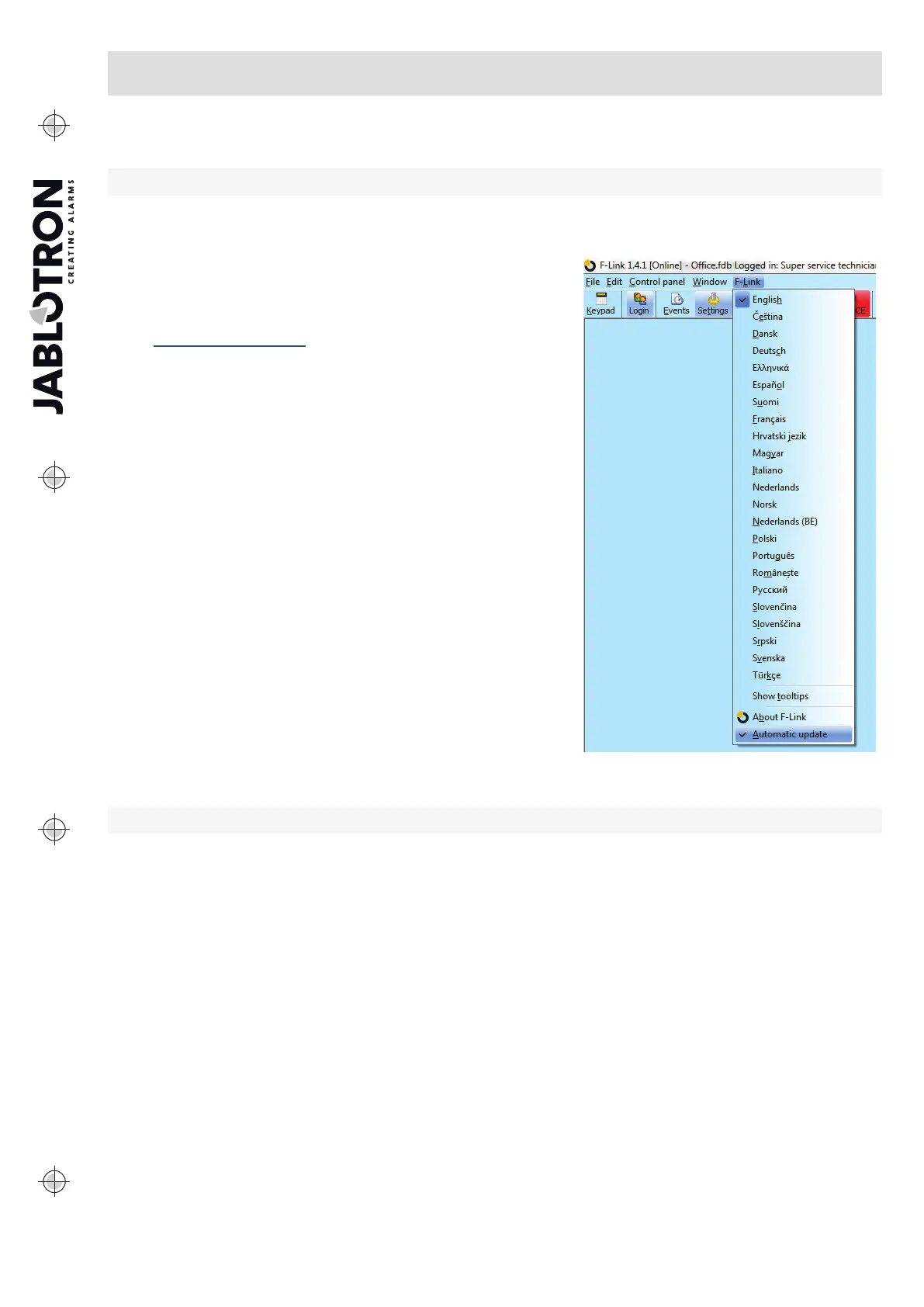
If Automatic Update is allowed in the F-Link menu
(enabled in the default setting), the list of updatable devices
is displayed. This file is part of F-Link in the F-Link x.x.x /
Firmware directory and its up-to-date status is only
guaranteed at the time of the F-Link download.
It’s up-to date status is automatically guaranteed at the time
when F-Link is downloaded.
Location of the Automatic Update parameter:
13.2 FW updates for the control panel and devices connected to the BUS.
1. In the Firmware Update selection window updatable BUS devices and the control panel are only
displayed. F-Link automatically selects devices for which an update is required (they have older FW than
in the FW pack).
2. F-Link warns when only wireless devices can be updated. To perform an update, connect a USB cable
to a PC with F-Link started. Go to the option “Firmware update” and continue like with BUS devices
(see 11.12 Firmware update).
3. More detailed information about the existing and new version of individual devices is displayed
in the bubble help after moving the mouse cursor over each of the offered devices.
4. In the selection boxes check the devices for which you want to change FW. If in the offered options there
is the control panel with the offer of a newer FW version, we recommend you to leave it checked. Some
items may be obligatory and thus unavailable (greyed) for update cancellation.
5. If the control panel update option is enabled, the possibility to keep the modified
user voice menu is displayed. If the possibility to keep the menu is disabled, the default setting of the
voice menu will be restored.
6. Click on OK to start the update of FW of all the selected devices. All the changes will be executed within
a few minutes (depending on the number of devices). Finally, the control panel will restart the system.
7. After a change of FW a part of the registration code will change. Its change will not have any impact
on the possibility of remote access (using F-Link) or possible communication of the control panel with
the MyJABLOTRON service and also the img.jablotron.com server.


 To Next Page