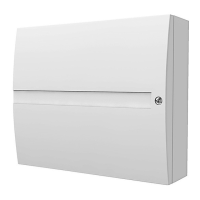
JA-101K(-LAN)(-LAN3G) and JA-106K(-3G)
Security System Control Panels 94 / 110 MLJ51410
11.3 System settings
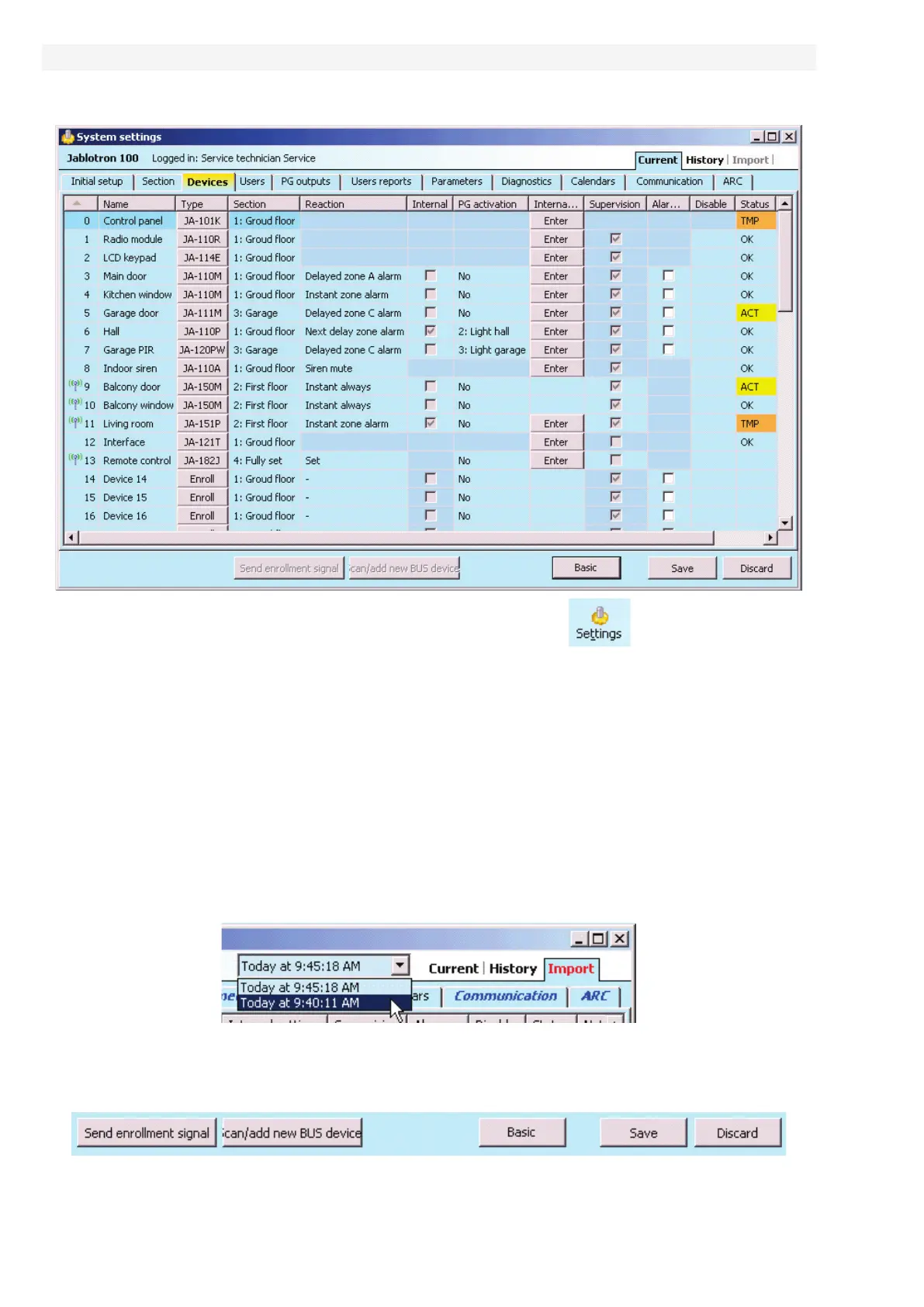
Window used to set behaviour of the system, all devices, sections, users, PG outputs, communicators
and transmissions to ARC is available by pressing the Settings button on the basic top bar.
1. The System Settings Window is opened and closed by the Settings
button in the top toolbar.
2. In the window you can switch between the following tabs: Initial setting, Sections, Devices, Users,
Reports, …
3. The window will display the current setting of the control panel loaded on opening of the F-Link SW
(hereinafter SW only). The Load button in the top toolbar can be used to load the current content
of the control panel at any time.
4. If you want to view older settings of the control panel, use the History tab in the top right corner.
The history cannot be changed, but it can be saved in the control panel (if you need to return to earlier
settings). Max. 10 previous settings are recorded in the history (arranged by the date and time) and also
all setting changes.
5. You can import settings from another installation to the system, e.g. after replacing an old control
panel with a new one or using a default template. If the control panel is replaced with a new one,
after the connection a completely new database will be created in the computer. To import settings from
another database, in the top bar of the main menu select File / Import and select the file you want
to import settings from. After this selection the Import button in the System Settings tab will be.
6. For simpler applications you can just set the basic functions of the system. If you need to set all
functions of the system, use the “Advanced” button in the bottom right corner. By repeatedly pressing
this button you can hide the advanced settings options (their settings remain valid even though they are
hidden. The Advanced/Basic button is available in the other windows as well.
7. If you make a change to a setting, it will be indicated with blue text (the name of the tab
will become blue, too). The blue indication will disappear as soon as you save the changes.


 To Next Page