JABLOTRON ALARMS a.s.
Pod Skalkou 4567/33 46601 Jablonec n. Nisou
Czech Republic www.jablotron.com
||
|
JA-101K(-LAN)(-LAN3G) and JA-106K(-3G)
Security System Control Panels 63 / 110 MLJ51410
Disable – can be performed at 2 levels given by your authorization:
1. Input blocking (yellow dot), serves for the permanent blocking of the detector’s input (BLK). The system
ignores any device activation = an alarm is not triggered and the PG is not controlled but tamper alarms
and faults are registered as usual.
2. Device disabling (red dot), serves for the device to be completely disabled (Disabled). The system ignores
all connected device functions = no alarm, tampering, PG activation, Fault, report,...).
You cannot disable the control panel or a device whose reaction is set to Panic.
Status – indicates the current status of the device. OK = everything all right, TMP = tampering, ACT = alarm
input activated, BLK = blocked, Disabled = Disabled, ERR = error, ?? = no communication with the device,
Mains supply = supply failure, Battery = discharged or disconnected battery in the control panel, Charging –
charging the backup battery in the device or control panel, BOOT – upgrading of the device is going on or
upgrade failure (repeat upgrade). By moving the mouse cursor on the device STATUS you will display detailed
data.
Note – it allows you to describe details of the device, e.g. location, last battery replacement date, mean RF
signal strength during the last testing etc.
10.5.1 Keypad configuration
First, assemble the control keypad mechanically. Attach the required number of control segments
(max. 20) to the selected access module; their internal cables must be interconnected.
Enroll the keypad on the selected position in the system (see chapter 5 Installation of BUS devices).
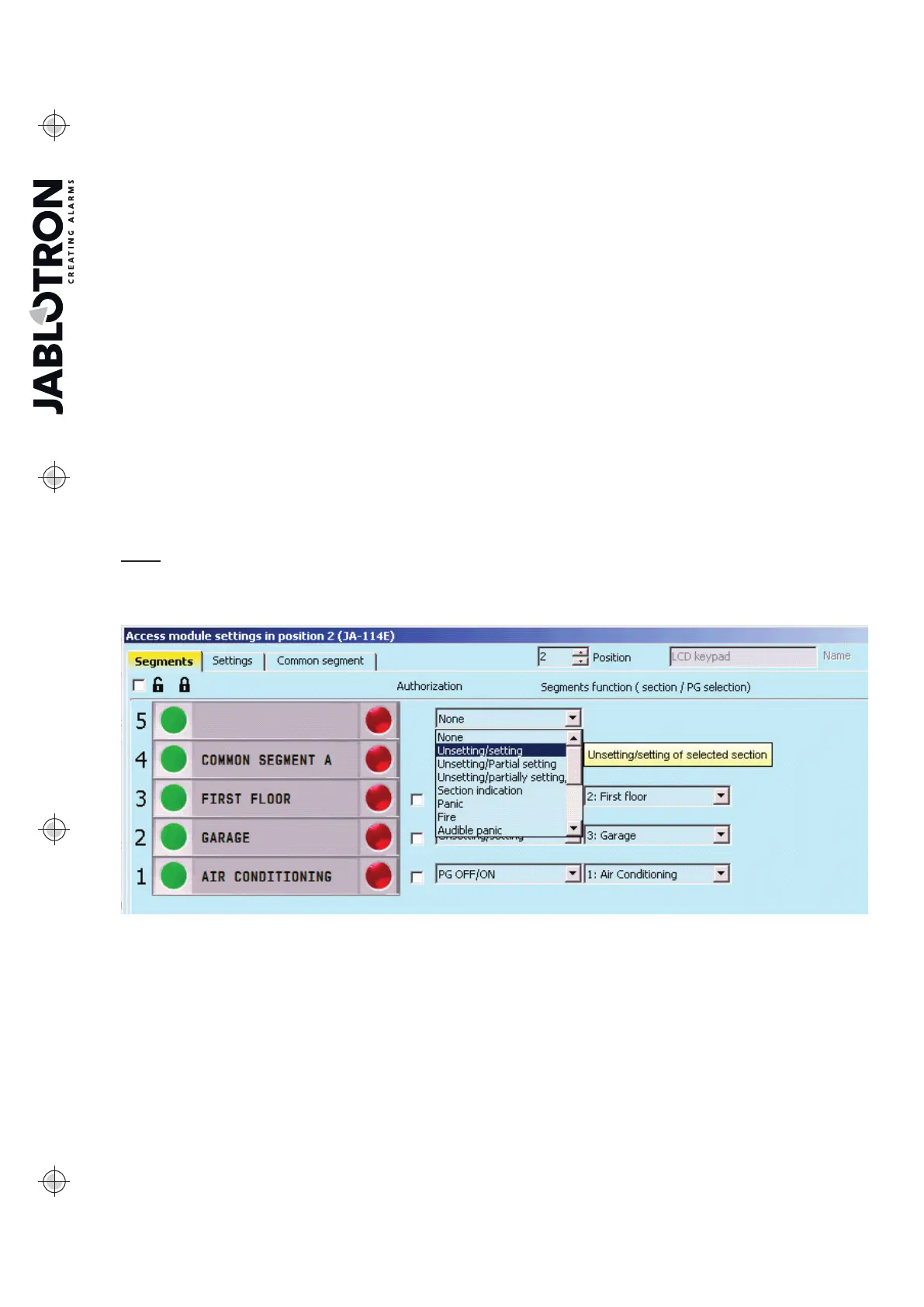
On entering in the internal settings of the keypad (the Devices tab) the following window will open
(the example refers to the JA-114E keypad), for other keypads the setting range may be smaller).
Example of keypad internal settings:
Note: items that are not available in the window are not included in the connected version of the keypad.
The description relates to the FW version of the LUxxx20 keypads.
10.5.1.1 Segments tab
Locks locked / unlocked – activates the display of the lock symbols for segment control buttons setting
sections, and dot symbols (empty / full) for the control of PG outputs. The symbols are taken into consideration
when printing the labels.
Texts of control segment labels – the Section Name (from the Sections tab) or PG Output Name (from the
PG Outputs tab) is displayed. You can also edit the entire text to be printed right here by clicking on the
respective text. These changes are not saved in the system and only serve the needs of label printing.
The Print Labels button (in the bottom bar of the card) is used to print segment labels.
Print labels – enables direct print of pre-set label texts using the installed printer. You can edit the texts
by clicking on the segment, which only results in a change for the print and the changed texts will not be saved
in the database. You can conveniently use the PT-P700 label printer from Jablotron, which enables automatic
cutting by the required label dimension.
Import – allow the copying of current keypad settings to other keypads, for instance in the case when
a protected building has a few more entrances and every entrance requires having a keypad with the same
functions. Making a copy is possible for the same type of keypad. Or it can be used when a keypad is replaced


 To Next Page