HSIChannelstrip Abouttheconsolecontrols
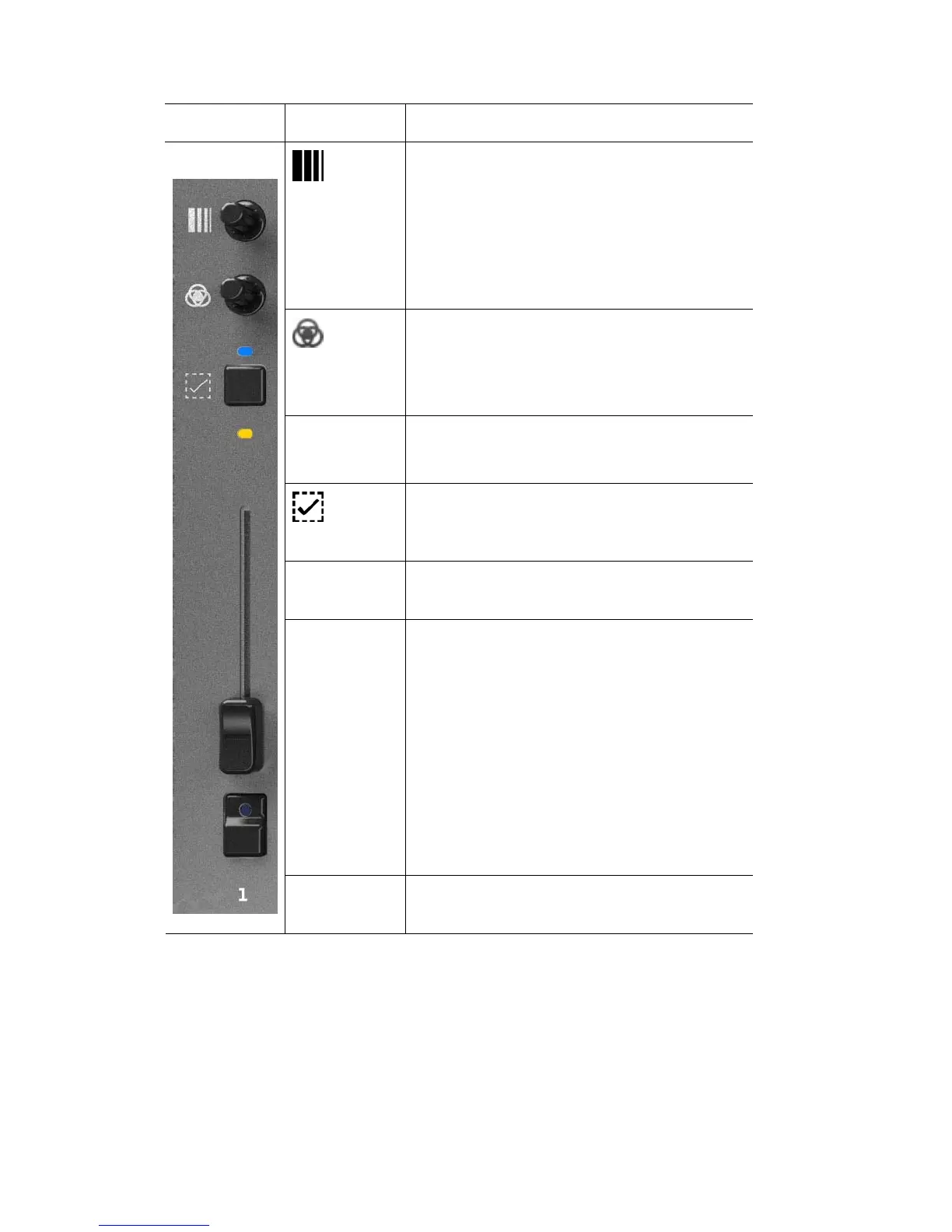
This control.. does this…
adjusts the Saturation. For example if you set
a Red colour with the Hue control the
Saturation control will adjust it from deep red
through pale red to white.
Saturation
dial
Hold shift and adjust this dial to control
another feature, such as strobe, if your fixture
has this feature available and configured.
adjusts the Hue (or colour) of the channel.
Hue dial
Hold shift and adjust this dial to control
another feature, such as zoom, if your fixture
has this feature available and configured.
Select LED shows that a channel is selected. For example
when grouping channels and for recording
(Blue LED)
selects the channel for recording or when you
want to group channels and adjust their
colour with one set of colour controls.
Select button
Colour mimic
LED
shows the intensity and colour of the channel.
Channel fader fades the intensity of the channel from 0 to
100%
The Stage CL uses Fader gating. This means
that if the fader isn’t set at the same level as
the actual channel output you have to move
the fader up or down to match the output
level before the fader takes control.
You might need to do this when switching the
faders between Scene and Channel mode or if
you have used the Clear button to clear all
output from the channels
Flash button
& LED
flashes the intensity of the channel to full
while held down.
FixtureMasterControl
The fixture master control scales the intensity of all the fixture channels
 The channel faders can also be switched to control Scenes and Chases. See
Recording a Scene on page 7-1.
5‐2 StageCLUserGuide,Version1.3


 To Next Page