Monitoringthefixturecontrols Monitoringtheconsole
ReleasingaScene,ChaseorCuelist
All the items that appear in the monitor play list are contributing to t
the Stage CL. You can Release an item or all of them from this windo
he output of
w. To do
the playlist by touching on it or by scrolling up and down
2. Touch the Release button. Stage CL releases the item and removes it from the
and cues press the Release All button.
ctly control the intensity of your
match the intensity level of
he 50% position and
e to 100% the light will go to 100% even
age CL uses ‘fader gating’. This means that you
have to move the fader until it matches actual channel intensity before it will take
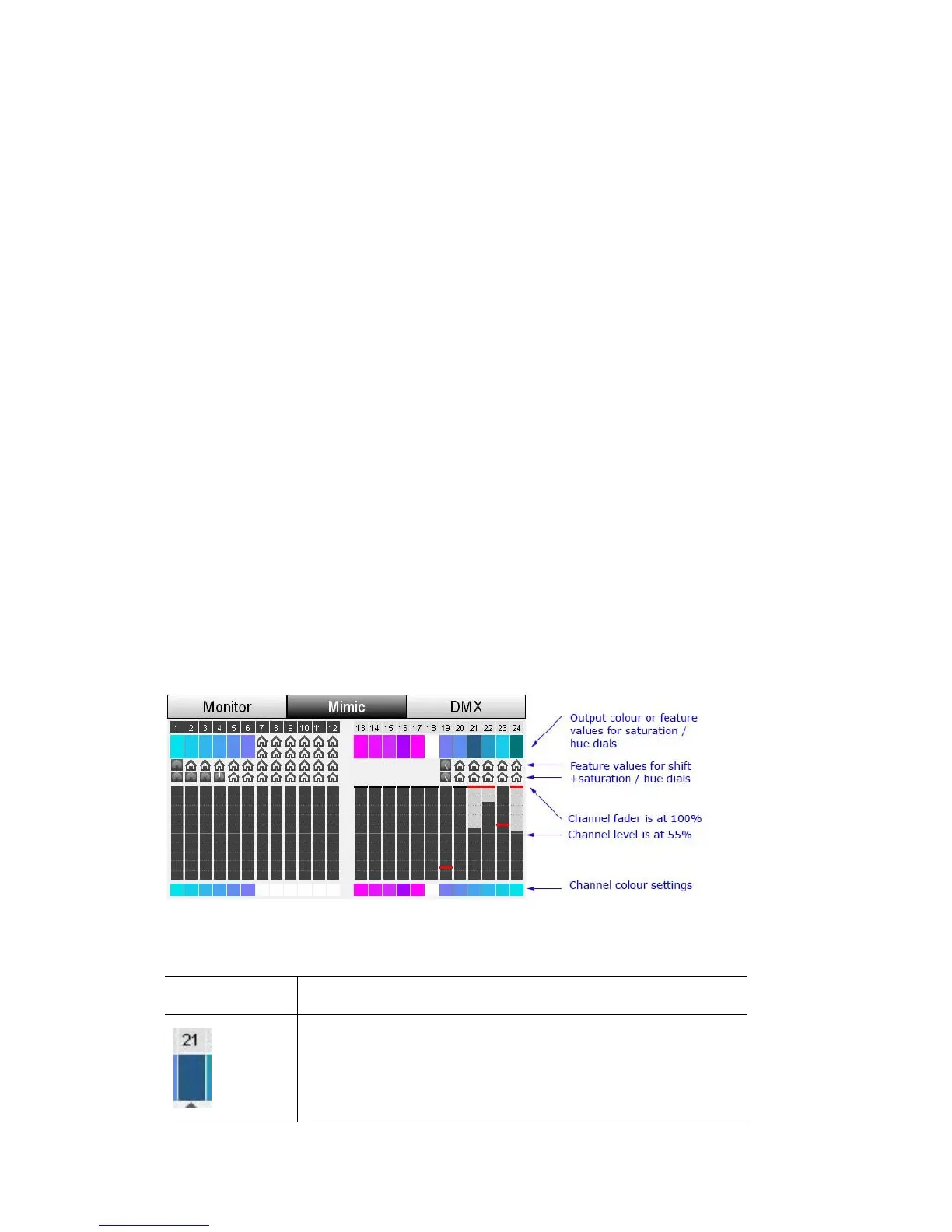
window let’s you see the channel fader settings and the output levels
n one screen. To do this:
1. In the Monitor window touch the Mimic button. Stage CL displays the
Mimic window:
this:
1. Select an item in
the list.
play list.
To release all playing scenes, chases
Monitoringthefixturecontrols
The 12 fixture faders on the Stage CL let you dire
lights but the position of the faders doesn’t always
your lights. For example if you have a fixture fader set to t
then play a scene that sets that fixtur
though the fader is still at half.
To get around this problem St
control of the channel.
The Mimic
o
In this window you can see the channel fader setting, the channel output level,
the channel colour setting and the colour output.
This indicator shows this…
The colour box, above the fader bar shows the colour output
of the channel.
In this example the colour is a dark green because the
channel intensity level is not at 100%
10‐2 StageCLUserGuide,Version1.3


 To Next Page