Systeminformation Setup&Preferences
This item… does this…
Chase
Cross-fade
Sets the default crossfade method fo
Cuelist icons
Sets cues to
and Monitor windows
r all new Chases
display an icon beside their name in the Cuelist
Scene icons
Sets scenes to display an icon beside their name i
and Monitor windows
n the Scenes
Scene Pages
Sets the number of Scene pages
12 fader sets as Scenes. (1 – 6)
available, when you use the
LED Intensity
rve
Designed to compensate for the fast turn on of many L
fixtures. When On the fader increases intensity slowly at
first and then quickly as the fader reaches the top
Cu
ED
White LED
blend
For fixtures with white
when White is selected. At 0%
used. At 100% the Both the White and RGB LEDs will be at
full
LEDs sets the level of the RGB LEDs
only the White LEDs will be
Amber LED
blend
For fixtures with amber LEDs sets the level of the Red and
Green LEDs when Amber is selected. At 0% onl
LEDs will be
LEDs will be at full
y the Amber
used. At 100% the Amber , Red and Green
Encoder
Adjusts the speed at which the encoders (dials) start to
change values more quickly. The higher the number the
encoder to trigger the
acceleration effect
sensitivity faster you have to turn the
Encoder Ramp
Up
Sets the amount of acceleration applied when the encoders
are moved quickly
Looks Preview
Icon
cene / Cuelist / Chase
a band of colour for
n only shows a band for the
Sets the icon you see in the S
windows. The Detailed icon shows
every fixture. The Abstract ico
first 6 active fixtures – so it tends to be easier to identify.
Systeminformation
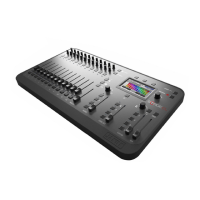
The Stage CL software may be updated from time to time. You can use the Setup
About window to check the version you are using, to install an update or to run
diagnostic tests. To do this:
1. Touch the Setup button on the Home screen then press the About button.
Stage CL displays the About window:
11‐4 StageCLUserGuide,Version1.3


 To Next Page