EditingandMonitoringScenes Scenes
2. You can control the overall level of the scene by
Scenes fader.
OR
1. Press the Fixtures / Scenes
raising or lowering the
button above the Master fader to switch the
scene flash button
contributing to the console output –
the look you see on stage.
OR
1. flash buttons. The scene or chase will play until the
To stop playback of a scene you do this:
Ed enes
To edit a scene or view it’s settings you do this:
not already on the Home page, press the Home button,
s
12 fixture faders switch to Scene mode
2. Push one of the twelve Scene faders up. The LED in the
flashes slowly to show that the scene is
Press one of the 12
button is released.
Stopping(akareleasing)aScene
1. Press the scene button you want to stop. The LED in the scene button stops
flashing and stays lit.
itingandMonitoringSc
1. If the touchscreen is
below the screen.
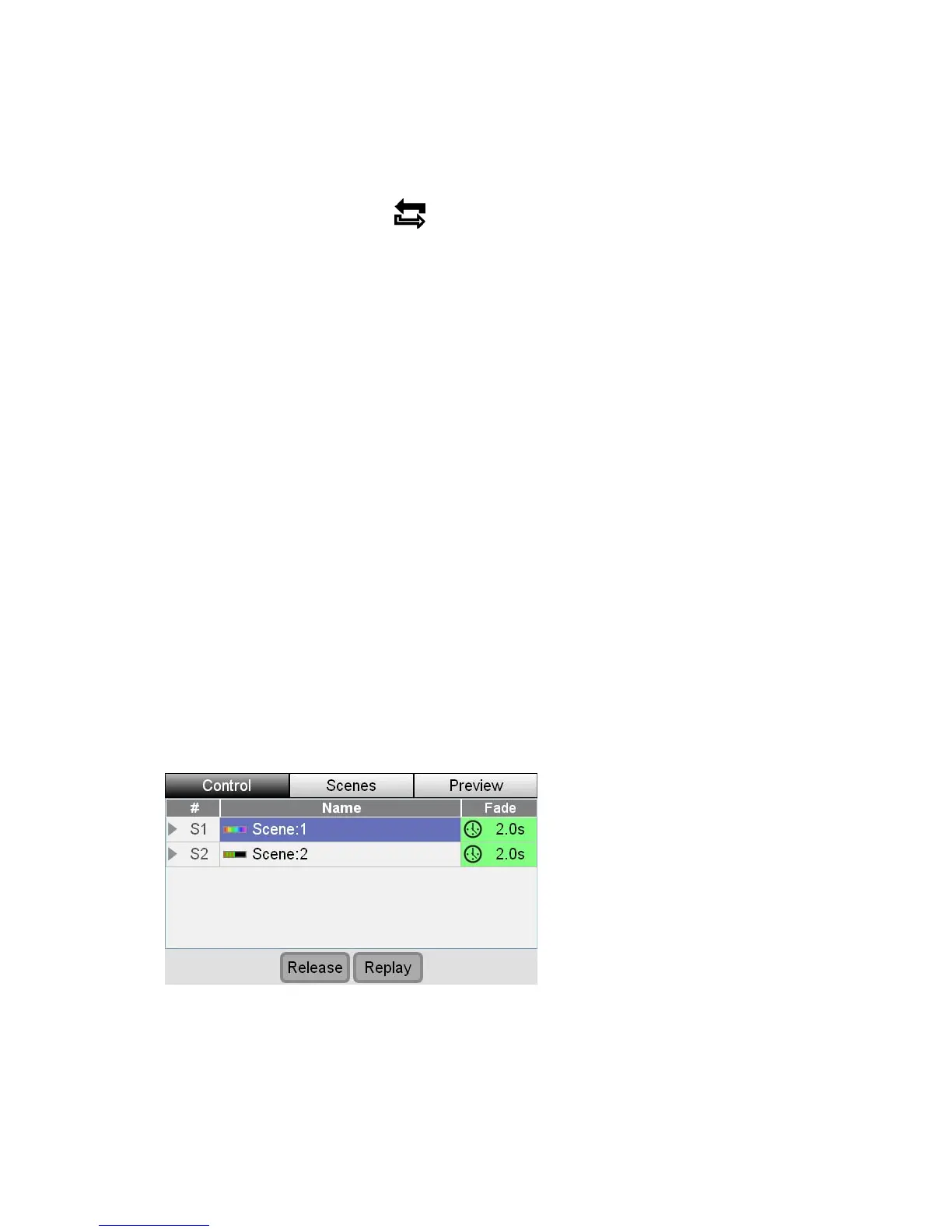
2. Press the Scenes button on the touchscreen. Stage CL displays the Scene
window with the Control tab selected:
.
Th Control tab of the Scene window shows you a list of the Scenes that are
ing.
e
play
u
of this wind
Yo can touch on a Scene name to select it and then use the buttons at the bottom
ow to Release (fade out) or Replay the scene.
7‐2 StageCLUserGuide,Version1.3


 To Next Page