KINOVA
®
Gen3 Ultra lightweight robot User Guide 116
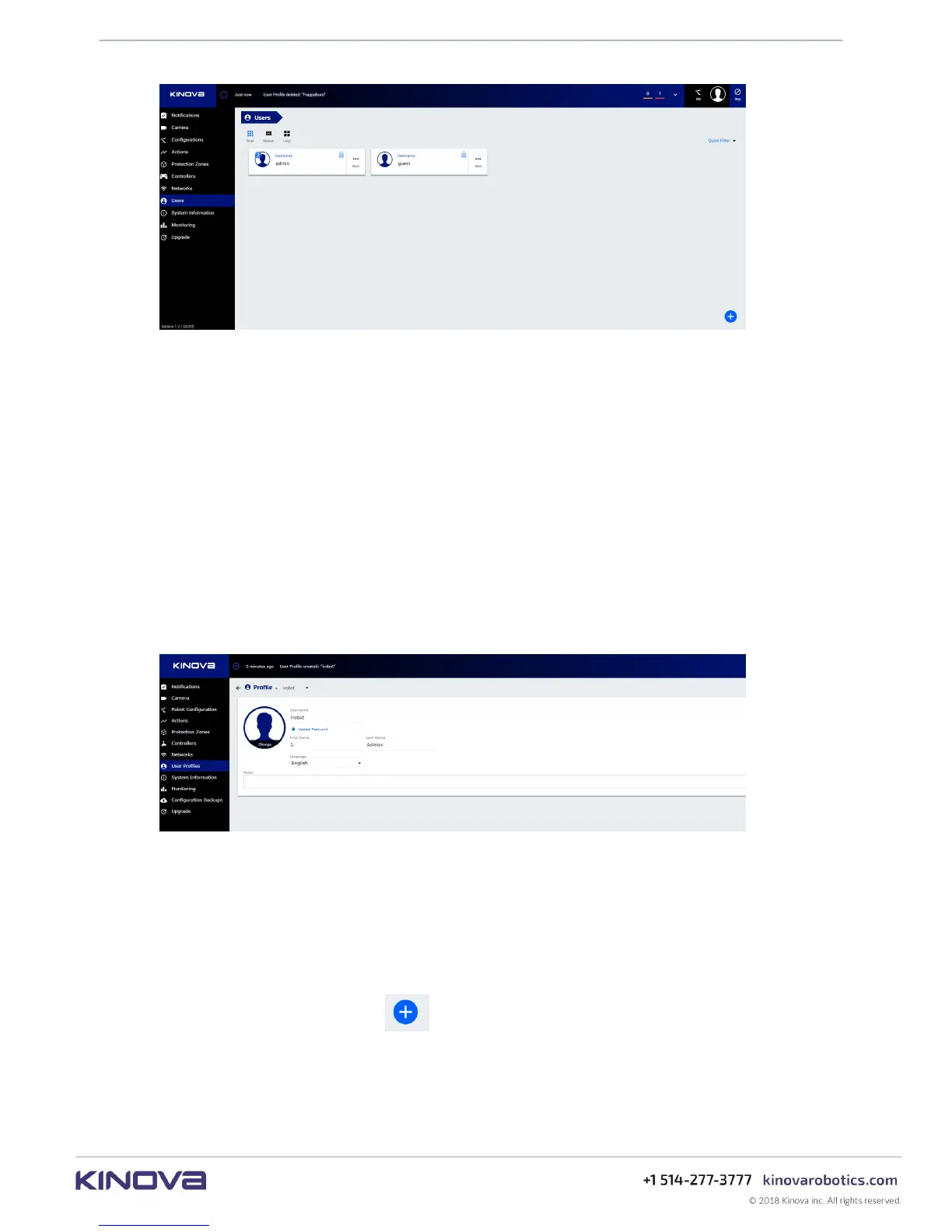
Figure 61: Users page
Defined profiles are displayed as information cards on the main information panel of the page.
The cards are in three different sizes:
• large
• medium
• small
Card sizes can be toggled using buttons on the upper right of the main information panel.
Large cards show a full set of information. The large card displays the user name and language.
Medium cards are slightly smaller.
Small cards show a more compact view. By clicking the More button, a pop-up menu is revealed
to allow you to View, Edit, Delete, or Duplicate the profile.
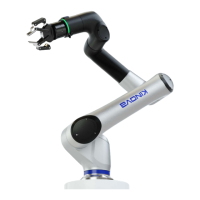
Clicking Edit brings you to an editing interface where it is possible to configure the profile.
Figure 62: Card editing interface
Creating a new user profile
This section describes how to create a new user profile in the Web App.
About this task
Procedure
1.
On the Users page, press the button to add a new empty user profile. This will bring up
a window to enter information for the profile.


 To Next Page