LaCie 5big network Setting Up Your LaCie 5big network
User Manual page 14
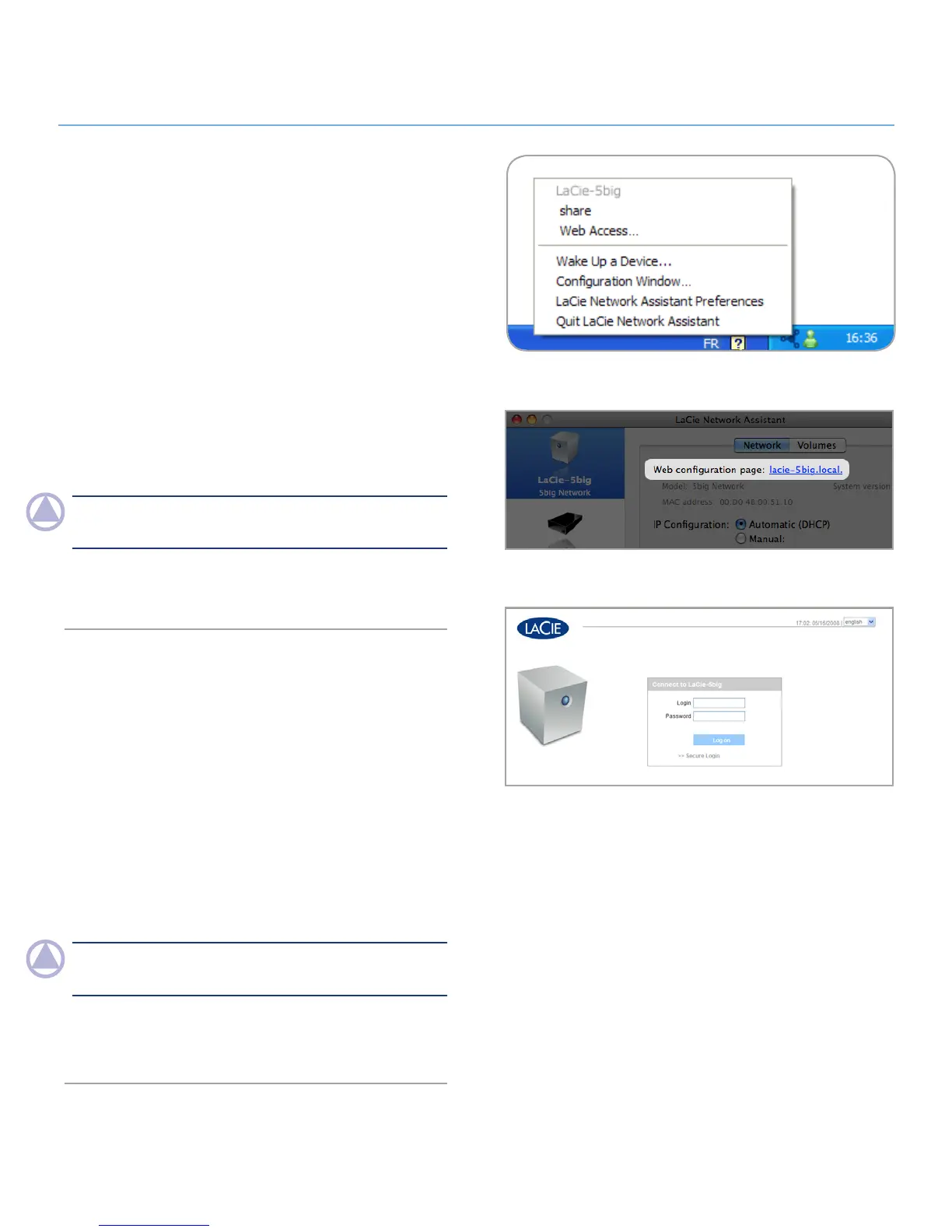
Figure 2.3-C
Launch the Administration Page
Windows Users
Select LaCie Network Assistant in Start/Programs. A Network 1.
Assistant icon will appear in the system tray and Network Assis-
tant will automatically detect your LaCie 5big network and any
other LaCie storage devices on your network.
Click on the icon in the system tray and select
2. Configuration
Window... from the LaCie 5big network sub-menu (Fig. 2.3-C).
The LaCie Network Assistant page will open.
Under the
3. Network tab, click the Web configuration page
link (Fig. 2.3-D).
To log in to LaCie 5big network administration (Fig. 2.3-E),
4.
enter:
Login: admin
Password: admin
NOTe: This password can be changed from the Administration
Page (refer to 4.2. Users).
Click
5. Log on.
Continue to section 4. Administering Your LaCie 5big network.
Mac Users
Double click LaCie Network Assistant in your Applications fold-1.
er. An Network Assistant icon will appear in the menu bar and
the Assistant will automatically detect your LaCie 5big network
and any other LaCie storage devices on your network.
Click on the icon in the menu bar and select
2. Configuration
Window.... The LaCie Network Assistant page will open.
On the Network tab, click the
3. Web configuration page link
(Fig. 2.3-D).
To log in to LaCie 5big network administration (Fig. 2.3-E),
4.
enter:
Login: admin
Password: admin
NOTe: This password can be changed from the Administration
Page (refer to 4.2. Users).
Click
5. Log on.
Continue to section 4. Administering Your LaCie 5big network.
Figure 2.3-D
Figure 2.3-E











 To Next Page