LaCie 5big network Setting Up Your LaCie 5big network
User Manual page 15
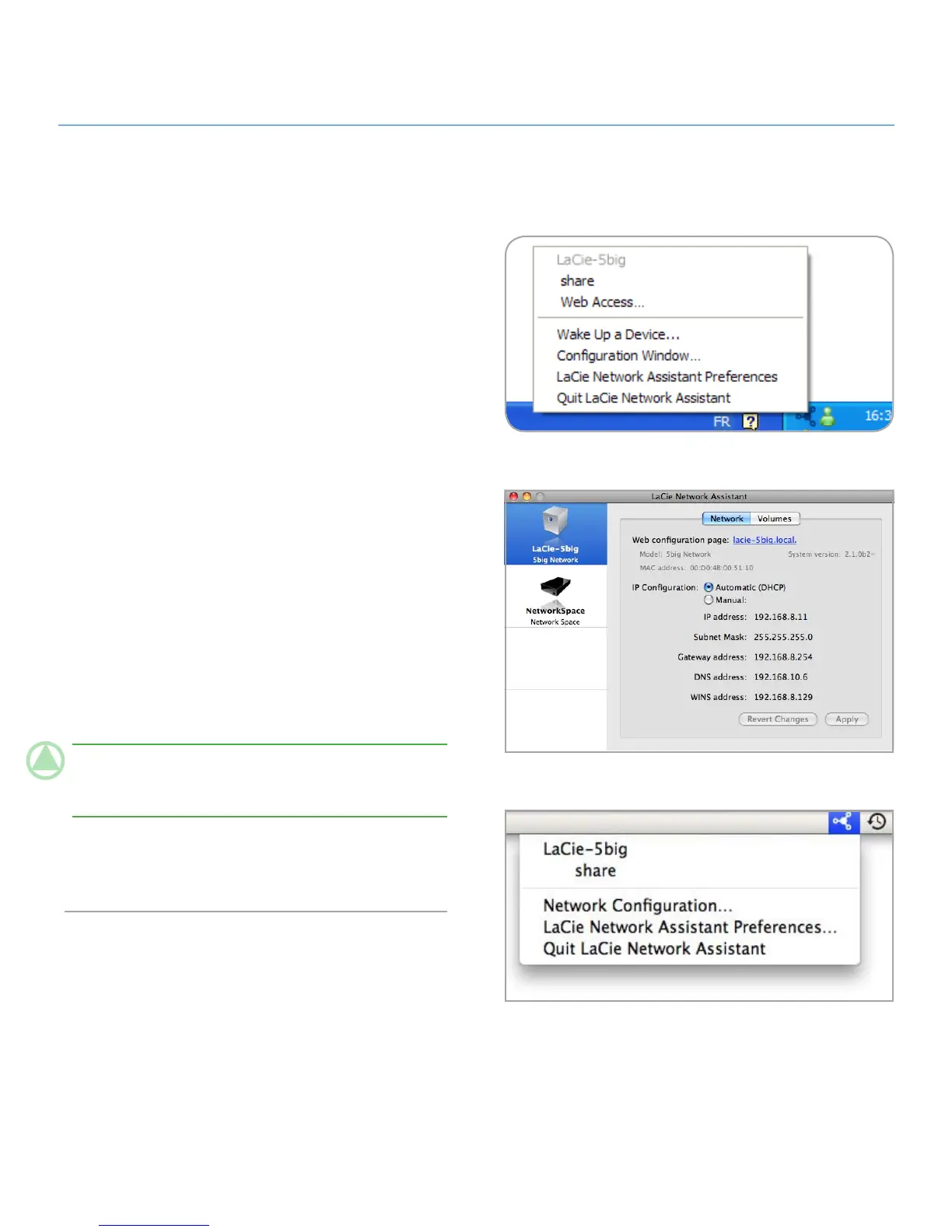
Fig. 2.4-A
Fig. 2.4-B
Fig. 2.4-C
Most home networking routers are DHCP servers, meaning the
router assigns an IP address to all devices on the network to
allow devices to find each other. If your network does not have
DHCP server, you may need to manually assign your LaCie 5big
network an IP address and other network information.
The easiest way to modify your LaCie 5big network’s network
configuration is to use the LaCie Network Assistant. See section
2.3. Connecting Using LaCie Network Assistant for information
on installing the network configuration software.
Start LaCie Network Assistant (see section
1. 2.3. Connecting
Using LaCie Network Assistant).
Windows Users:
2. Click on the LaCie Network Assistant icon
in the system tray and select Configuration Window... (Fig.
2.4-A). The LaCie Network Assistant Configuration window
opens (Fig. 2.4-B).
Mac users: Click on the LaCie Network Assistant icon in
the menu bar and select Network Configuration... (Fig.
2.4-C). The LaCie Network Assistant Configuration window
opens (Fig. 2.4-B).
Click the
3. Network tab.
Select
4. Manual.
TeChNICAl NOTe: If the fields (IP address, Subnet mask,
etc.) are filled when Automatic (DHCP) is selected, you do not
need to make manual settings. Leave Automatic selected.
Modify the network settings to work with your network.
5.
Click 6. Apply.
Configuring the LaCie 5big network on a Network Without a DHCP 2.4.
Server











 To Next Page