LaCie 5big network Administering Your LaCie 5big network
User Manual page 36
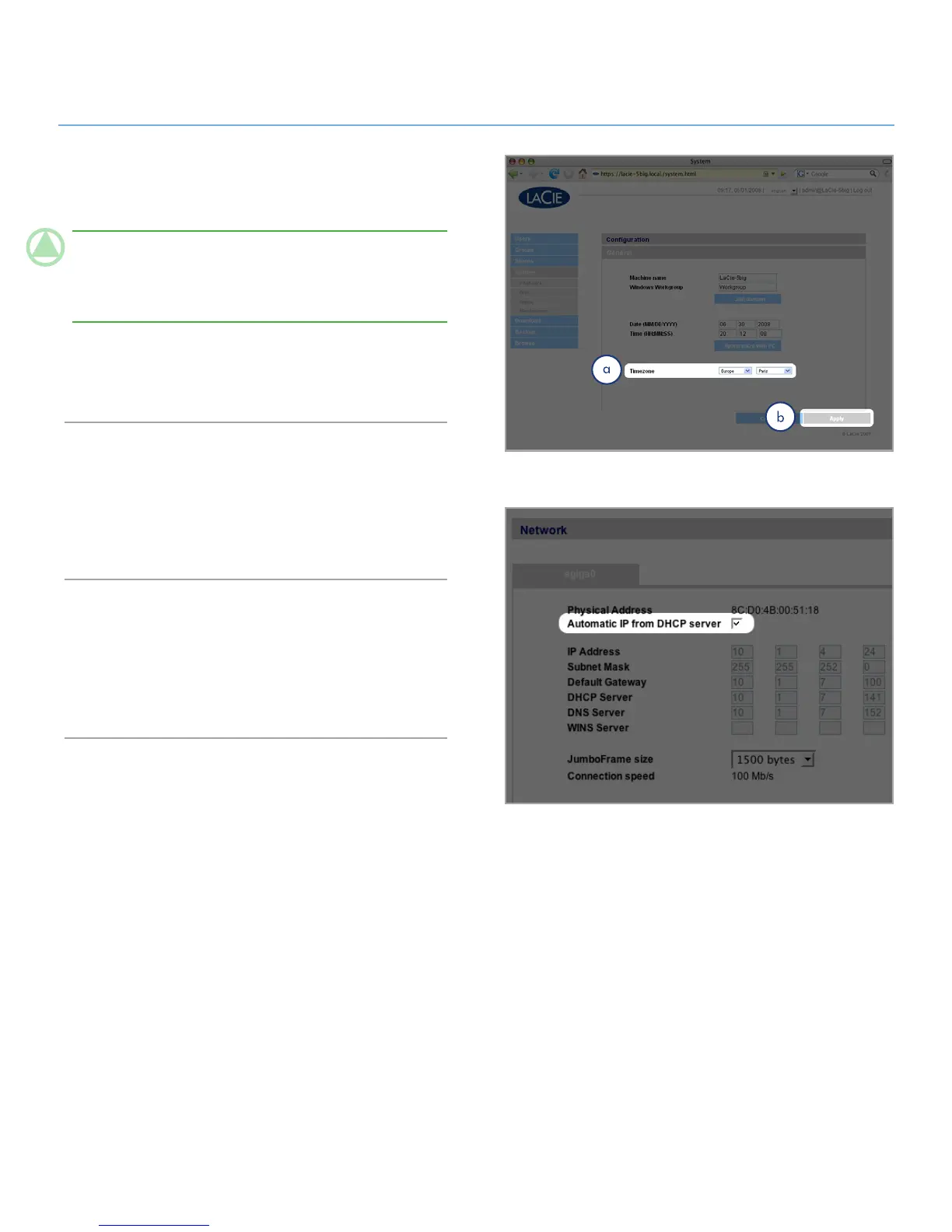
To change the time zone, click on the current time zone loca-
tion to activate the time zone drop-down menu (a, Fig. 4.5.2-B)
and select a location in your time zone. Click Apply (b).
TeChNICAl NOTe: The 5big network has a 30-minute time-
out cycle. Selecting a different time zone may cause the 5big to
log you out. If this happens, just log in again and return to the
Configuration page.
To change the date and time, select a time zone and click the
Synchronize with PC button. The date and time will automati-
cally synchronize with your computer. Click Apply (b).
Network4.5.3.
The Network page allows you to choose how the IP address of
the 5big network is obtained, either automatically from a DHCP
server on your Network, or manually with settings that you in-
put.
Obtain IP from DHCP Server4.5.3.1.
If your 5big network is connected to a network with a DHCP
server, simply check the “Automatic IP from DCHP server” box
(Fig. 4.5.3.1). Your DHCP server will assign an IP address to the
5big network every time it connects to your network.
Figure 4.5.3.1
Figure 4.5.2-B











 To Next Page