LaCie 5big network Accessing & Managing Files
User Manual page 18
Other Connection Methods3.1.1.
Vista/XP/2000 Users – My Network Places
ImpOrTANT INfO: If you have just turned on the LaCie
5big network, it may take a few moments for it to appear on
the network.
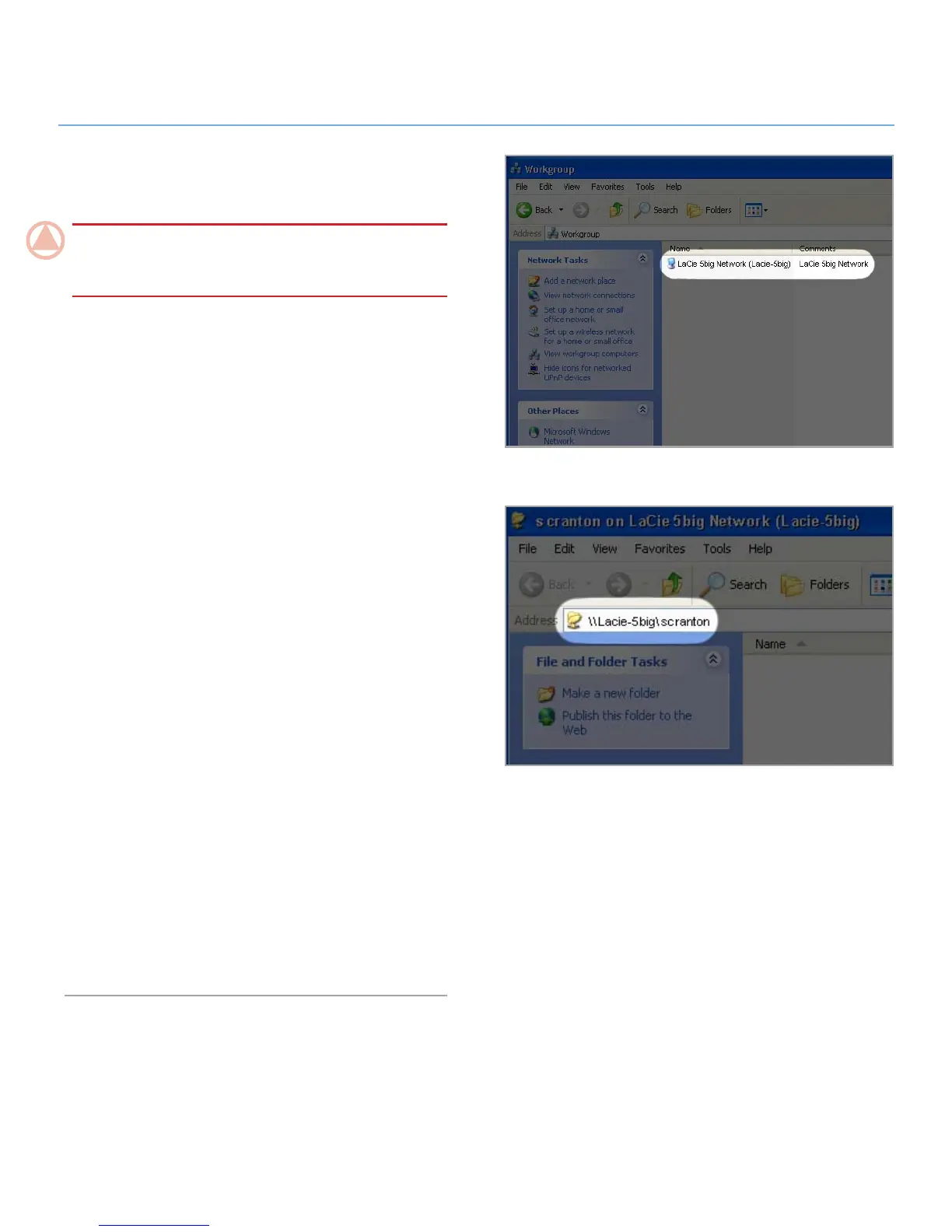
To access the share in Windows, look in My Network Places,
and select Microsoft Windows Workgroup. By default, the
5big network will be named LaCie 5big network (Lacie-5big)
(Fig. 3.1.1-A).
Alternatively, you can access the share by typing the following in a
Windows explorer address field (Fig. 3.1.1-B.):
\\LaCie-5big\[share name]
\\[IP address]\[share name] Find the IP address by running the
LaCie Network Assistant (section 2.3.).
For FTP access, type:
ftp://LaCie-5big or ftp://[IP address]
In the logon window that opens, type:
Login: admin
Password: admin
(This user name and password is the factory default; if you have
already created a user, input your user name and password.)
The LaCie 5big network will appear as a drive with one share
folder on the network.
Windows Me/2000
For Windows Me and Windows 2000 users, if you cannot find
the LaCie 5big network from your workstation, try using the Win-
dows search tool.
From the Start menu, select Search, and then click on For Files
or Folders. In the Search Results window, select Computers.
In the Search for Computers dialog box, enter the server name
and click the Search Now button. By default, the LaCie 5big
network will be named “LaCie-5big” , and the share “SHARE”.
Figure 3.1.1-A
Figure 3.1.1-B











 To Next Page