LaCie 5big network Accessing & Managing Files
User Manual page 17
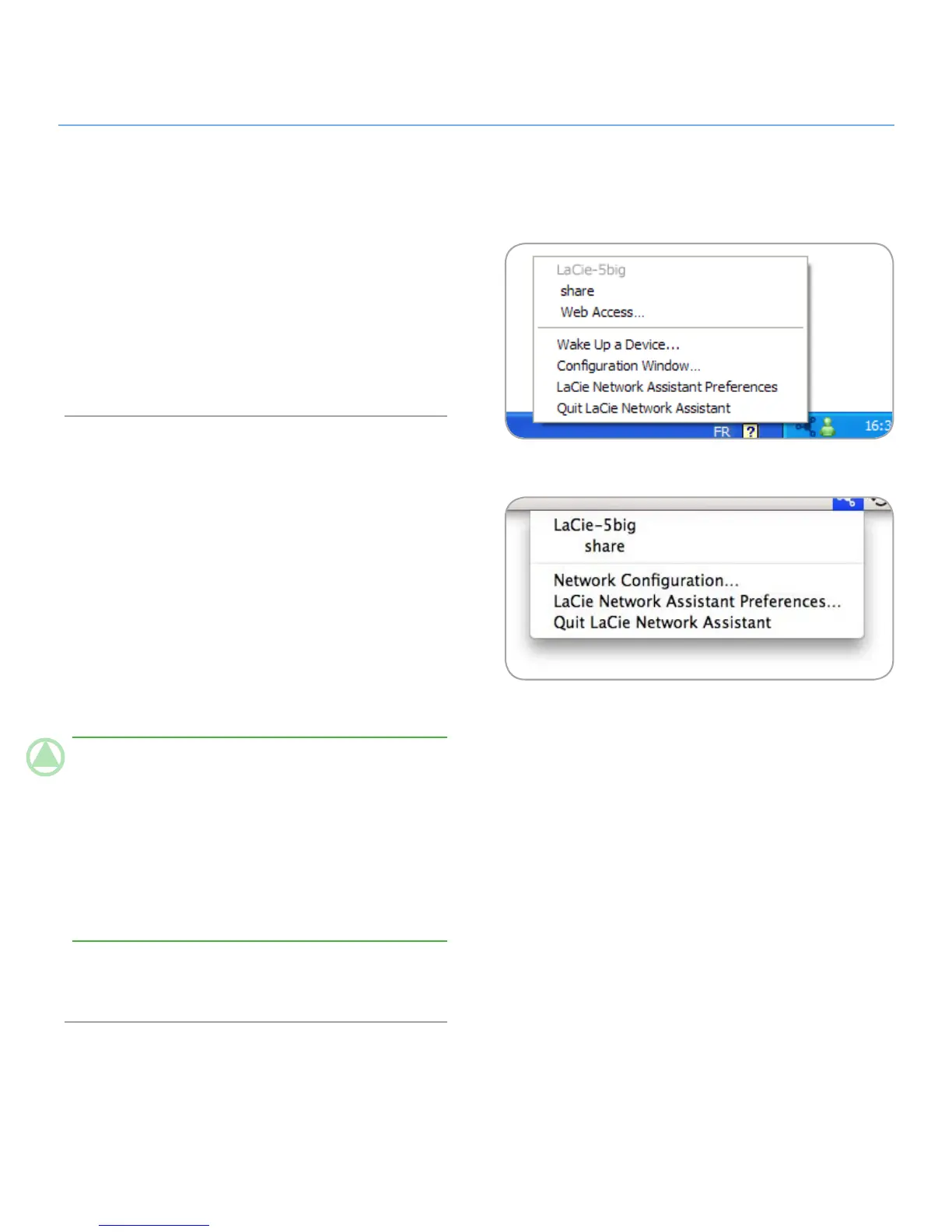
Fig. 3.1-B
Fig. 3.1-A
3. Accessing & Managing Files
Use LaCie Network Assistant to access your shared folder(s) (see
section 2.3. Connecting Using LaCie Network Assistant).
You can also connect an external hard drive to use as a backup
for your LaCie 5big network or as additional storage. External
drives appear as separate shares and are accessible by anyone
on the network. For details, see 3.4. Connecting External Hard
Disks.
Accessing Shared Folders3.1.
When your computer is connected to your local area network,
LaCie Network Assistant will help you quickly connect to the
shared folder(s) on your LaCie 5big network.
To access shared folders (all users):
Run the LaCie Network Assistant (LNA). Click on the LNA 1.
icon in the system tray (Windows users) or menu bar (Mac
users).
Select
2. Share (default) or the name of any other share you
have created from the LNA menu. The share will open in a
Windows Explorer or Mac Finder window.
TeChNICAl NOTe: You may need to enter the username
and password for “share.” The defaults are:
Username: admin
Password: admin
Your system may remember this information and might not ask
for it during the same session.
See section 4.2.6. Editing User Accounts for information on
changing the User account information.
Simply drag and drop files to and from this window, just like
3.
a regular folder.











 To Next Page