Page 27
CONNECTING TO NETWORK VIA PC ACCESS
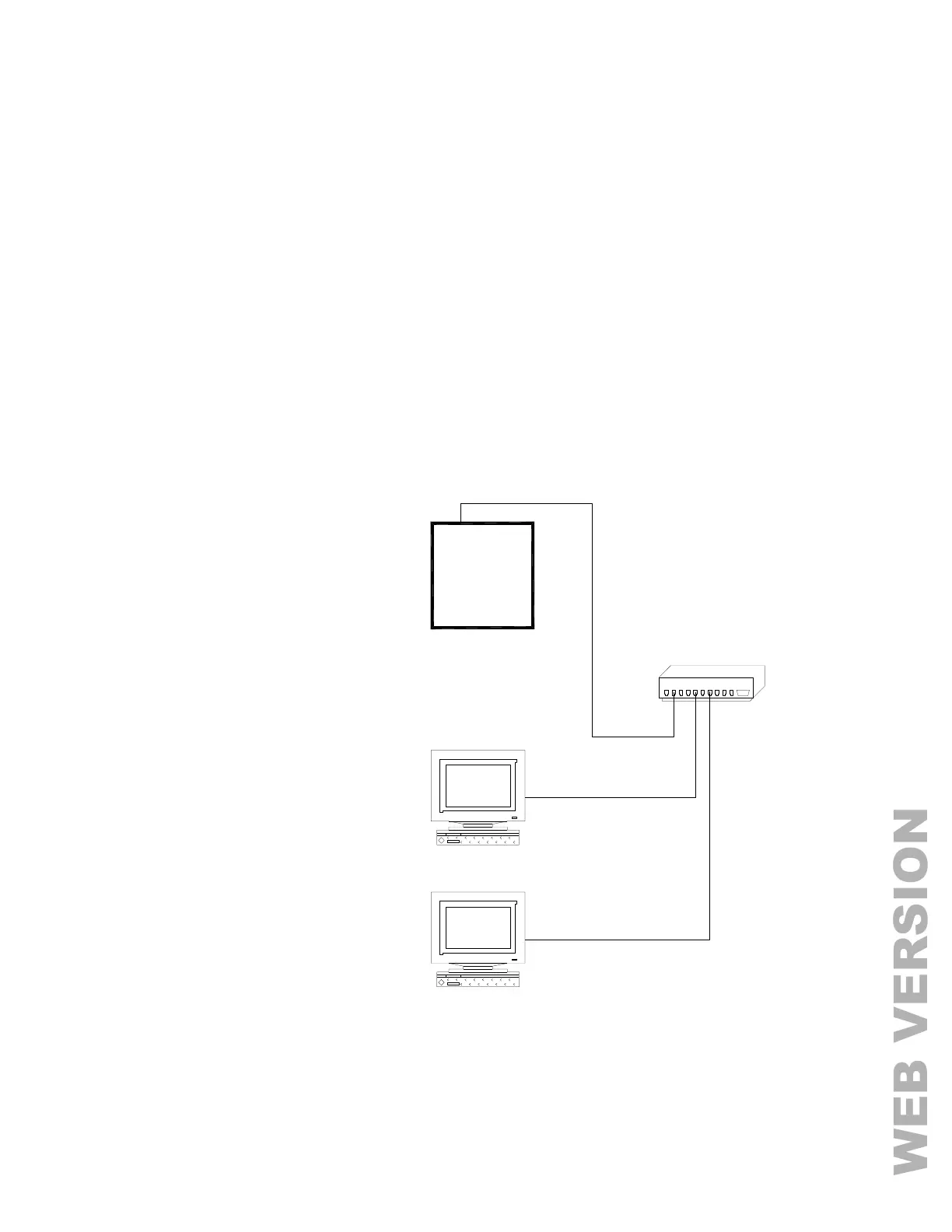
To access the controller over the network via PC Access:
1. Open an Omni LTe account file.
2. Click Configure >> Network.
If you are connecting from the local network, enter the controller’s IP address under “Network IP Address
or Domain Name”.
If you are connecting from the Internet, enter either the public IP address (the way to reach your local
network via the Internet) or domain name (e.g. www.homeauto.com).
3. Enter the port number that is configured for the controller.
4. Select the Encryption tab. Enter the two part encryption key as it is displayed on the console.
5. Select OK.
6. Click Connect >> Network >> Connect. PC Access should change from “Off-Line” to “On-Line”.
To connect to an Omni LTe controller
on a local network using LEVITON PC
Access, under Configure >> Network
enter the controller’s IP address:
(i.e. 192.168.0.101)


 To Next Page