EasyManua.ls Logo

Lightware UMX-OPT-TX150R - User Manual

Lightware UMX-OPT-TX150R
107 pages
Print Icon
To Next Page IconTo Next Page
Loading...
UMX-OPT-TX150R
User’s Manual

Table of Contents

Other manuals for Lightware UMX-OPT-TX150R

Questions and Answers

  • A
    Adam HarrisAug 14, 2025
    What to do if the Lightware Extender HDMI output signal contains no audio?
    • R
      Reginald MitchellAug 14, 2025
      If the HDMI output signal from your Lightware Extender contains no audio, verify that the HDMI mode is correctly set and not inadvertently set to DVI. Access the output port properties and ensure it is configured for HDMI or Auto. Additionally, check the EDID settings; if a DVI EDID is being emulated, switch to an HDMI EDID.
  • P
    Paul WebsterAug 18, 2025
    How to troubleshoot RS-232 signal on Lightware Extender?
    • B
      Brandi MossAug 18, 2025
      Regarding RS-232 signal issues with your Lightware Extender, first, check that your serial cable is properly connected and that the wiring of the plugs is correct. Also, verify the RS-232 mode settings, choosing between pass or control mode.
  • A
    Amanda HorneAug 28, 2025
    What to do if Lightware Extender shows no picture due to HDCP?
    • F
      fmartinAug 28, 2025
      If you see no picture on the video output of your Lightware Extender, there are a couple of HDCP-related issues to consider. Some video sources send HDCP-protected signals even if the content doesn't require it, especially if they detect an HDCP-capable sink. If you have a non-HDCP compliant display, this can cause problems. In this case, try disabling the HDCP function. Alternatively, if HDCP is disabled, try enabling it on the input port.
  • A
    Ann MartinSep 3, 2025
    Why does Lightware Extender HDMI output have no audio?
    • S
      Sara WarnerSep 3, 2025
      If the HDMI output signal from your Lightware Extender contains no audio, check that the HDMI mode is properly configured. If the HDMI mode was set to DVI, change the properties of the output port to HDMI or Auto. Also, if a DVI EDID is emulated, check the EDID settings and select an HDMI EDID to emulate.
  • M
    Martin HopkinsNov 8, 2025
    Why is there no picture on the Lightware UMX-OPT-TX150R Extender video output?
    • S
      steven63Nov 8, 2025
      If there's no picture on the video output of your Lightware Extender, several factors could be at play. Start by ensuring all devices are correctly powered; try unplugging and reconnecting them. Verify all cable connections are secure, given the sensitivity of high data rates, and confirm the correct input port is selected on your source or display. Cable quality matters, so opt for OM3 or OM4 cables. If using fiber optic cables, ensure the endface surface is clean using specialized cleaning equipment. Check that your display can receive the video format being sent; try emulating your display device’s EDID to the source. Confirm the crosspoint setting is correct, linking inputs and outputs appropriately. Also, check your video source is powered on and configured correctly, and if it's a co...
  • L
    lisa77Nov 22, 2025
    How to troubleshoot no picture on Lightware Extender video output?
    • J
      joshuacrawfordNov 22, 2025
      If you are experiencing a 'no picture' issue with your Lightware Extender, several factors could be the cause. First, ensure that all devices, including the extenders themselves, are receiving power; try unplugging and reconnecting them. Next, verify all cable connections, as high data rates require a secure fit. If your source or display has multiple connectors, confirm that the correct input port is selected. The quality of your cables matters, so use high-quality cables, such as OM3 or OM4. If using fiber optic cables, make sure that the endface surface is clean using special fiber optical cable cleaning equipment. Also, your display might not support the video format being sent, so try emulating your display device’s EDID to the source. Confirm the correct crosspoint setting, ensuring ...

Summary

Safety and Compliance

Safety, Disposal, and Laser Warnings

Crucial safety guidelines, disposal, and laser hazard warnings for proper operation.

Controls and Connections

Front Panel Controls and Indicators

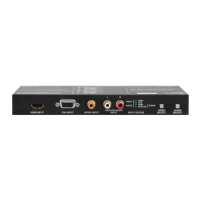
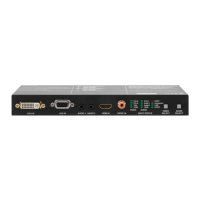
Identifies and describes the DVI-I, VGA, HDMI, Audio, S/PDIF inputs, and status LEDs on the front panel.

Rear Panel Connectors and Controls

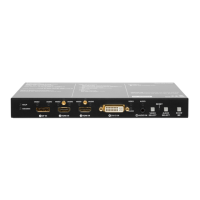
Details SC MM OUT, RS-232, USB, Baud Rate, EDID Rotary, Learn, Reset, Status LEDs, and DC 5V IN.

Electrical Input;Output Connections

Explains HDMI, VGA, DVI-I, Digital Audio, RS-232, Fiber Optical, USB, and Analog Audio connections.

Installation and Operation

Device Functions and Settings

Service Menu and Remote Control

Remote Control Interfaces

Details control via USB and Serial (RS-232) ports, including simultaneous connections.

Software Control with Matrix Controller

Matrix Controller Software Setup

Provides instructions for installing and establishing a connection with the Lightware Matrix Controller software.

Matrix Controller Menu Operations

Explains the crosspoint array, switching, working modes, input/output parameter settings, and EDID management via software.

Programmers Reference

Maintenance and Troubleshooting

Basic Troubleshooting

Offers solutions for common problems like power, connection, picture distortion, EDID, and HDCP issues.

Specifications

Input;Output and Signal Specifications

Describes supported audio/video inputs, optical output, digital video signal standards, and resolutions.

Lightware UMX-OPT-TX150R Specifications

General IconGeneral
Product CategoryExtender
ModelUMX-OPT-TX150R
Signal TypeHDMI
Input Ports1
Output Ports1
Max Resolution4K@60Hz
Max Distance150m
HDCP2.2
Power Supply5V DC
Operating Temperature0°C to +40°C
Storage Temperature-20°C - +70°C

Related product manuals