How do I use the Indicator keypad to enter text?
You can enter numbers, letters or symbols on any screen that has a flashing cursor, for example the Data Entry and
Edit? screens.
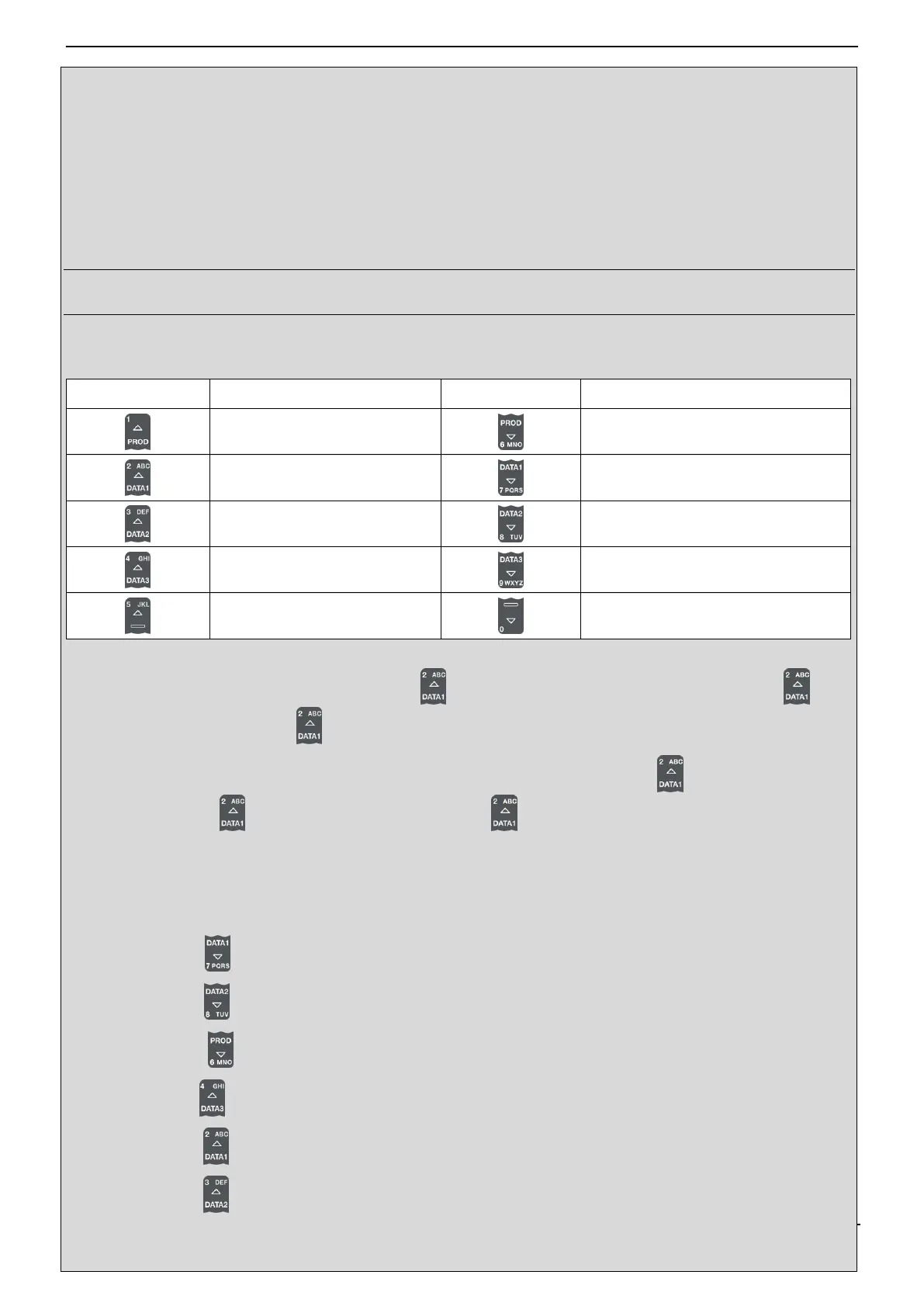
The Indicator has a keypad of buttons, with each used to select and enter a range of characters. When a button is pressed,
the first character will appear on screen. If you press the button again within one second, the next character will display. If
you continue to press the button, each character in the range will display in turn until the first character is displayed again.
One second after a button is pressed, the character will be entered and the cursor will move to the next space. You can then
enter another character.
TIP: Predictive text is available on some screens, if it has been enabled during installation. This means that you may only need
to enter the first few characters of a word for the whole word to display on screen.
Characters
When entering the first character of a value, the first time is pressed, the number 2 will display; the second time is
pressed, A will display; the third time is pressed, B will display, etc.
When entering other characters in the value, lower-case letters will display first, so the first time is pressed, the letter a will
display; the second time is pressed, b will display; the third time is pressed, c will display, etc.
Example
To enter the word Pumice using the keypad, you would complete the following:
1) To enter P, press twice.
2) To enter u, press twice.
3) To enter m, press .
4) To enter i, press three times.
5) To enter c, press three times.
6) To enter e, press twice.



 To Next Page