5.1.2. Adding a data field value
If the required data field value is not available to select, you can add the value using the keypad.
IMPORTANT: Data field values can only be entered using specific Western Latin characters, such as in English.
The following example assumes that Data 1 has been configured to hold customer names and shows how to add a new
customer name:
1) Press or .
The Customer screen will display.
2) Press .
The Data Entry screen will display.
3) Use the keypad to enter the name of the value, then press .
The new Customer value will be assigned to the next load.
5.1.3. Editing a data field value
You can edit a data field value if required by using the Data List function.
IMPORTANT: Data field values can only be entered using specific Western Latin characters, such as in English.
1) Press twice.
The Main Menu will display.
2) Select Data List, then press .
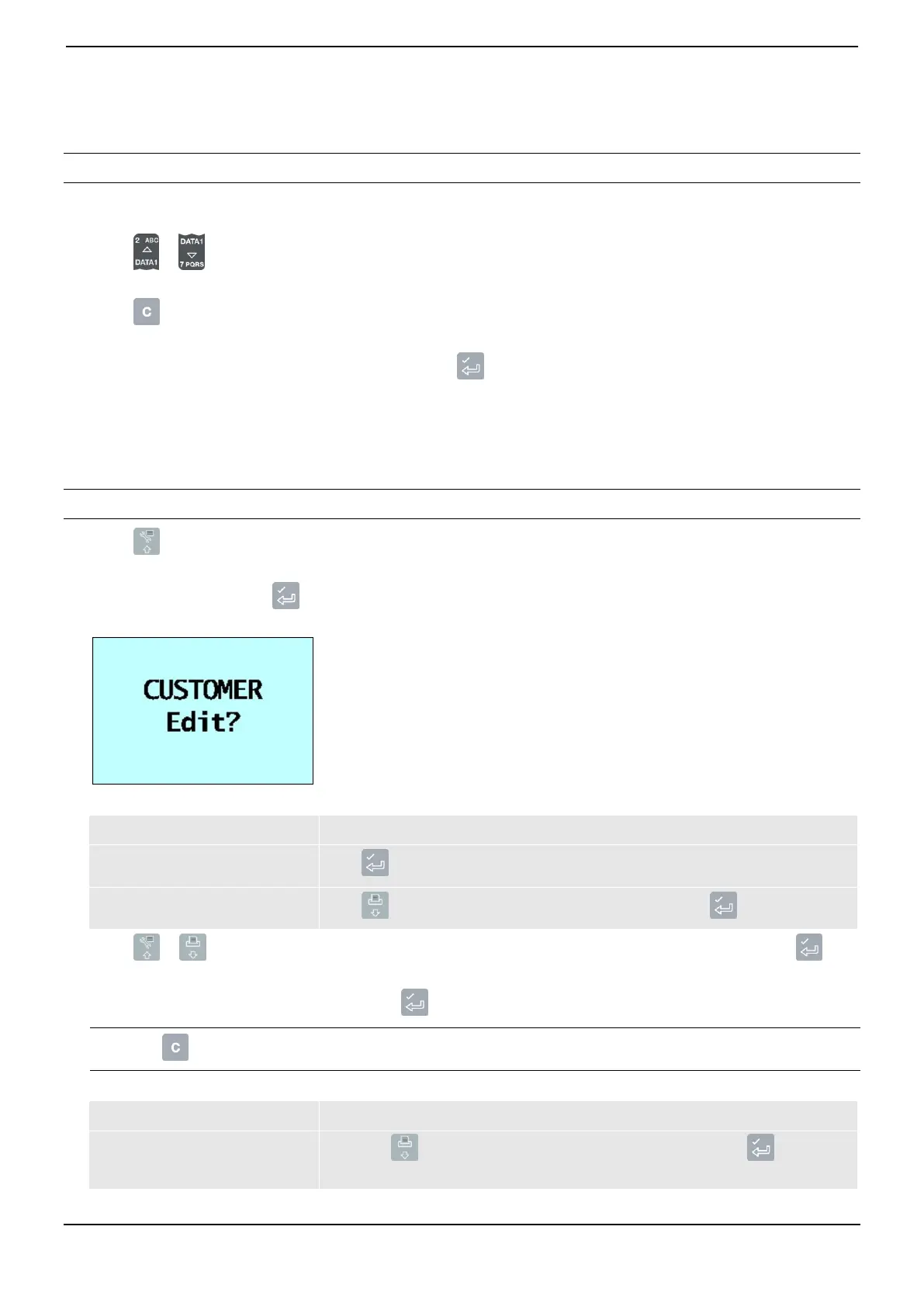
The Edit? screen will display.
3) Complete the following:
4) Press or to scroll up or down the list of data values until the required data value is displayed, then press .
The Data Entry screen will display
5) Use the keypad to edit the data value, then press .
TIP: Press to clear the current value name.
6) Complete the following:



 To Next Page