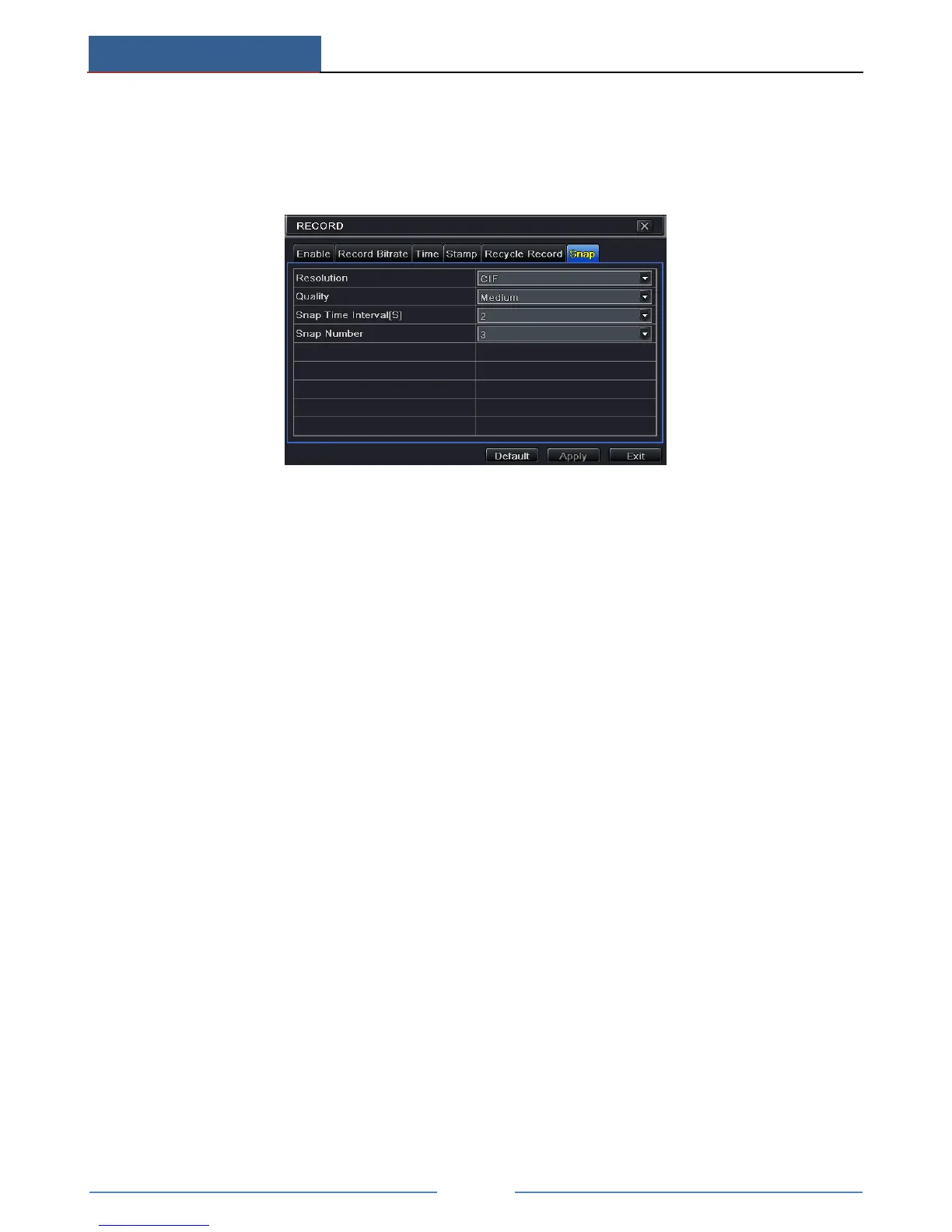
Go to Main MenuSetupRecordSnap as shown below. You can set auto snap here.
① Set resolution, image quality, snap time interval and snap number.
② Click “Apply” to save the settings. The system will automatically capture pictures
according to the setup.
Taking Snapshots on Motion Alarm
① Go to Main MenuSetupAlarmMotion. Enable motion alarm and then set the motion
detection area (see Chapter 9.2 Motion Alarm for details).
② Go to alarm handling setting by click “Setting” button under Trigger. Then checkmark the
snapshot channel and click “OK” button to confirm the settings.
③ Set schedule for motion alarm. The setting steps are similar to normal schedule recording
(See Chapter 6.3 Schedule Recording for details).
④ Click “Apply” to save the settings. The picture will be automatically captured once a
motion alarm happens.
Taking Snapshots on Sensor Alarm
Some models may support this function.
① Go to Main MenuSetupAlarmSensor. Enable sensor alarm and choose the sensor
type.
② Go to Alarm Handling tab. Then click “Setting” button under Trigger. An alarm trigger
box will pop up. Then select the snapshot channel and click “OK” button to confirm the
settings.
③ Set schedule for sensor alarm. The setting steps are similar to normal schedule recording
(See Chapter 6.3 Schedule Recording for details).
④ Click “Apply” to save the settings. The picture will be automatically captured once a
sensor alarm happens.
7.5.2 Playback by Picture Search
① Go to Main MenuSearchImage tab.
② Select data and channels on the right hand side.
③ Press “Search” button to search for a recorded image.



 To Next Page