during this period it is considered it as continuous movement, otherwise it will be
considered as a single motion.
③ The setup steps of motion trigger are similar to “Alarm Handling” (See Sensor Alarm
Handling setting for more details).
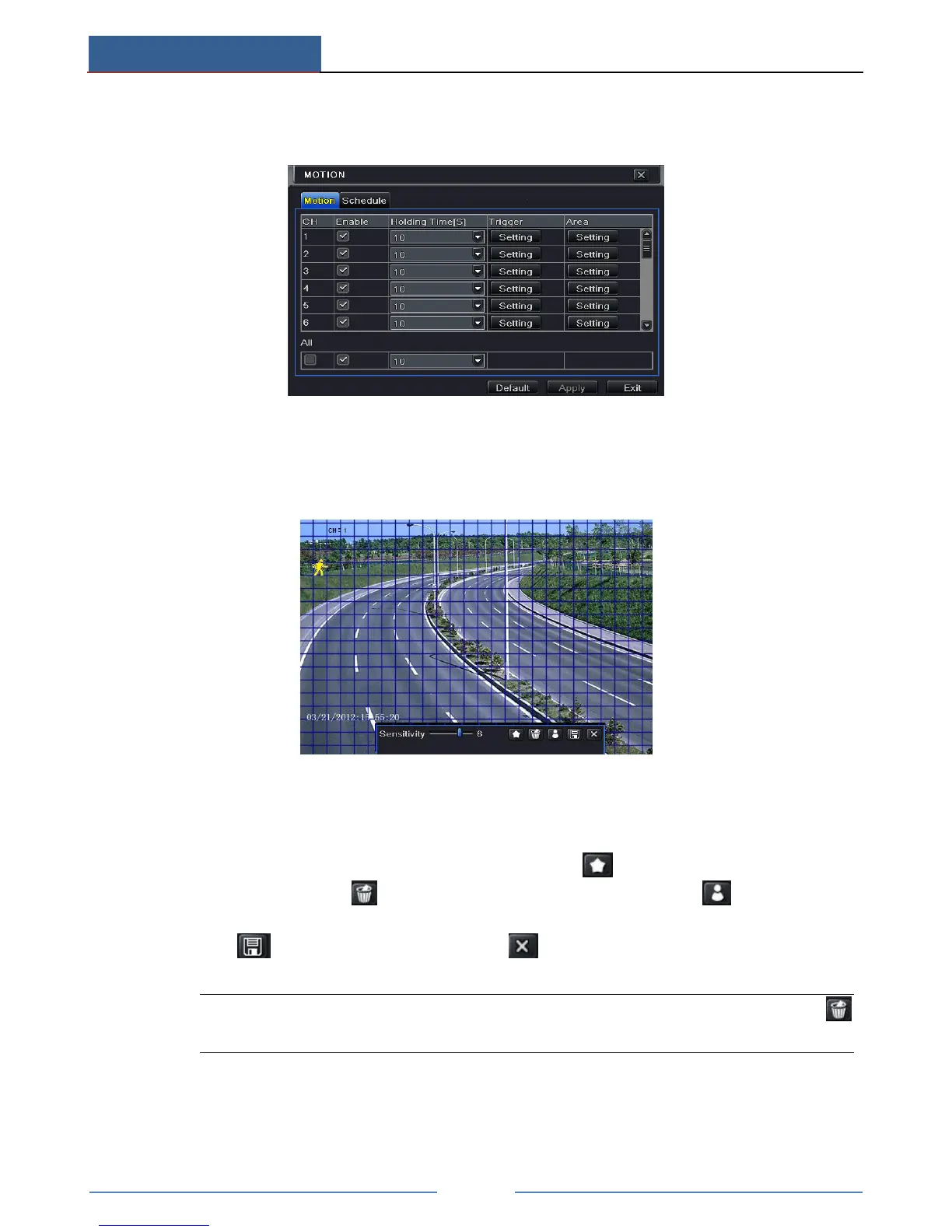
④ After clicking Area button, a dialog box will pop up as below.
⑤ In the Area interface, you can drag slide bar to set the sensitivity value (1-8). The higher
the value is the more sensitive it is to motion. Since the sensitivity is influenced by color
and time (day or night), you can adjust its value according to the practical conditions.
Left click the grid and drag to delete area. Click icon to set the whole area as
detection area. Click icon to clear the set detection area. Click icon to test the
sensitivity as per the local conditions. Once motion is sensed, it displays a figure icon.
Click icon to save the setting. Click icon to exit the current interface.
Note: Prior to setting motion detection field it is recommended that you click
icon to clear the existing field and set afresh.
⑥ Select “All” to set the same settings for all channels.
⑦ Click “Apply” button to save the setting.



 To Next Page