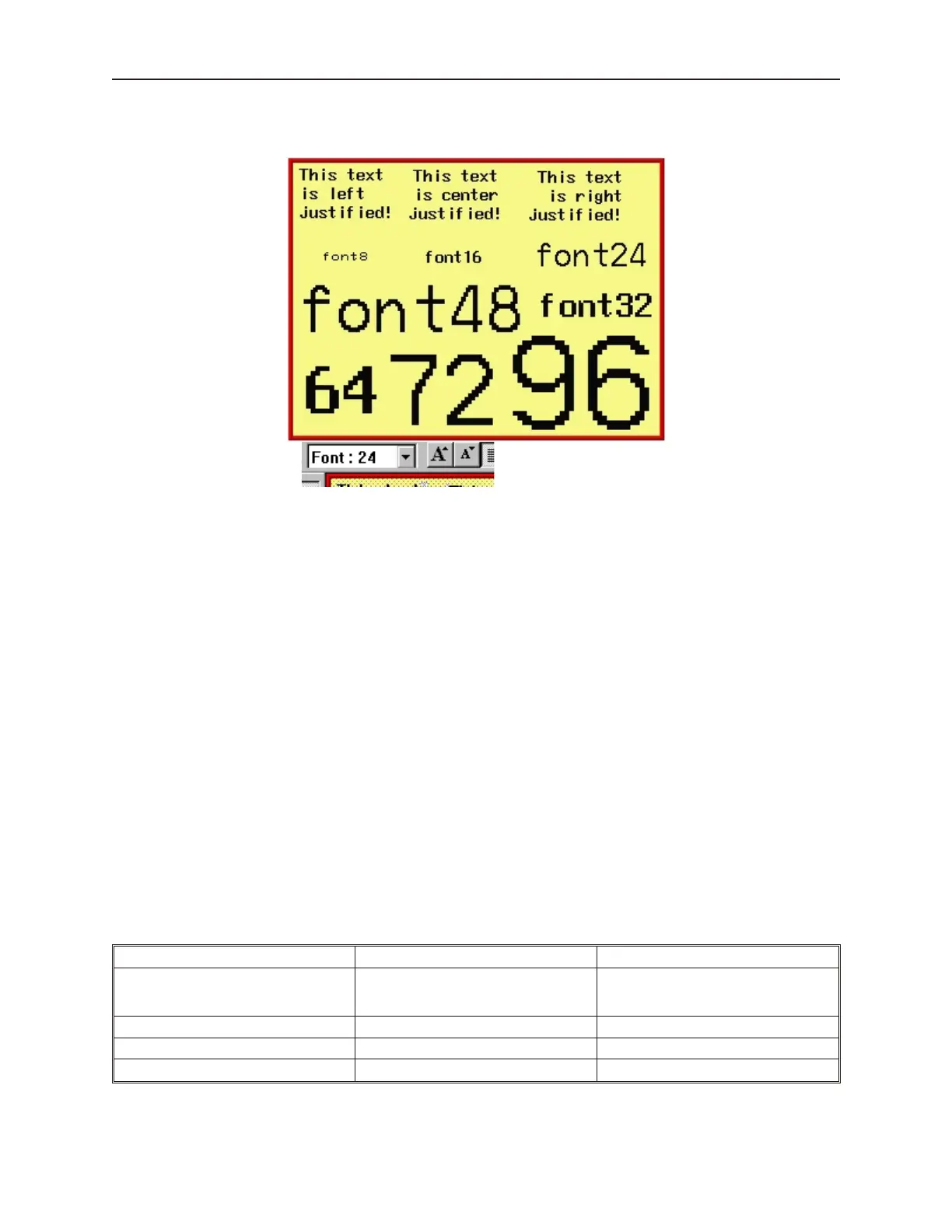
The following illustration shows the various font sizes available.
4To change the font size
1. By clicking onto a text box, you can easily change the font size by using the Font: box or the
Enlarge or Reduce buttons on the Manager toolbar.
2. Click on the pull-down box of the Font: box and select one of the font sizes or
3. Click the Enlarge button to increase the size of the text box by one font size.
4. Click the Reduce button to decrease the size of the text box by one font size.
5. Note that if the text box overlaps one of the borders of the window when enlarged, then the
command to enlarge the text box is ignored.
Pre de fined Shapes and Bitmaps
In addition to using the drawing tools to create your own graphics, EasyBuilder provides two types of predefined
graphics objects: shapes and bitmaps. These graphics objects are stored in libraries that come with EasyBuilder,
(more on libraries in the next section). Shapes and bitmaps are both used for the same purpose, to display a
predefined complex graphics object on the OIT screen. The difference between shapes and bitmaps is how they are
composed and stored.
Shapes are vector-based graphics which are stored in files that contain dimensional information about the shape.
Shapes are actually composed of several simpler graphics like the ones created by the drawing tools. Because of
this, they can usually be more easily modified than bitmaps.
Bitmaps are pixel-based graphics which are stored in files that contain information about each pixel to compose a
bitmap graphic. The pixel is the smallest possible detail that you can change on a screen. Because of this, although
bitmaps are more difficult to modify, they offer the most flexibility in customizing the graphic object.
In most cases, you won’t need to know the difference between a shape graphic and a bitmap graphic. You will base
your selection on what looks good. However, keep the following comparisons in mind.
Shapes Bitmaps
Ease of Creation Can be created using EasyBuilder
Must be created using a desktop
graphics application such as Microsoft
Paint
TM
Memory Requirements Low High
Quality of picture after changing size Good Fair to Bad
Time required to display on OIT screen Quick if not too complex Quick if not too large
1010-1001a, Rev 02
Cre ating Graphic Ob jects 129



 To Next Page