Span: -32767 to 32767 Selects the number that represents the total span of the bar graph
11. Click OK to close the Create Bar Graph Object dialog box. The main screen of EasyBuilder
appears with the cursor tied to a rectangular outline of the part you just created at the upper
left corner of the screen. Move the part to the desired location on the window.
12. Once the part is placed onto the window, you can adjust the attributes of the Bar Graph by
double-clicking on the part.
Cre ating Dis play Me ters
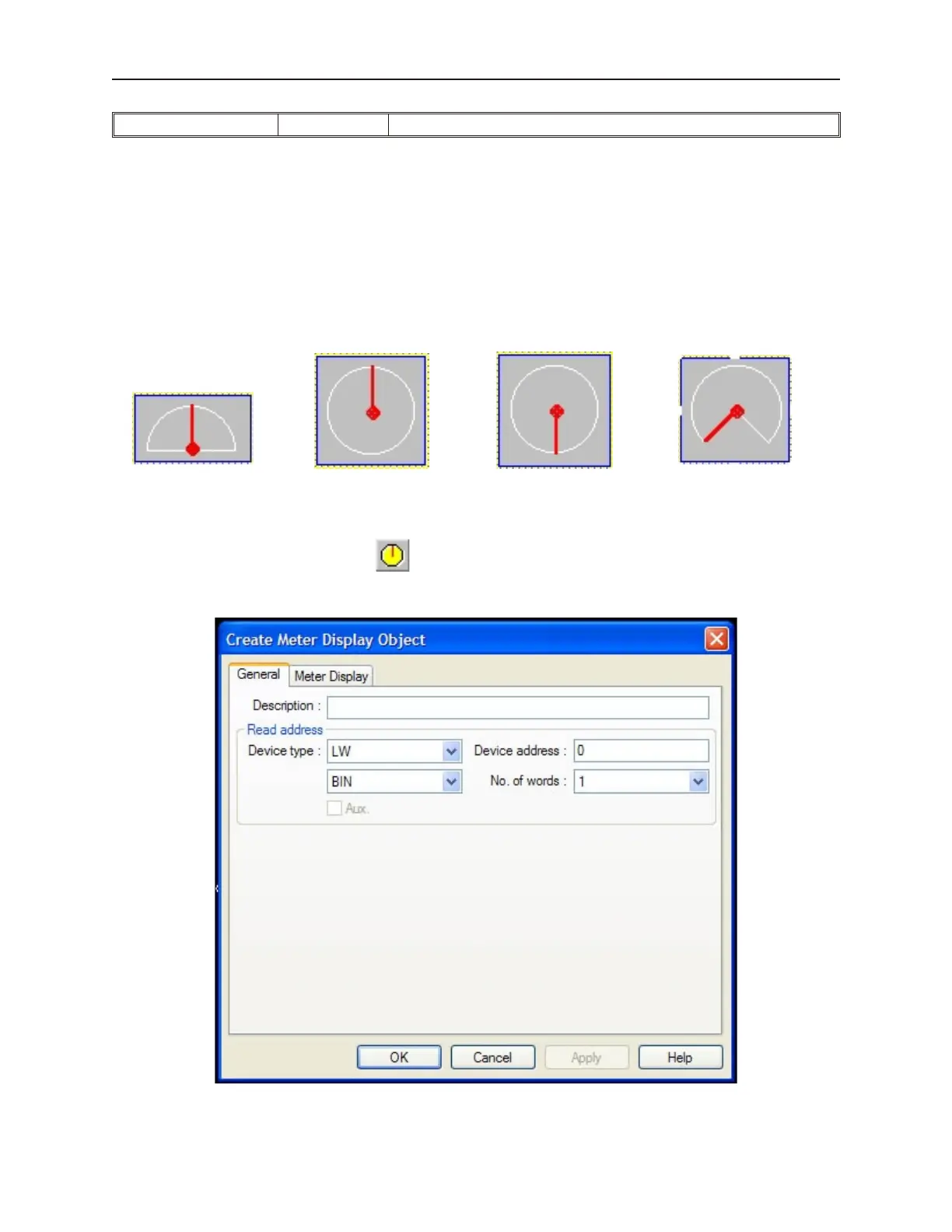
The Dis play Me ter Ob ject is used to rep re sent the data in a 16-bit PLC reg is ter as a scaled me ter. You can con fig ure
the Dis play Me ter in four styles:
Up Half Full Up Full Bottom ¾ Full
The Display Meter can be configured with any base number that represents 0 level and any span range. The Display
Meter object is most often used with the Scale Object and a shape in the background such as a Rectangle Object.
4To create a Display Meter Object
1. From the Parts menu, click Meter Display. Or click the Meter Display icon in the Part2
toolbar. The Create Display Meter Object dialog box appears.
1010-1001a, Rev 02
216 Sil ver Se ries In stal la tion & Op er a tion Man ual



 To Next Page