Chapter 9 - Using and Creating Keypads
The OIT operator must have a keypad available to enter new data when using the Numeric Input Object or the
ASCII Input Object. EasyBuilder includes three group libraries (keypad.glb, user-library-keypad.glb and
user-library-keypad1.glb), which contain sample keypads that can be placed onto a window screen. You can also
create your own custom keypads. This chapter focuses on how to create keypads, display them on the window
screen, and use them for entering data into PLC registers.
How to Cre ate a Key pad
Any keypad that you create is actually composed of keys using the Function Key Object. The Function Key Object
can create alphanumeric keys as well as control keys, (i.e. Delete, Enter, Clear, etc.).
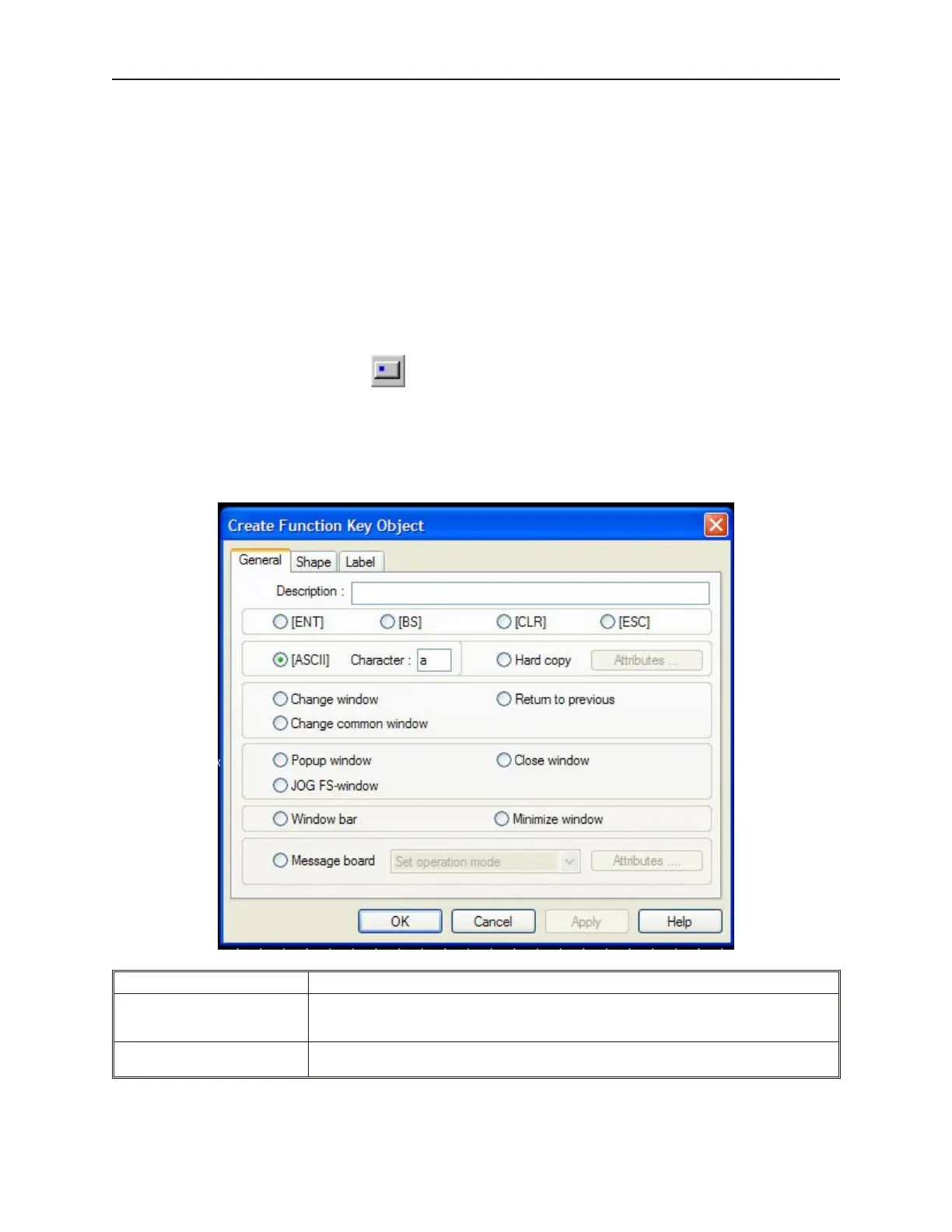
4 To create a Function Key Object
1. From the Parts menu, click Function Key. Or click the Function Key icon in the Part1
toolbar. The Create Function Key Object dialog box appears.
2. Use the Description: box to enter a title for the Function Key part. A description is not
necessary but does help you identify the purpose of the part.
3. Just below the Description: box, are four control key options. Control keys are used during
data entry to perform a specific function.
Function Description
[ENT]
Configures the Function Key as an Enter key. When pressed, it will write the alphanumeric
characters entered into a Numeric Input Object or ASCII Input Object to the target PLC
register.
[BS]
Configures the Function Key as a Delete key. When pressed, it will delete the last
alphanumeric character entered.
1010-1001a, Rev 02
Using and Cre ating Keypads 201



 To Next Page