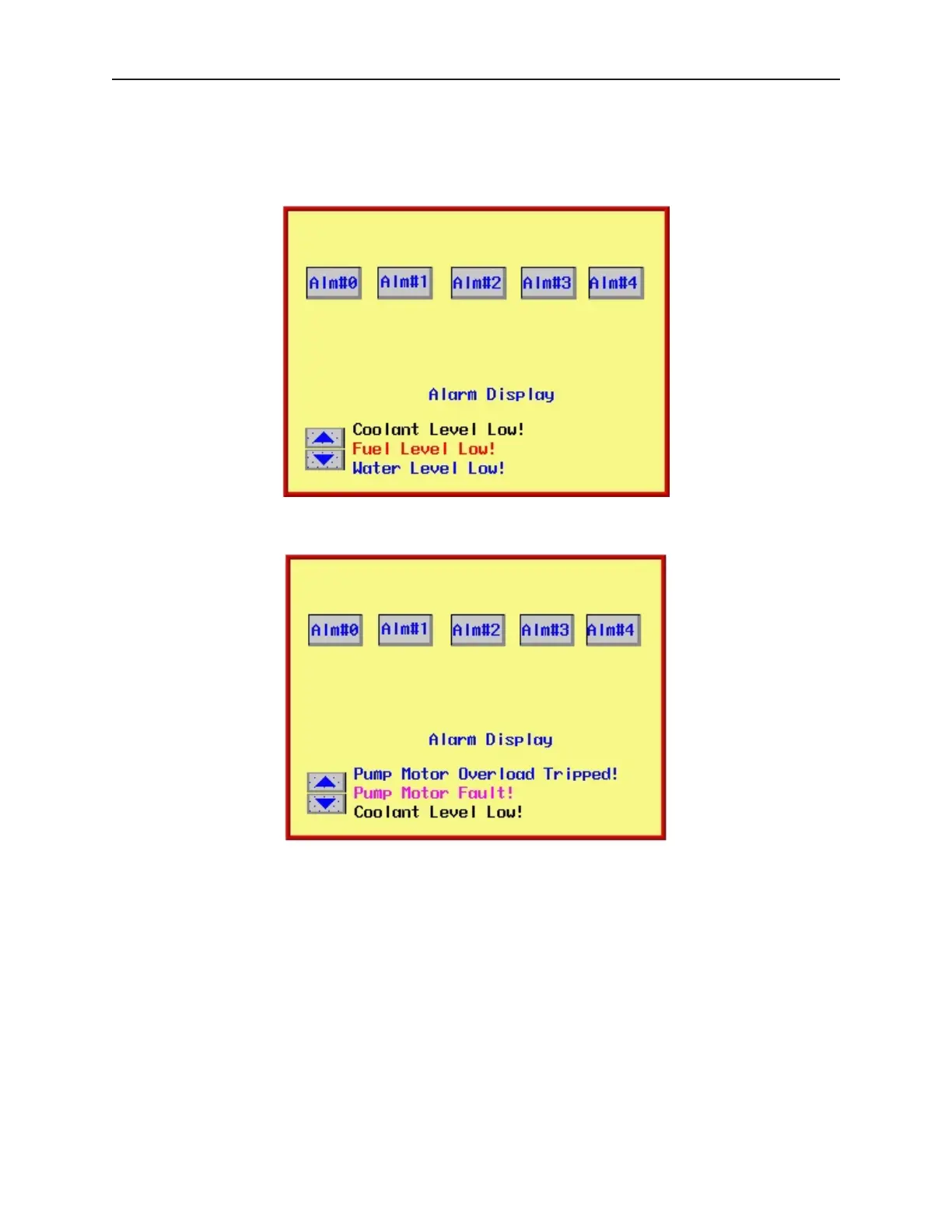
Press the Alm#0, Alm#1, and Alm#2 keys to activate three alarms. As each alarm is activated it is immediately
displayed in the Alarm Display scrollable window. The most recent alarm is always displayed at the top of the list.
Notice that all three alarms can be seen in the scrollable window since we configured the Alarm Display object with
a scrollable window of three lines.
Now press the Alm#3 and Alm#4 keys to activate those alarms. Since the scrollable window is configured for three
lines, two of the alarms on the list cannot be seen.
To see the other alarms, you can press the Down Arrow key. This will increment the value in LW0, which is used
by the Alarm Display object to determine what part of the alarm list to show with the scrollable window. Use the
Up Arrow key to return to the top of the list.
Using the scrollable window feature on the Alarm Display object allows the OIT operator to see all the currently
active alarms without allocating a large area of the OIT screen to see them.
Dis play ing Alarms us ing the Alarm Bar Ob ject
The Alarm Bar Object displays alarms scrolling horizontally along a single line. The alarm bar continuously scrolls
each alarm until the alarm is no longer active. If more than one alarm is active, the Alarm Bar Object appends each
alarm to the string of characters scrolled. This part can be used on window screens where space is very limited. It
also allows you to display long alarm text strings that are too long to be shown in the Alarm Display Object.
1010-1001a, Rev 02
228 Sil ver Se ries In stal la tion & Op er a tion Man ual



 To Next Page