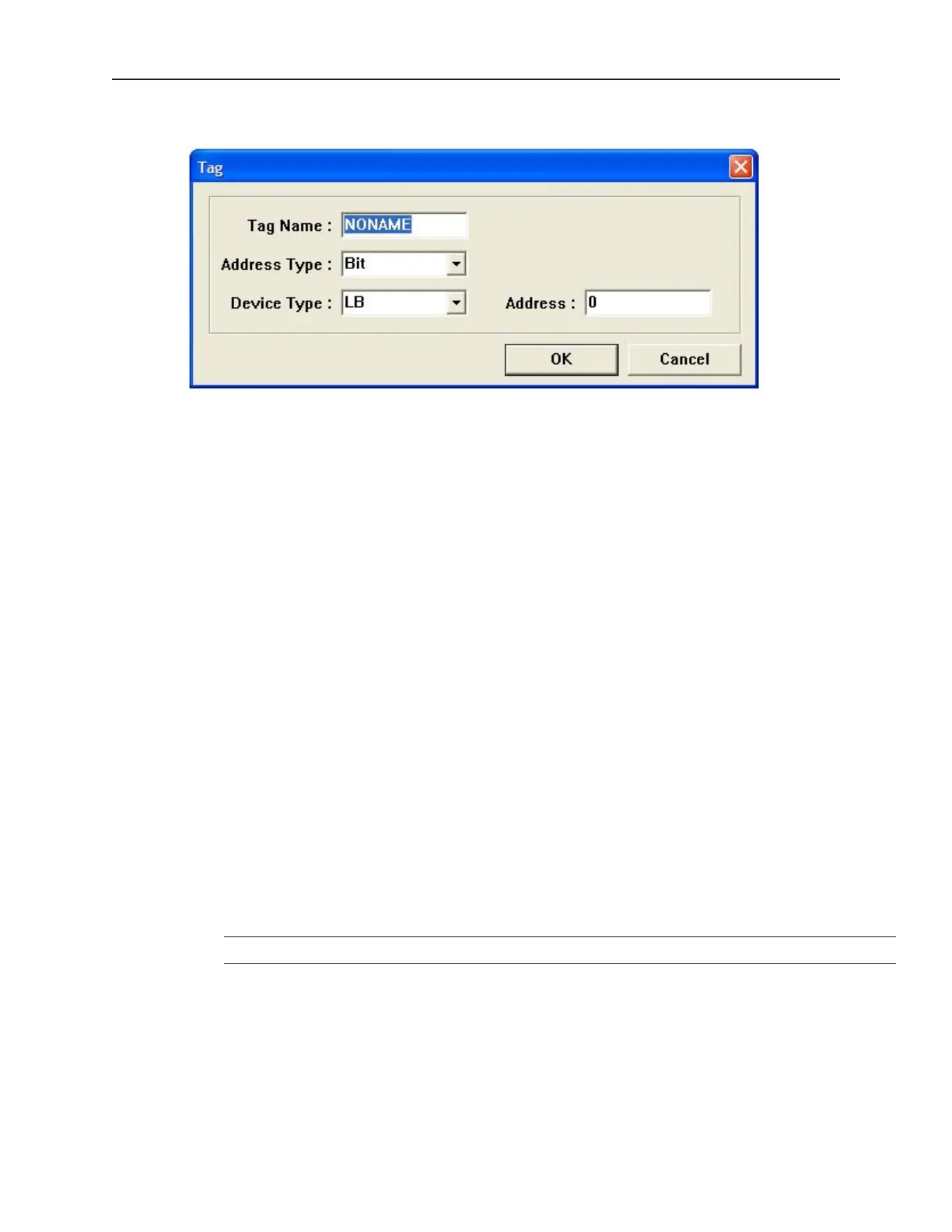
2. To create a new Tag listing, click the Add button to display the Tag dialog.
3. Enter the new Tag name. Tag names may be up to 100 characters, any character.
4. Enter the Address type (Bit or Word).
5. Enter the Device type.
6. Enter the Register Address.
7. Make additional entries to the Database by repeating the procedure.
4To delete a tag:
1. Open the Tag Library as directed above.
2. Select the tag to delete.
3. Click the Delete button.
4To modify a tag:
1. Open the Tag Library as directed above.
2. Select the tag to edit.
3. Click the Modify button.
4. Edit as applicable and then click OK.
Im port ing and Ex port ing the Tag Li brary
This feature allows tags from the tag library to be saved into a .tgl file format. Once saved, the file can be loaded
into another project.
4To save the tag library:
1. Click on Save Tag File... The Open dialog box appears.
2. Enter the name of the file where you wish to save the data.
3. Click Open.
4To load the Tag Library from an existing .tgl file:
1. Click on the Load Tag File...The Open dialog box appears.
2. Browse for the .tgl file that contains the tags.
3. Click Open.
The .tgl file format can not be edited.
The tag library can also be imported and exported using a comma-separated variable (.csv) file format. This format
is very useful if you need to make several changes to the database; or, if creating a new project, it is easier and faster
to create the tags in a .csv file.
4To export the tag library to a .csv file:
1. Click Export CSV. The Open dialog box appears.
2. Enter the name of the file where you wish to save the data.
3. Click Open.
1010-1001a, Rev 02
154 Sil ver Se ries In stal la tion & Op er a tion Man ual



 To Next Page